
Fax editing tools
Redact
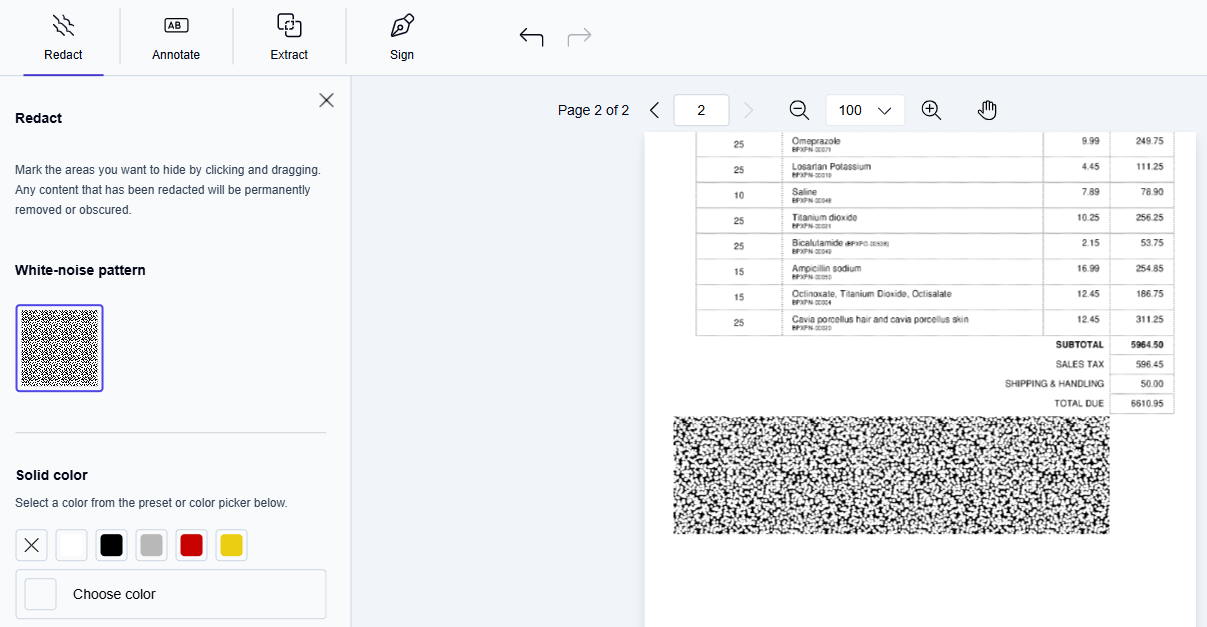
Select a redaction style and draw a box over the area you want to hide. In the redacted fax, the selected areas are permanently covered using your chosen style.
📌 The original fax remains unchanged. Once you click Save, the covered content cannot be recovered in the redacted fax.
How to use:
Click Redact in the toolbar.
→ The Redact pane opens on the left side of the PDF Editor.Select a redaction style in the left pane:
White-noise pattern
Click the white-noise pattern to select it.Solid color
Select a preset color or click Choose color to pick a custom one.
Draw a box over the area you want to hide.
→ The area is covered with the chosen overlay.Optional: To adjust a placed redaction box:
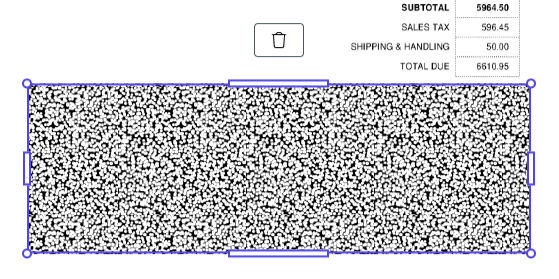
Click the redaction box to select it. Click outside to deselect.
Drag the selected box to a new position within the page.
Drag a resize handle to make the box larger or smaller.
Press Delete or click the delete icon above the selected box.
Optional: Click Reset masking preferences to remove all current masking and redaction settings.
Continue editing as needed (you can add more redactions or make other edits).
When you are done with all edits, click Save.
Sign
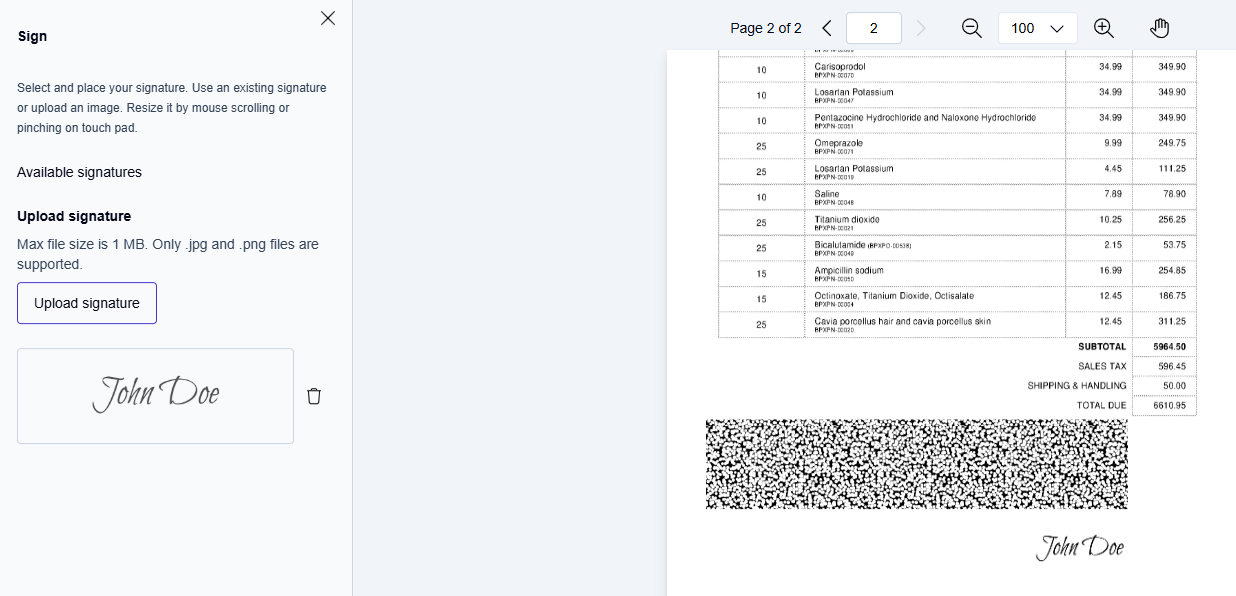
Upload your signature files (JPG or PNG, up to 1 MB each). You can place one signature at a time on any page of your document. Once placed, you can select, move, resize, and delete each signature before clicking Save.
How to use:
Click Sign in the toolbar.
→ The Sign pane opens on the left side of the PDF Editor.Upload your signature (JPG or PNG, maximum file size: 1 MB).
In the left pane, select the signature you want to use.
Move your cursor to position the signature, then click to place it.
Optional: To adjust a placed signature:
Click the signature to select it. Click outside to deselect.
Drag the selected signature to a new position within the page.
Drag a resize handle to make the signature larger or smaller.
Press Delete or click the delete icon near the selected signature.
Continue editing as needed (you can add signatures to other pages or make other edits).
When you are done with all edits, click Save.
Extract specific pages
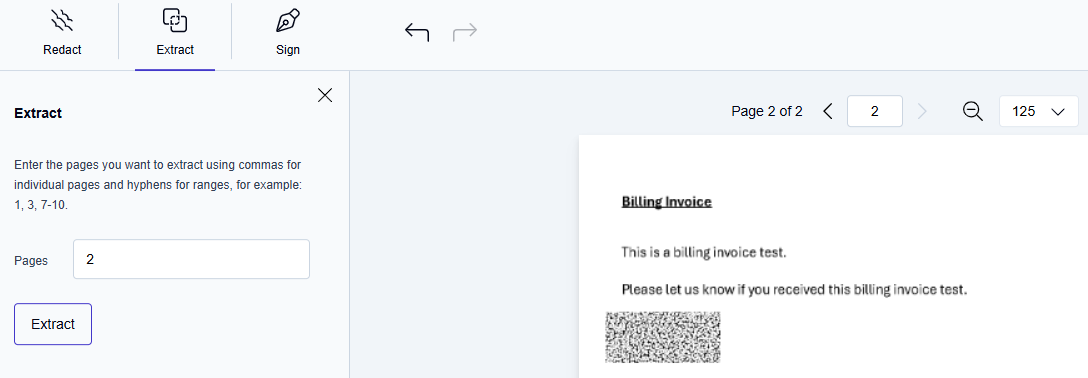
Create a new document from only the pages you want. The original fax stays intact, and only the extracted pages are sent or stored.
How to use:
Click Extract in the toolbar.
→ The Extract pane opens on the left side of the PDF Editor.Choose the pages you want to extract — either as a range (e.g., 2–5) or as individual pages (e.g., 1, 3, 7).
Click Extract to generate a new document containing only those pages.
Continue editing as needed.
When you are done with all edits, click Finish.
Rotate pages
Fix orientation issues by rotating individual pages or the whole document.
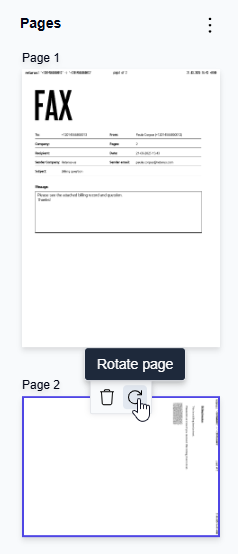
Rotate icon
How to use:
Select the page you want to rotate.
Click the Rotate icon. Each click turns the selected page(s) by 90° (cycling through 90°, 180°, 270°, and back to 0°).
Continue editing as needed.
When you are done with all edits, click Finish.
Rotate clockwise (all pages)
How to use:
Open the thumbnail view and click the three dots (…) menu.
Select Rotate clockwise to rotate all pages in the fax by 90°.
Continue editing as needed.
When you are done with all edits, click Finish.
Remove unwanted pages
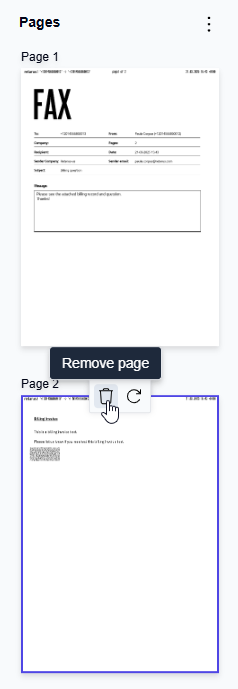
Delete pages you don't need in the final document.
How to use:
In the thumbnail view, select the page you want to remove.
Click Remove Pages in the toolbar.
→ The selected page is deleted from the document.Continue editing as needed.
When you are done with all edits, click Finish.
Reorder pages
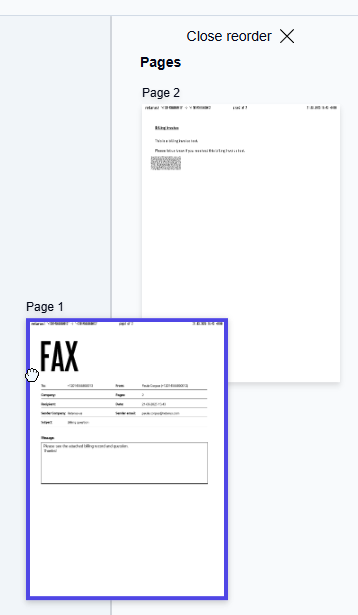
Rearrange the sequence of pages for better readability.
How to use:
In the thumbnail view, click the three dots (…) menu and select Reorder to activate Reorder mode.
Drag and drop pages into the desired sequence.
When finished, click Close reorder in the thumbnail view to exit Reorder mode.
Continue editing as needed.
When you are done with all edits, click Finish.
Preview your changes
Review the entire document before sending or storing.
How to use:
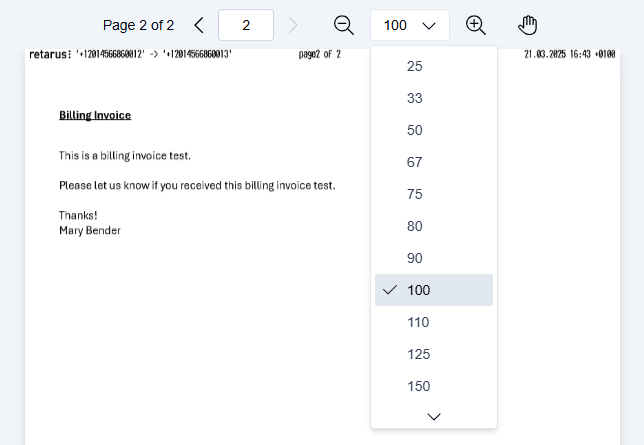
Navigate through the fax using page arrows or the thumbnail view.
Use zoom controls or the mouse wheel to check details closely.
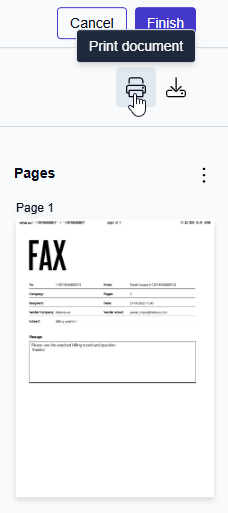
Create a hard copy of your edited fax. Printing does not affect the saved or sent version.
How to use:
Click the Print icon
 in the toolbar.
In the print dialog, adjust printer settings, page range, and orientation as needed.
Confirm to start printing.
Download
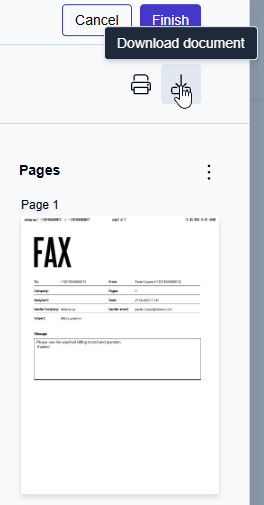
Save a local copy of your edited fax. Files are downloaded as PDF.
How to use:
Click the Download icon
 in the toolbar.