
With the Enterprise Fax Portal, you can edit faxes before you send, forward, export, email, or store them through the S3 API. This lets you make quick changes, such as redacting sensitive data, adding a signature, or extracting pages, while preserving the original fax in the portal.
Editing is available for both received and sent faxes.
Before you begin
-
Document Editing is a configurable feature. If you don't see the Open in editor option, contact your administrator.
-
You can edit only PDF attachments.
-
The system automatically records all editing actions in the activity log, including the user, timestamp, and action type.
-
When you send, forward, export, or email a fax, the original fax remains unchanged in the portal.
-
When you store a received fax in S3, the system moves the fax to S3 with all edits applied. The original is no longer available in the portal.
-
When you store a sent fax in S3, only the edited version is sent to S3. The original fax remains in the portal.
When editing is available
You can edit a fax when you perform any of these actions:
-
Send a new fax
-
Forward
-
Send via Email
-
Store in S3
-
Export
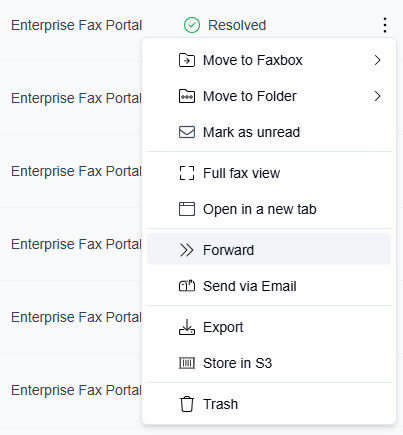
After you select the action, a new window opens. In that window, the editing option appears as follows:
|
Action |
How the option appears |
|---|---|
|
New Fax |
Pen icon |
|
Forward |
Pen icon |
|
Send via Email |
Open in Editor link |
|
Store in S3 |
Open in editor link |
|
Export |
Open in editor link |
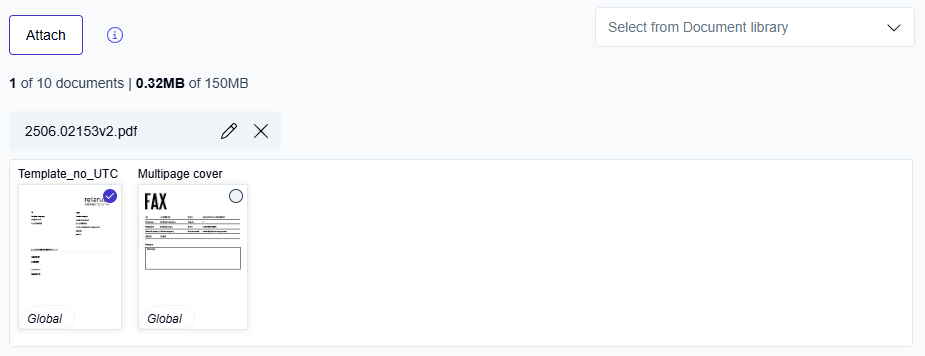
Example: Forward a fax
When you forward a fax, the editing option appears as a pen icon 
How document editing works
-
Choose what you want to do with the fax: New Fax, Forward, Send via Email, Store in S3, or Export.
-
Click the editing option:
-
Pen icon for New Fax or Forward
-
Open in editor link for Store in S3, Send via Email, or Export
→ The fax opens in the PDF Editor.
-
-
Use the editing tools to make your changes.
-
When you finish, click Save, and then click Save changes.
→ You return to the action window.
📌 Once you save, no further edits can be made to that version of the fax.
-
Complete the action (e.g., send or export the edited fax).
Pan
Use Pan mode to navigate through the document without accidentally selecting or modifying existing annotations.

-
Click Pan in the toolbar.
→ The cursor changes to indicate navigation mode. -
Click and drag to scroll through the document.
While Pan mode is active, existing redactions, shapes, and signatures remain visible but cannot be selected, moved, or edited. To interact with annotations again, click any other tool in the toolbar.
Multi-user document locking
To prevent editing conflicts, only one user can edit a fax at a time. When a user opens a fax in the editor, the system automatically locks it. Other users see a lock icon with a tooltip that indicates the fax is in use.
If the system detects no activity for 60 minutes, it displays an inactivity prompt. If the user does not respond within 2 minutes, the system automatically releases the lock and makes the fax available to other users.
The system also releases the lock immediately when the user closes the editor or completes the selected action, such as forwarding, storing, or sending the fax.
Activity logging
The system automatically records all document editing actions to support compliance and maintain a complete activity history.
What is logged
Each edit creates an activity log entry that includes:
-
Action performed
The type of edit and any related follow-up action, such as forwarding, storing, or sending. -
Timestamp
The exact date and time of the action. -
User identification
The name of the user who performed the action.
Log examples
-
'Edited and forwarded on 2025-07-15 at 11:05 by John Doe' -
'Edited and sent via email on 2025-07-15 at 11:37 by Peter Schmidt' -
'Edited and stored via S3 on 2025-07-15 at 14:45 by John Doe' -
'Merged and sent via email on 2025-07-15 at 19:08 by John Doe'
Quick Troubleshooting
Common issues and solutions:
|
Problem |
Solution |
|---|---|
|
Edit button not visible |
The editing feature may not be enabled. Contact your administrator to confirm access. |
|
Can't edit uploaded files |
Editing is supported only for certain file types. Verify that the file type is supported, and then try again. |
|
S3 upload failed |
Check your connection and try again. |
|
Document appears locked |
Another user is currently editing the fax. Wait until they finish or contact them directly. |
|
Signature won't upload |
Ensure the file is in JPG or PNG format and smaller than 1 MB. |
|
Changes disappeared |
This usually happens if you clicked Cancel in the confirmation dialog instead of Save changes. |