
Manage all your Technical Accounts for Transactional Email in one place:
-
View all Technical Accounts across the processing regions available for Transactional Email
-
Create a Technical Account and receive its credentials by email
-
Reset the password of a Technical Account
-
Edit the basic parameters of an existing Technical Account
📌 About Access Privileges
By default, myEAS users with the Customer Admin role can view all Technical Accounts.
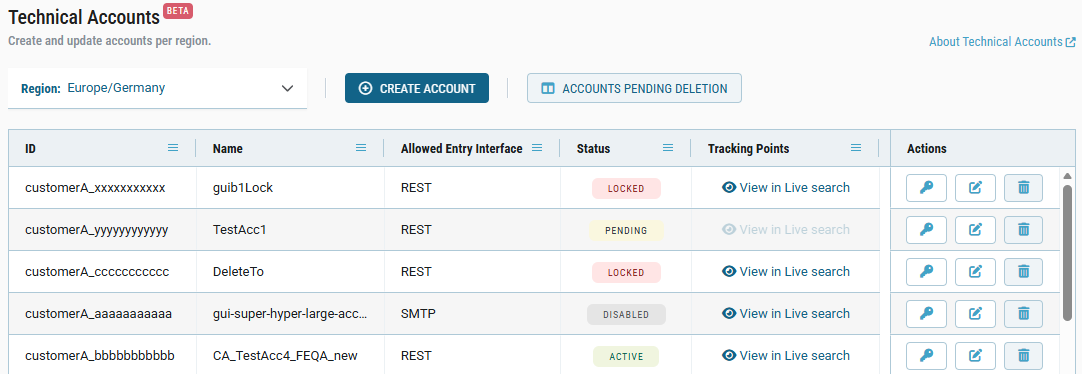
The overview lists the Technical Accounts of one processing region at a time. The region configured for your Customer Number is selected by default. To see the Accounts of another region, select it from the dropdown list.
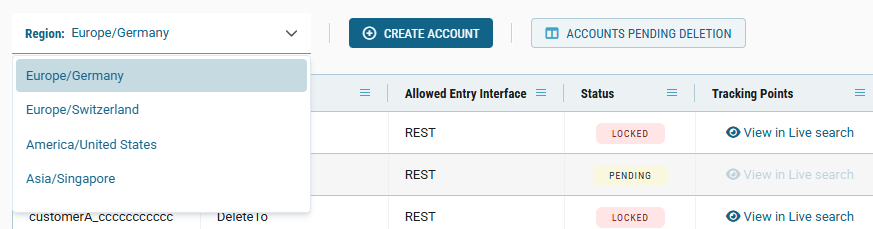
Table columns
|
Label |
Description |
|---|---|
|
ID |
Unique identifier of the Technical Account, in the format |
|
Name |
The display name you assigned when you created the Account. Editable. |
|
Allowed Entry Interface |
The Transactional Email facade the account can use. Editable. A newly created Technical Account can use only one entry interface at a time. |
|
Status |
Available statuses:
|
|
Tracking Points |
Select View in Live Search to open the Tracking Points for the selected Technical Account and processing region. |
|
Actions |
Edit the authentication method and the basic parameters of the Account. |
Create a Technical Account
-
Select Create Account above the overview table.
→ The Create Technical Account wizard opens.
-
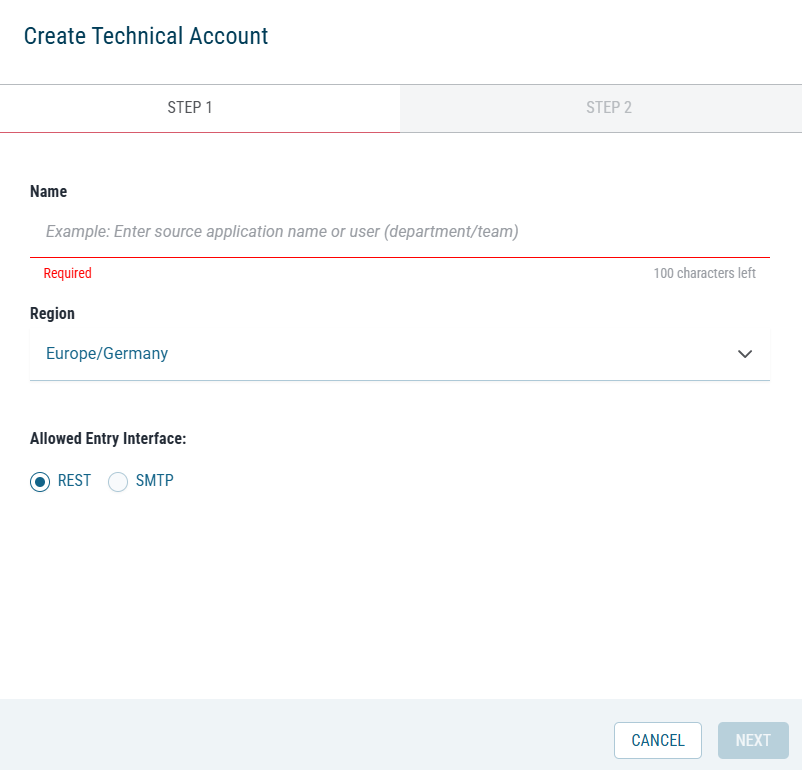
Enter a Name for the account. The name is required and can be up to 100 characters long.
-
Select the Region where data sent from the account is processed. You cannot change the region later. To use a different region, create another Technical Account.
-
Select the Allowed Entry Interface, either REST or SMTP.
-
Select Next to open the second step of the wizard.
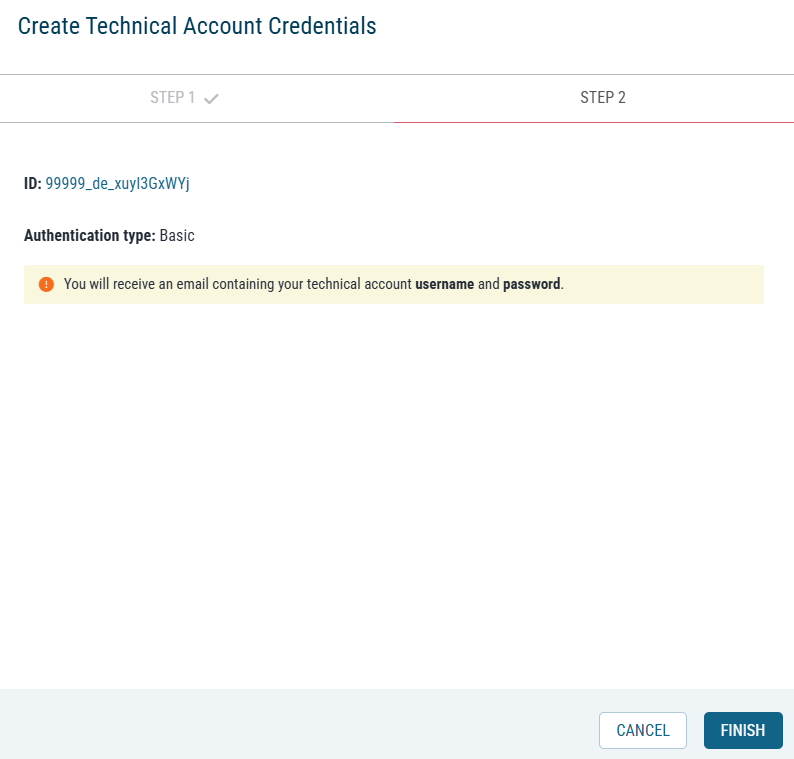
→ Step 2 shows the ID assigned to the account and its authentication type.
-
Select Finish.
→ Retarus sends the username and password by email to the myEAS user who created the account.
📌 New Technical Accounts are set to Pending until Retarus has implemented, tested, and approved the full configuration. Send your Setup Sheet to Retarus Support to complete the setup. The status then changes to Active.
Edit a Technical Account
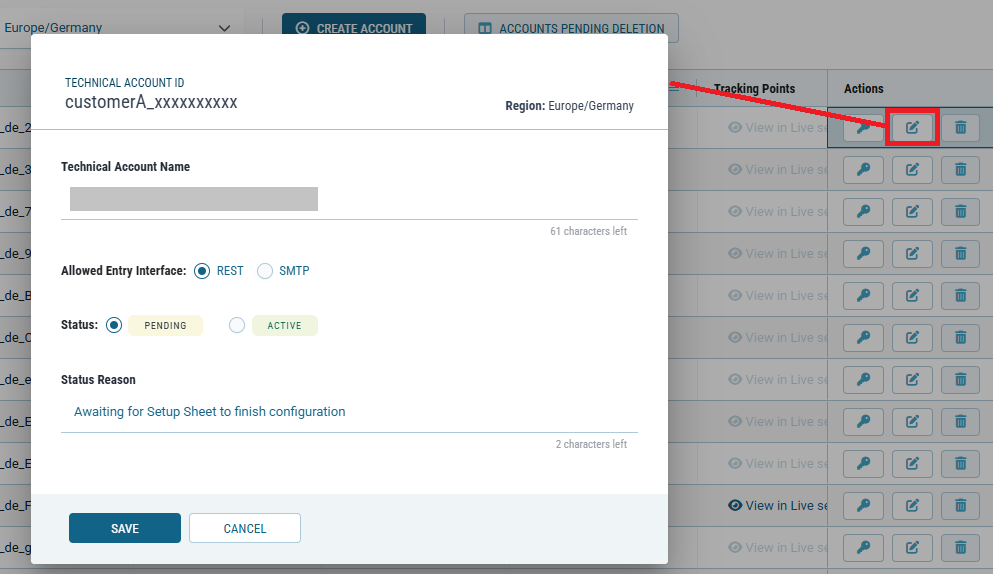
Editable parameters
📌 The processing region is fixed when the account is created. To use a different region, create a new Technical Account.
|
Parameter |
Values |
Description |
|---|---|---|
|
Technical Account Name |
Up to 100 characters |
The name shown in the Technical Accounts overview. |
|
Allowed Entry Interface |
REST or SMTP |
The facade the account can use. You can switch at any time. The change takes effect immediately, and any Source Application still sending requests through the disabled interface is blocked. Legacy accounts that allow both interfaces have to be set to a single one when you save. |
|
Status |
Pending
|
Controls whether the Account accepts traffic. JobRequests are rejected in every status except Active. The options available depend on the current status. |
|
Status Reason |
Up to 50 characters |
Explains why the account is in its current status. |
Status transitions
|
Current status |
You can switch to |
|---|---|
|
Pending |
Active
|
|
Active |
Disabled
|
|
Locked |
Active |
|
Disabled |
Active |
Edit parameters
-
In the Technical Accounts overview, select the processing region of the Account.
-
In the row of the account, select the Edit icon.
-
Change the parameters you want to update.
-
Select Save.
View credentials and reset the password
-
Select

-
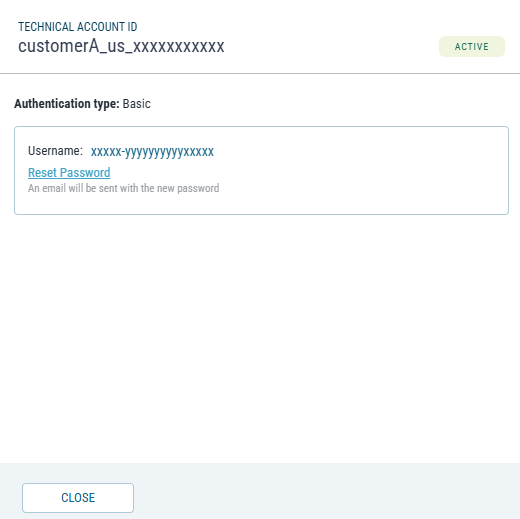
For security reasons, myEAS never displays the password. To issue a new one, select Reset Password.
→ Retarus sends the new password by email.
📌 Once generated, new Technical Account credentials can take up to 10 minutes to become fully active across the entire Transactional Email configuration system.
Delete a Technical Account
myEAS Customer Admins can delete a Technical Account in any status. Deleting removes its credentials, feature configurations, and assigned Sender Domains, and the service rejects all subsequent JobRequests. Before you delete an Account, make sure that no Source Application is still using it.
Deleted accounts no longer appear in the Technical Accounts overview. They move to Accounts Pending Deletion, where they remain for 45 days before they are purged automatically. The overview lists one processing region at a time and shows the purge date of each Account.
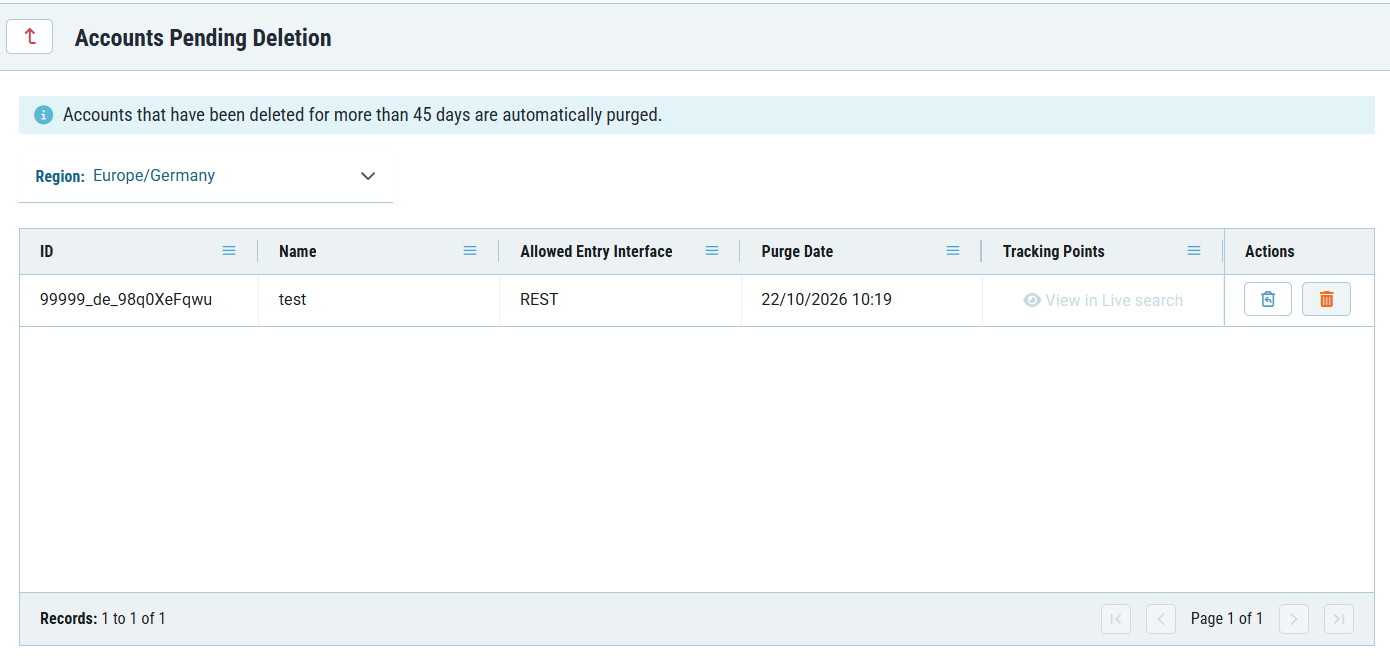
Within the 45 days, you can:
-
Restore the account by clicking

-
Export its Tracking Points from Live Search by following the link in the Tracking Points column.
-
Purge the account by clicking
