
Use Microsoft Entra ID to enable Single Sign-On (SSO) for myEAS/EAS with the SAML (Security Assertion Markup Language) protocol. With this setup, your users sign in through Microsoft Entra ID and get secure, seamless access to myEAS/EAS without separate credentials.
This configuration establishes trust between Microsoft Entra ID (Identity Provider) and Retarus (Service Provider).
Prerequisites
-
You have administrator access to the Microsoft Entra admin center.
-
Each user’s email address attribute is available in your directory. SSO uses the
mailattribute to authenticate users.
Configuring SAML SSO
Creating a new enterprise application
-
Sign in to the Azure portal and go to Entra ID - Enterprise applications - All applications.
-
Select New application.
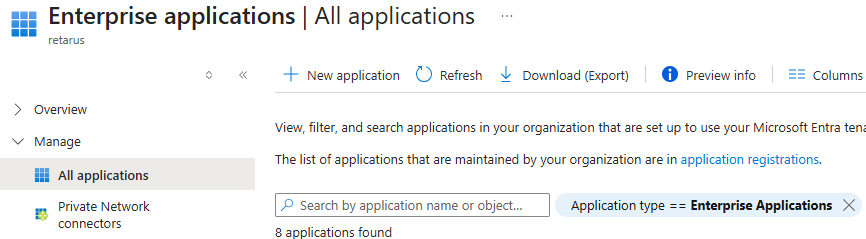
→ The Browse Microsoft Entra App Gallery page opens.
-
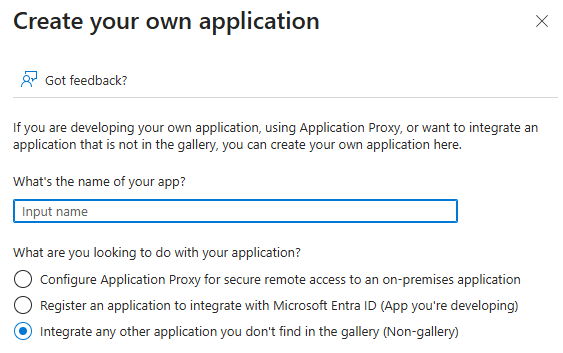
Click Create your own application.
→ The Create your own application panel opens.
-
Enter a name for the application (for example, myEAS SSO) and activate the Integrate any other application you don’t find in the gallery (Non-gallery) option.
-
Click Create.
Assigning users and groups
-
From the left app menu, select Users and groups.
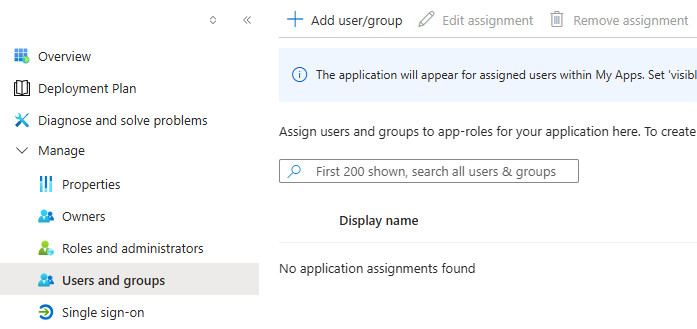
-
Click Add user/group and define the users or groups who should have access to EAS/myEAS.
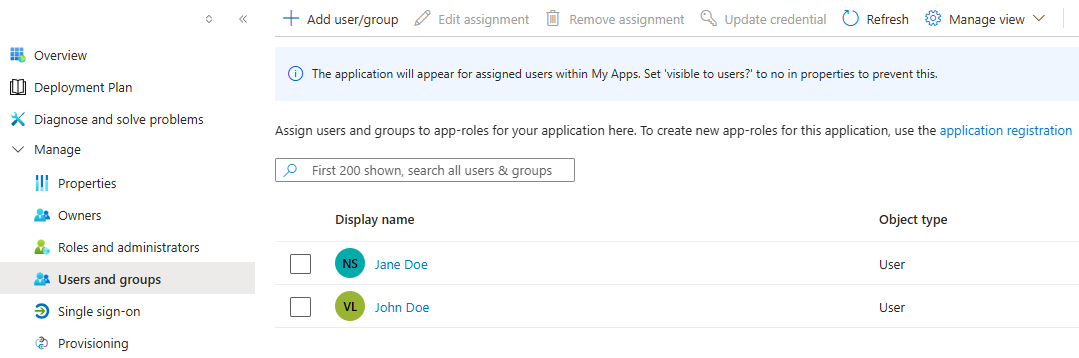
Configuring SAML-based SSO
-
From the left app menu, select Single sign-on and choose SAML.
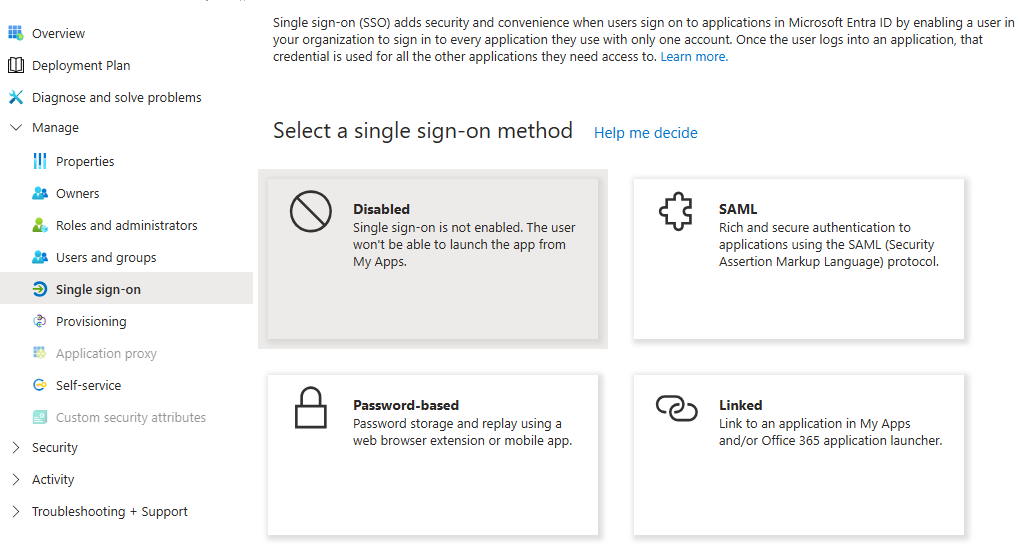
→ The SSO configuration page opens.
-
In the SAML Signing Certificate section, copy the App Federation Metadata Url.
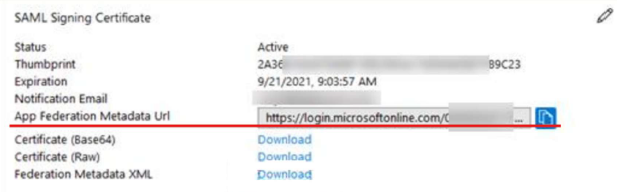
-
Send the URL to your Retarus Implementation Engineer.
→ Retarus completes the backend configuration and provides you with a Metadata XML document. -
Import the Metadata XML document into your SAML configuration to complete the integration.