
The timezone and date range settings control the time period and timezone for the data displayed in your EDI Conversions report.
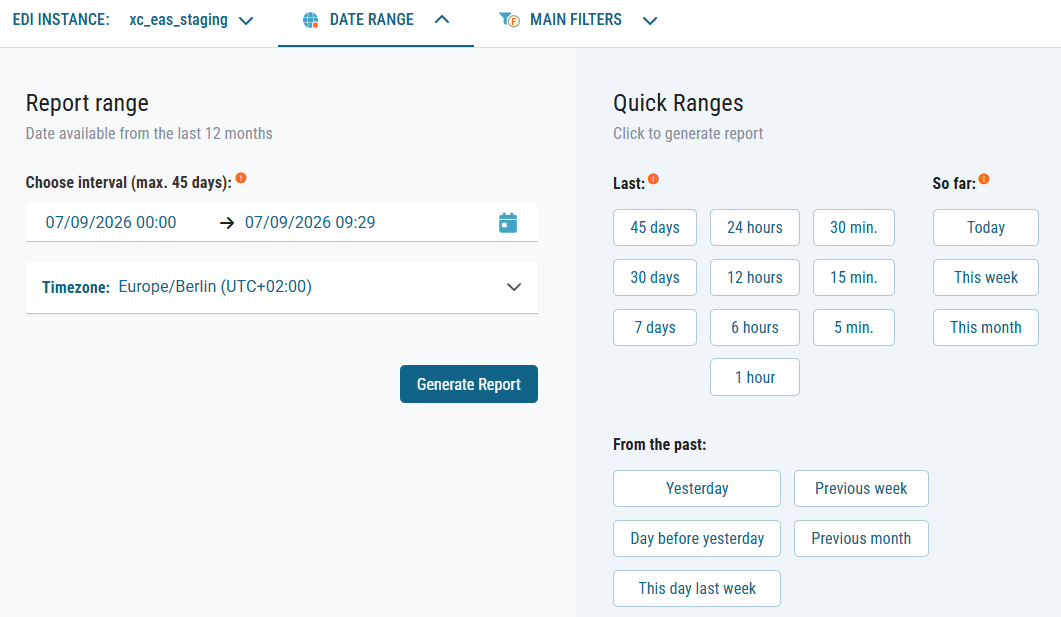
Changing the timezone
-
Click the DATE RANGE tab at the top of the EDI Conversions screen.
→ The section expands to display the date-related settings. -
Select your preferred time zone.
-
Click Generate Report to apply the selected time zone.
Selecting a date and time range
Generate reports for a custom date and time range or select a preset quick range. Data is available from the last 12 months.
-
Click the DATE RANGE tab at the top of the screen.
→ The section expands to display the date and time picker. -
Select your desired timeframe using one of the following methods:
-
Quick ranges
Click any preset button under Last, So far, or In the past (e.g., Today, This week, Yesterday, 24 hours). Clicking a preset automatically generates the report. -
Custom interval
Click the date field under Report range to open the two-month calendar and select the start and end date/time (up to 45 days). Click Generate Report to apply your custom range.
-
📌 The time zone you select is included in the exported download file.