
EDI Conversions reporting in myEAS lets you monitor and analyze your Electronic Data Interchange (EDI) transactions. You can view, filter, and export detailed records for all conversions processed through the service.
Requirements for using EDI reporting
Before you can use EDI Conversions reporting, make sure:
-
You have the EDI or IDP-EDI service booked.
-
You have the EDI Reporting permission enabled (EAS - User -
[User_Account]- EDI tab - EDI Reporting – Yes).

Accessing and viewing reports
-
Click EDI - IDP in the top menu bar.
→ The EDI dashboard opens. -
Select EDI Conversions.
→ The EDI Conversions screen opens, showing all available transactions.
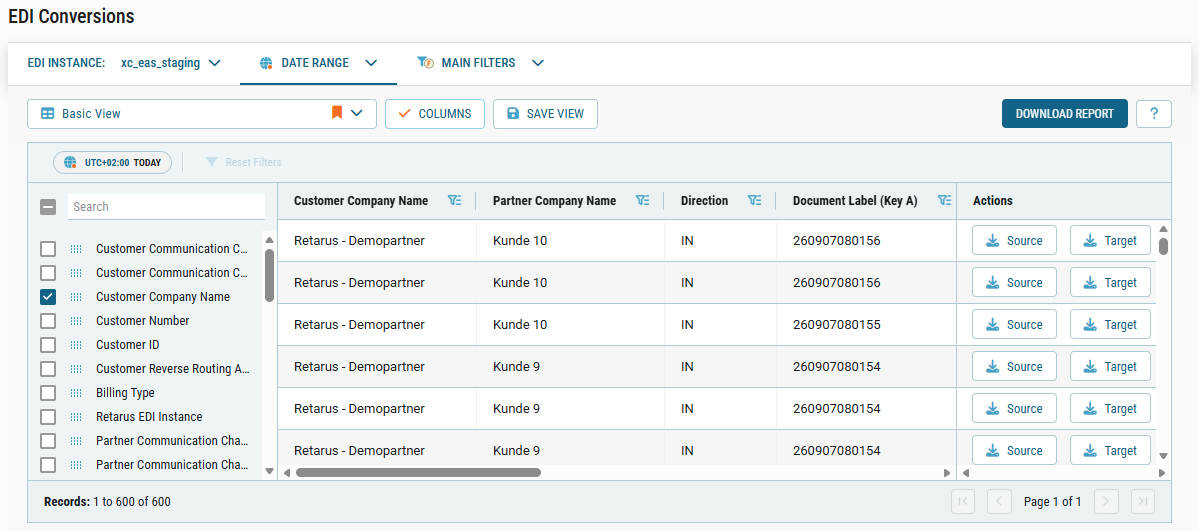
Choosing an EDI instance
If you have access to multiple EDI instances, you can select which one to view in the report.
-
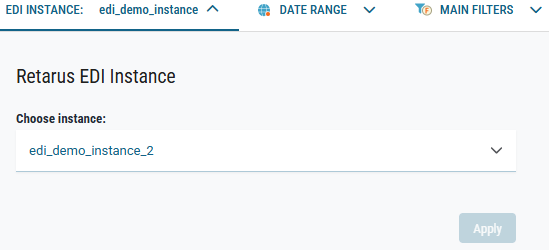
Click the EDI INSTANCE tab at the top of the EDI Conversions screen.
→ The section expands to display the available instances.
-
In the Choose instance dropdown, select the desired instance.
-
Click Apply to load the report for the chosen instance.
📌 Displayed transactions and data
The instance you select determins which transactions and data appear in the report. Make sure you choose the correct one before applying or exporting results.
Applying main filters
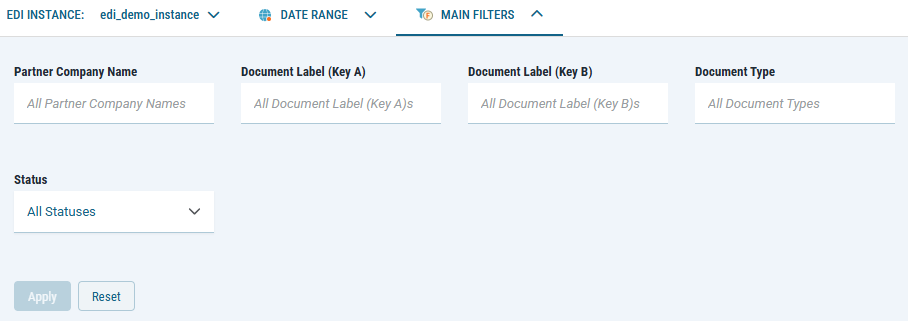
Use the MAIN FILTERS tab to narrow your report to specific transactions.
-
Click the MAIN FILTERS tab at the top of the Conversions screen.
→ The section expands to display the available filters.
-
Enter or select values for the filters you need.
-
Click Apply to apply your filters.
Data security and availability
myEAS stores source and target files in encrypted form on dedicated storage. You have access to all transactions and related files for the agreed retention period.