
You can export EDI Conversions report data as Excel or CSV files for offline analysis or record-keeping. The export runs as a background job. myEAS notifies you once the file is ready for download.
File format limits
-
Excel: up to 250,000 records
-
CSV: up to 500,000 records
If you try to download a report that exceeds these limits, you see an error message indicating that the maximum number of records has been exceeded.
Exporting a report
-
Open the EDI Conversions page.
-
Apply any filters, date range, sorting, or column selections you want to include in your export.

-
Click Download Report.
-
Select the file format you need (Excel or CSV).
→ A message appears indicating the file is being prepared.
→ When the file is ready, your browser displays a download notification (usually in the top‑right corner).
How exports work
The export includes all visible columns and every record within the selected time range and timezone, sorted by Processing Date in ascending order.
The downloaded file name includes your customer number, the product name, the selected date range, and the timezone.
Viewing export notifications
After you schedule a report download, myEAS notifies you once the file is ready. In the top navigation bar, open the notifications area, then select the My own tab.
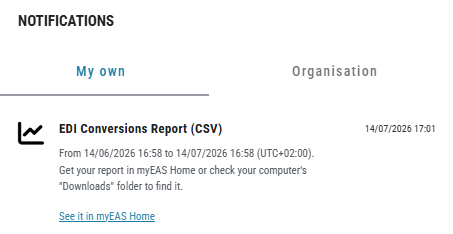
Each notification includes:
-
Title
-
Timestamp
-
Description
Click See it in myEAS Home to open the exported report in the My recently generated reports section on the myEAS homepage.
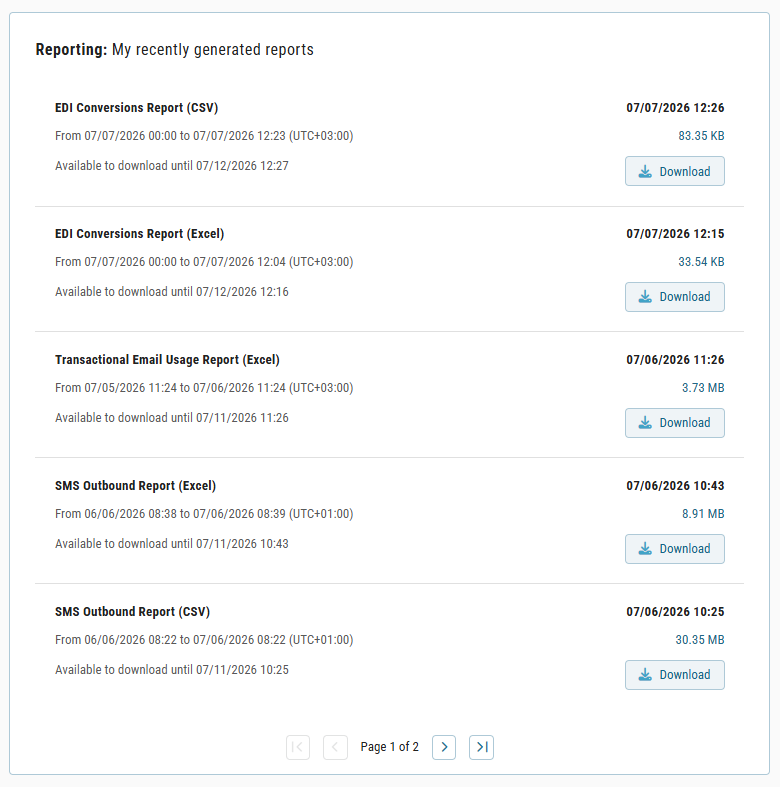
Notifications expire after 3 days. The generated report file remains available for download for 5 days. See Recently generated reports for details.