
Enterprise SMS Reporting in myEAS provides an easy and convenient way to monitor your organization’s SMS usage. Whether you need detailed delivery data for troubleshooting or for creating management reports, you can view, filter, and export both recent and historical inbound and outbound SMS transactions directly from the portal.
The process for working with Inbound and Outbound SMS reports is identical. The data columns you see depend on:
-
Which report type you select (Inbound or Outbound)
-
Which view you use (Basic or Custom)
-
Which columns you choose to display
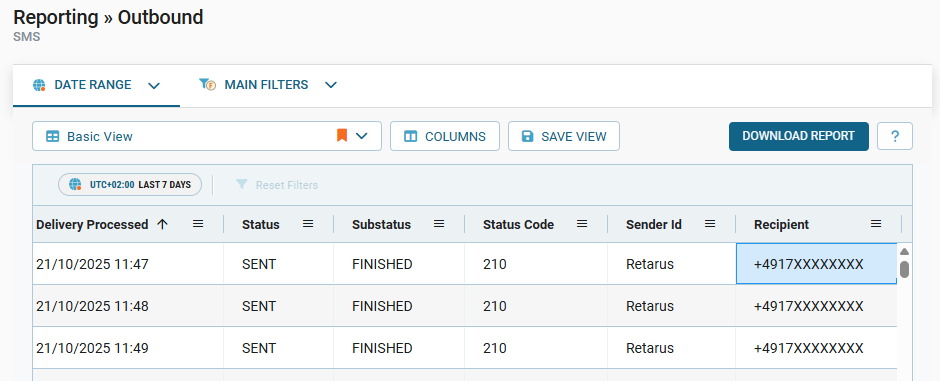
Each report type displays columns relevant to its report category. For example, SMS Outbound reports include columns like Delivery Processed and Substatus, which do not apply to Inbound communications, and are therefore excluded from those reports.
Viewing SMS reports
-
From the myEAS home page, click the SMS button.
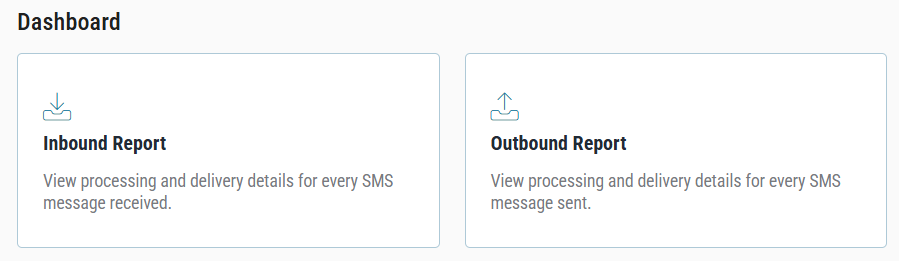
→ The SMS Dashboard screen opens, showing Inbound Report and Outbound Report options.
-
Click the desired report type.
→ The reporting screen opens in your selected view (Basic View by default), showing the most recent SMS transactions sorted from newest to oldest.
📌 Custom report columns
Administrators and authorized users can customize their report view by clicking COLUMNS and additing additional fields to their reports.
For more information, see Work with reporting views.