
Sometimes, not all line items are captured automatically — or you may need to add additional data. In these cases, you can easily insert new line items and enter the required information manually.

-
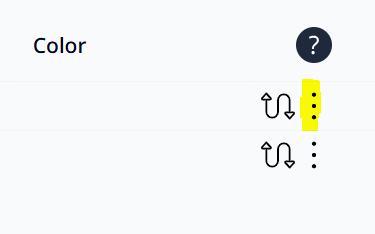
Click on the three dots at the end of the line item column.
-
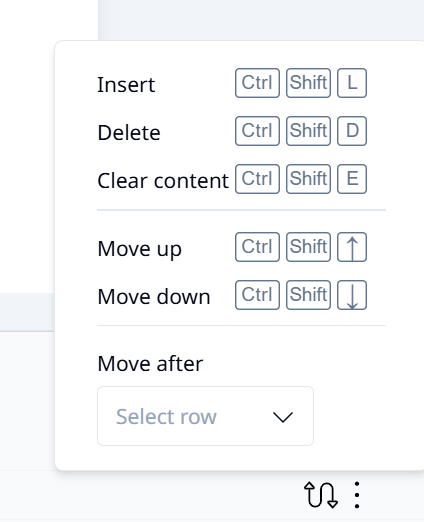
A menu will open with several options:
-
Insert - Add a new empty column.
-
Delete - Remove the selected column completely.
-
Clear content - Clear the data in the column but keeps the column itself.
-
Move up - Move the column one position up.
-
Move down - Move the column one position down.
-
Move after - Move the column to a specific position after another column.
-
-
Click Insert.
-
A new column will appear in the line items. You can now enter data manually into the new field.
