
The Document Overview section provides a complete, real-time view of all documents processed through your configured IDP flows (“presets”). It serves as the central monitoring and troubleshooting location, allowing users to track document status, review processed or rejected items, and perform key actions such as previewing, validating, or viewing exported data.
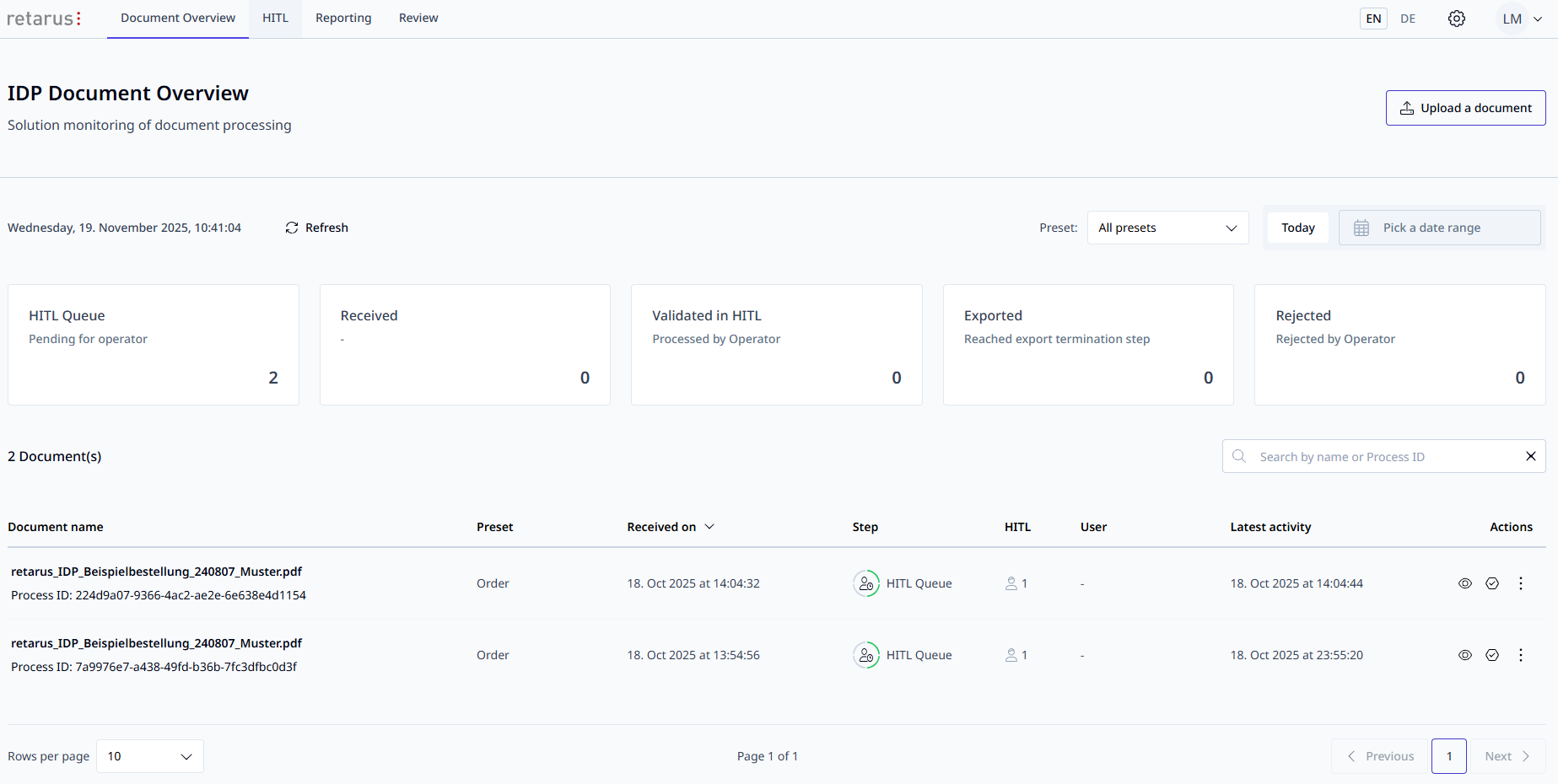
Key features at a glance
-
View all documents processed through your IDP presets
-
Track each document across all processing stages
-
Filter and search for documents easily
-
Preview or validate documents directly from the list
-
Manually upload documents for processing
-
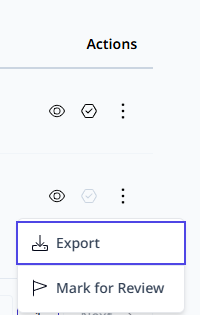
Download exported XML output
Interface Description
The Document Overview table displays essential metadata for each document.

Document Name: Displays the original file name of the document.
Preset: Shows which processing preset was applied to the document. Presets define the extraction configuration and processing flow for incoming files.
Received On: Indicates the exact date and time the document entered the Retarus IDP system.
Step (Status): Represents the current processing step of the document. A document moves through several predefined states:
-
Received – The file has been received and registered by the system.
-
Processing – The document is being processed automatically.
-
HITL Queue – Manual review is required; the document awaits Human-in-the-Loop validation.
-
Validation – The document is currently being validated by a user.
-
Exported – The document has completed processing and the data has been exported successfully.
User: Displays the username currently processing or having last interacted with the document (e.g., during HITL validation).
Last Activity: Shows the timestamp of the most recent action performed on the document.
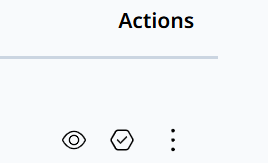
Actions
-

-

-

Filtering and Searching
The Document Overview allows fine-grained filtering so users can quickly locate relevant files.
Preset Filter – Select one or multiple presets to view only the documents processed with specific configurations.

Date Range – Filter documents based on their “Received On” date. Useful for daily monitoring or historical review.
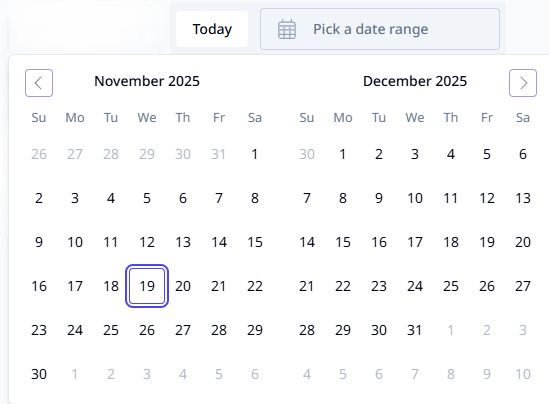
Search – Use the search field to locate documents by File name and Process ID. This is especially useful when investigating specific cases or integrating with external ticketing or workflow systems.

Manual Document Upload
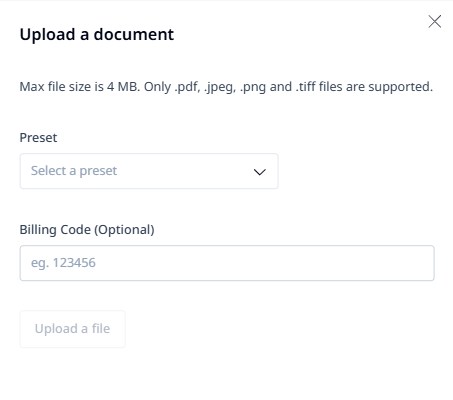
Users can upload documents manually for immediate processing by clicking Upload Document.
Supported file formats are processed through the selected preset and will appear in the Document Overview list once received.
Typical use cases include
-
Testing new presets or changed settings
-
Processing individual files outside the regular channel
-
Reprocessing documents manually
Exported XML Review
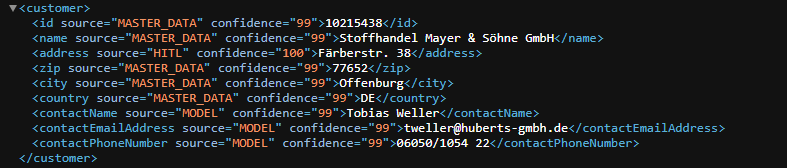
For documents that successfully reach the Exported status, users can open or download the generated XML.
This is particularly useful for:
-
Verifying data extraction results
-
Troubleshooting integration issues
-
Comparing input vs. output during development
Best Practices
-
Regularly monitor the Document Overview to catch issues early.
-
Use filters to quickly focus on relevant presets or time periods.
-
Check the HITL Queue frequently to avoid processing delays.
-
Review exported XML to ensure downstream systems receive correct data.
-
Use manual upload for testing new configurations or validating changes.