
Logging In
-
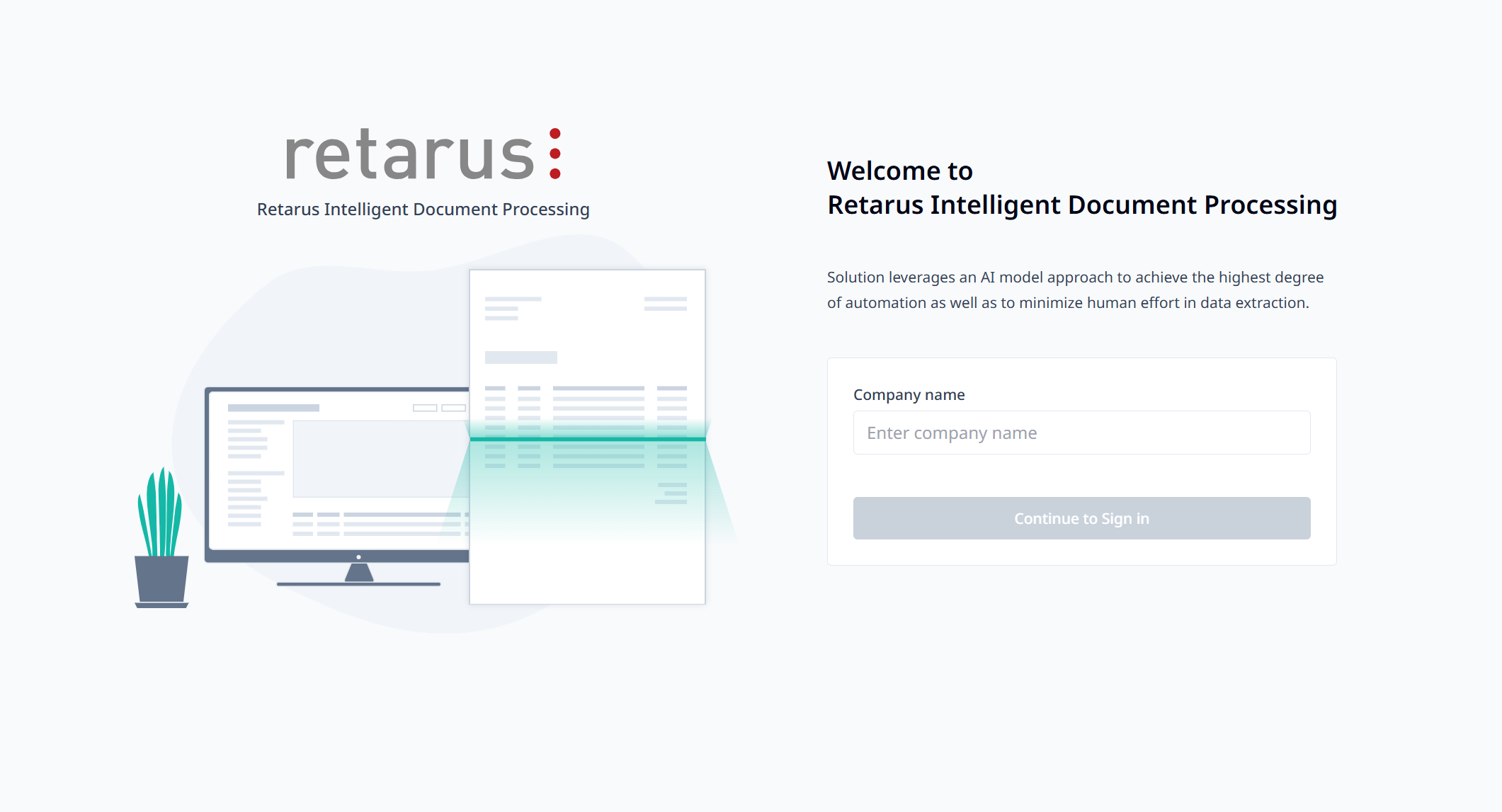
Open your organization’s IDP Web UI and enter the company name.
-
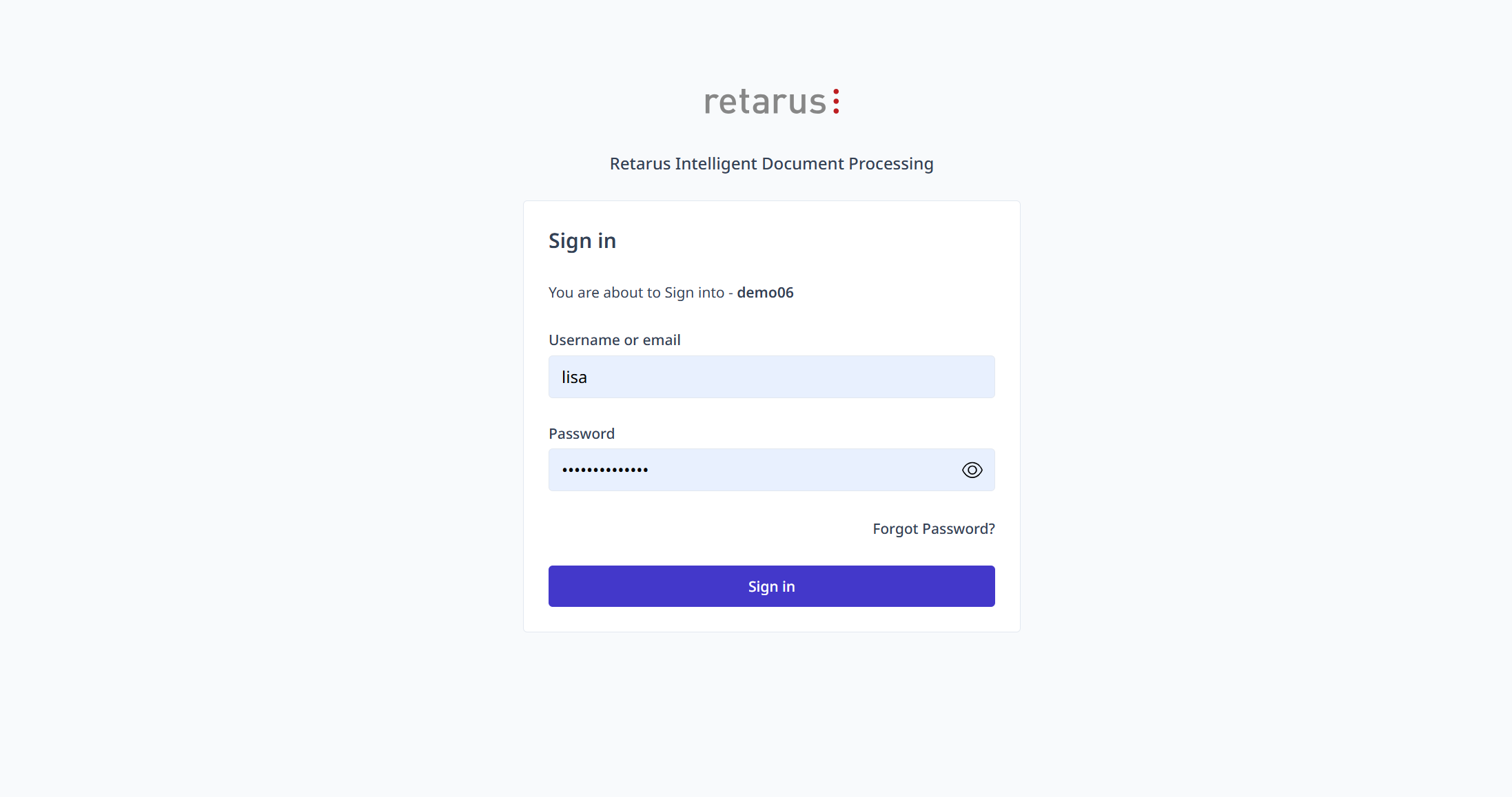
Log in using your assigned credentials.
-
After logging in, what you see next depends on your user role.
-
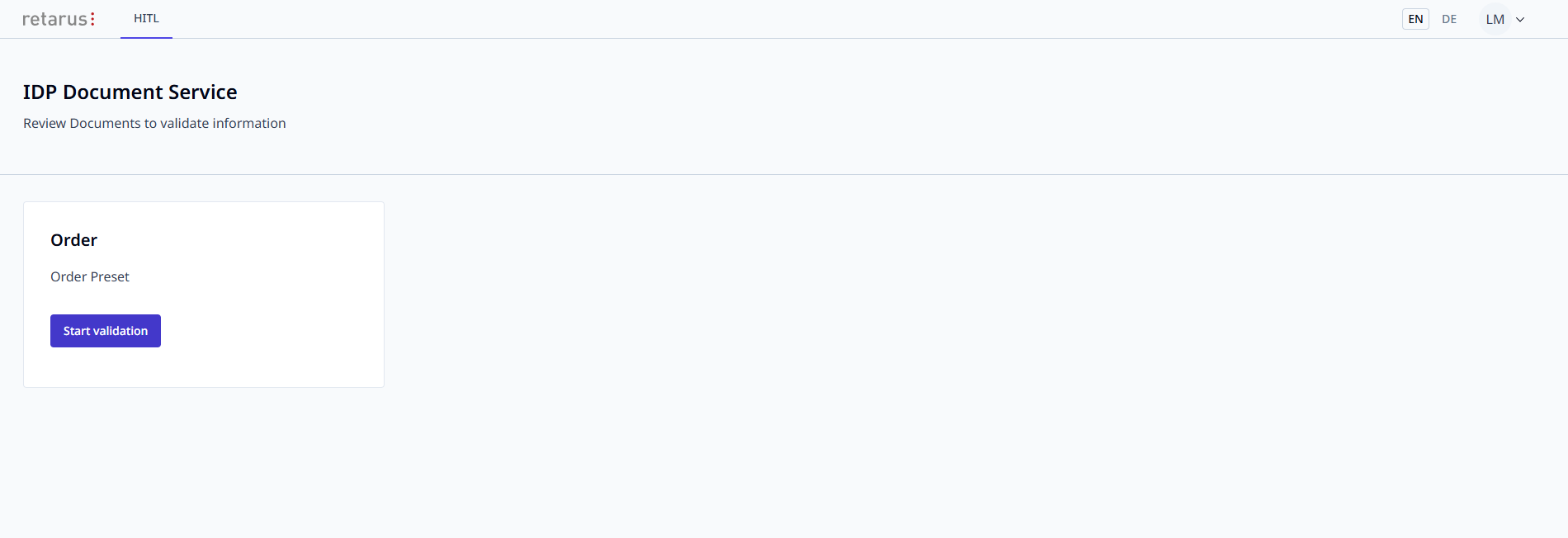
If you’re a HITL Operator, you’ll be taken directly to the IDP Document Service, where you must select a preset to begin processing.
-
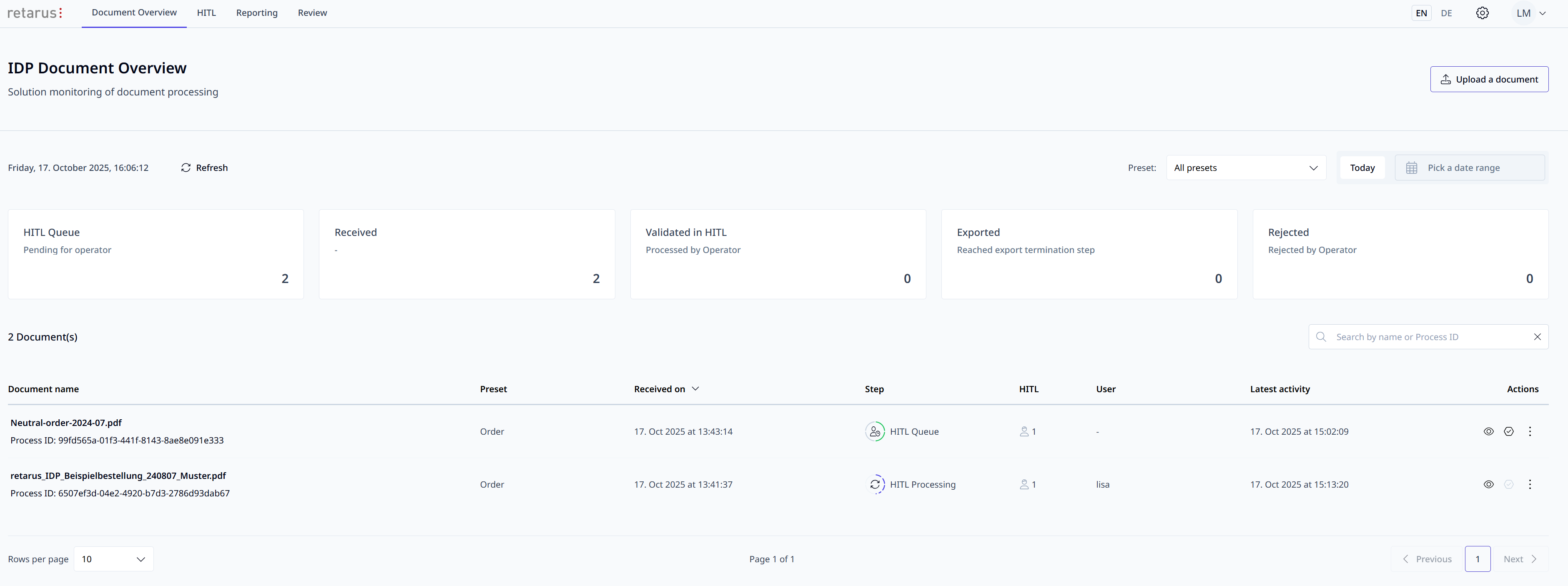
All other roles will see the Document Overview at their stating point.
-
Role-based access control ensures that only authorized users can perform validation or approval actions.
Logging Out
-
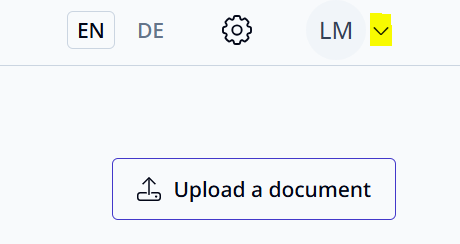
To log out, click the arrow next to your profil icon in the top right corner of the screen.
-
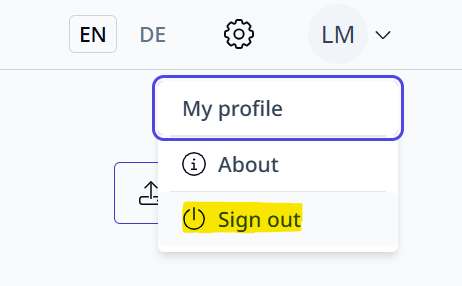
A dropdown menu will appear — simply select Sign Out to safely end your session.
If there is no activity for a set period of time, you will be automatically logged out for security reasons.