
Preset configuration
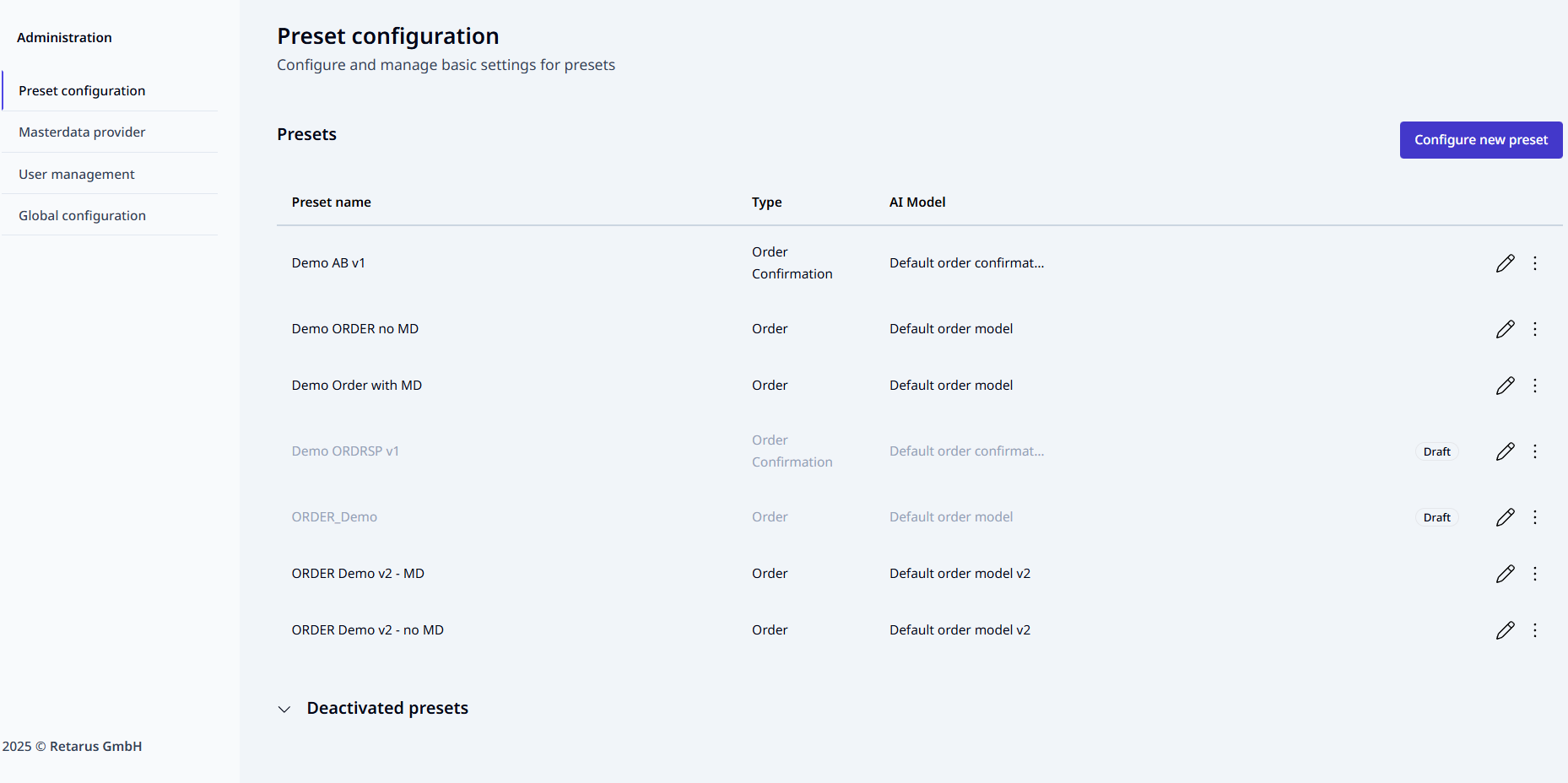
The Preset Configuration section allows administrators to create, configure, and manage the core processing flows (“presets”) used within the IDP platform. Each preset defines how a specific document type is interpreted, extracted, validated, and exported.
This section is accessible to administrators only.
Overview
In the Preset Configuration list, administrators can view all available presets together with their key properties:
Preset Name
The name of the processing flow. This is how the preset appears in the Document Overview, Review, and Reporting sections.
Type
Identifies the document category the preset is designed for. Supported document types include:
-
Order
-
Order Confirmation
-
Invoice
-
Delivery Note
The chosen type determines which fields, validation rules, and extraction patterns are available.
AI Model
Displays the AI model assigned to the preset. Different models may be optimized for specific document types.
Actions
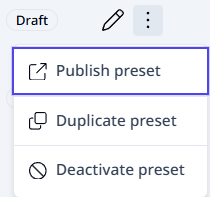
Each preset includes several administrative actions:
-
Edit
Modify preset details, fields, extraction logic, or validation rules. -
Publish Preset
Make changes live. Publishing activates the latest version of the preset for all incoming documents. -
Duplicate Preset
Create an identical copy for testing, versioning, or adapting a preset to a new sender or document type. -
Deactivate Preset
Disable a preset, preventing further documents from being processed using it.
(Existing historical data remains accessible.)
How to Configure a New Preset
The preset configuration defines how a specific document type is interpreted, validated, enriched, and exported within the IDP platform. Follow the steps below to create or modify a preset.
1. General
In the General section, define the fundamental properties of your preset:
Preset Name
Choose a clear and descriptive name. This name will appear in Document Overview, Review, and Reporting.
Description
Explain the purpose of this preset for operators and reviewers.
Document Type
Select the document category the preset will process:
-
Order
-
Order Confirmation
-
Invoice
-
Delivery Note
The selected type determines available fields, rules, extraction behavior, and calculators.
2. Data Management
Configure rules and helpers that influence extraction quality, validation logic, and field enrichment.
Global Confidence Level
Defines a document-level confidence threshold.
If the document confidence validator is enabled, this threshold determines whether a document requires manual validation (HITL) based on overall extraction certainty.
Validators
Validation rules ensure extracted data meets your business requirements. Available validators include:
-
Mandatory Fields
Ensures all required fields are present. -
Document Confidence
Checks whether overall extraction confidence meets the threshold. -
Field Confidence
Ensures each critical field meets minimum confidence. -
Ordered vs Confirmed Quantity
Ordered and Confirmed Quantity have to be the same -
Additional Validators
Depending on the document type, you may see:-
total amount checks
-
Ordered vs confirmed quantity
-
tax or currency consistency
-
…
-
Activate or adjust validators as needed to reduce errors and increase automation reliability.
Calculator
Enable automatic calculations that supplement or validate extracted data.
Calculations differ per document type and may include:
-
total line amount computation
-
header–footer cross-checks
-
VAT/Tax calculations
-
Line item delivery date
Subline Items
Enable detection of multi-component line items, such as partial deliveries or color/size variations. This improves accuracy for documents where a single visible line contains multiple logical sub-items.
Keyword Detection
Automatically detect key terms within the document to support routing, preset selection, or field classification.
Masterdata Integration
Configure how the preset interacts with master data sources. Options may include:
-
vendor/article lookups
-
price or unit validation
-
enrichment of missing fields
Date Handling
Configure how dates should be interpreted:
-
translate calendar week → weekday
-
extract dates within a defined range
3. Validation Form
Select which fields should be extracted and shown to operators during validation.
Recommendations:
-
Start with must-have and critical fields (e.g., document number, PO number, …).
-
Avoid enabling unnecessary fields, as this increases complexity and error risks.
This section directly influences the HITL validation interface.
4. Integration Options
Billing Code
Define an internal billing code used for reporting or cost allocation. This value can be overridden on a per-document basis if needed.
Status Push
Configure outbound notifications for document processing events (received, validated, exported, rejected). Supports integration with external monitoring systems or workflow engines.
5. Publish
After configuration, publish the preset to activate it for live processing.
When to Modify or Create a Preset
Admins typically update or create presets when:
-
Correction patterns indicate recurring extraction issues
-
Business rules or required fields change
-
You want to test improvements before publishing to production
-
You need separate presets per region/language/template
Best Practices
Use Duplicate Before Major Changes
Always duplicate a preset before making significant modifications. This allows you to test safely without affecting live processing.
Validate in a Controlled Environment
Use test uploads with test presets to ensure extraction quality before publishing changes.
Monitor Reporting After Publishing
After activating a new or updated preset, monitor:
-
Automation %
-
Corrections per field
-
Processing duration
Look for unexpected drops or spikes.
Deactivate Carefully
Deactivate presets only when you are sure no active workflows depend on them. Consider scheduling deactivation outside peak processing times.
Checklist for Creating High-Quality Presets
Use this checklist as a quality gate before publishing a new or updated preset.
1. General Setup
☑ Preset name is descriptive and unambiguous
☑ Description clearly explains how operators should use the preset
☑ Correct document type is selected (Order / Order Confirmation / Invoice / Delivery Note)
2. Data Management
Confidence & Validators
☑ Global confidence level is set based on automation expectations
☑ Mandatory fields validator includes all business-critical fields
☑ Field confidence thresholds are realistic (not too strict / not too lenient)
☑ Additional validators fit the document type (e.g. totals check, date rules, …)
Calculators
☑ All relevant calculators are enabled (e.g., amount validation, VAT calculation)
☑ Calculated fields are tested on real sample documents
Subline Items & Keywords
☑ Subline item detection is activated if documents contain variations (colors, sizes, partial deliveries)
☑ Keyword detection rules match typical document terminology
Masterdata
☑ Masterdata enrichment is configured correctly (vendor, article, line-items, …)
☑ Data retrieval scenarios are tested (mapping, fallback logic)
Date Handling
☑ Calendar-week translation and date-range checks work as expected
3. Validation Form
☑ Only essential fields are selected for extraction
☑ Must-have fields are placed at the top for operator clarity
☑ Validation layout minimizes scrolling and reduces operator workload
4. Integration Options
☑ Billing Code is set or left intentionally blank
☑ Status Push configuration matches external workflow requirements
5. Testing
☑ Sample documents from multiple senders/layouts have been tested
☑ Low-quality scans and variations have been validated
☑ HITL validation flow was tested for missing or low-confidence fields
☑ Reporting is checked for baseline numbers (initial automation %)
6. Before Publishing
☑ Duplicate preset exists as a backup (optional but recommended)
☑ All rules and validators were tested end-to-end
☑ Approver or admin has reviewed the setup
☑ Preset version is documented internally