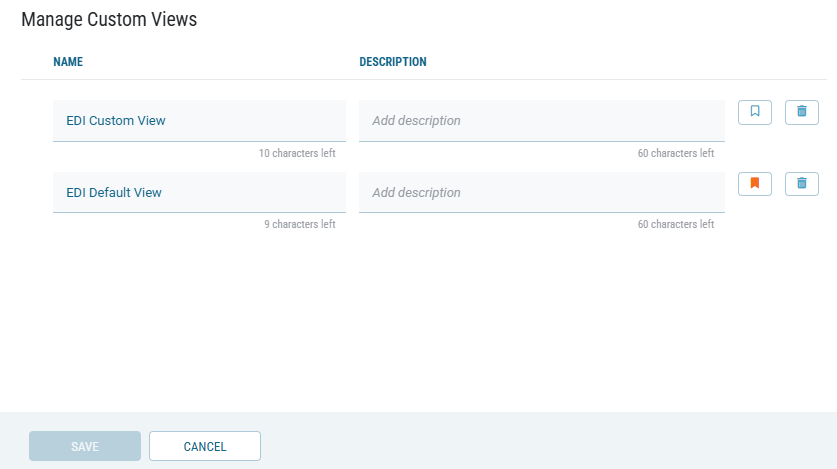
You can manage how UDR Reporting data is displayed by switching between available views and setting a preferred default view.
Switching between views
-
Open the EDI Conversions page.
-
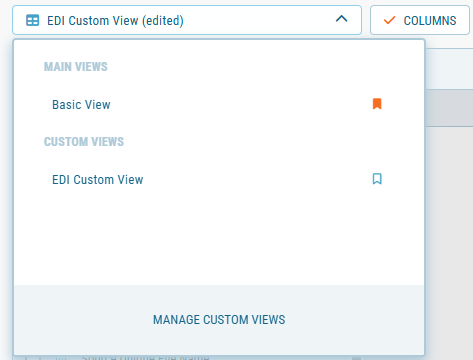
Click the report views dropdown at the top of the table.
→ The list of available views is displayed.
-
Select the desired view:
-
Under Main Views, choose Basic View.
-
Under Custom Views, select a saved custom view.
-
Setting a view as default
By default, Basic View loads each time you open EDI Conversions reporting. To load your preferred view automatically, set it as the default.
You can set a view as default in several ways:
-
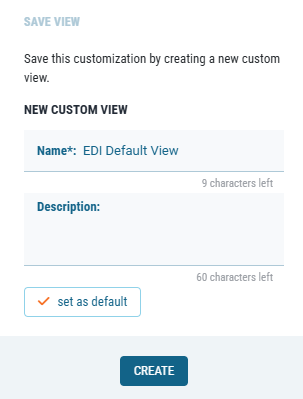
When creating a new view
Activate the Set as default option in the Save View dialog.
-
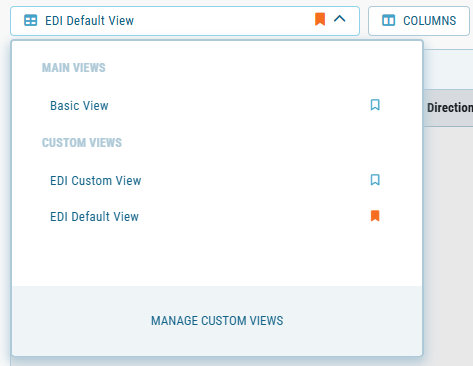
From the view list (dropdown)
Click the flag icon next to the view name. The flag turns orange to indicate it is the default.
-
When updating a custom view
Click the flag icon while editing the view in the Manage Custom Views dialog. The flag turns orange to confirm it has been set as default.