
Retarus Cloud Fax integrates with SAP systems through SAPconnect and an external RFC connection. When you register the Retarus connector as an external RFC server at the SAP Gateway, SAP dispatches fax output directly to Retarus Cloud Fax and receives delivery status notifications.
Use this guide to verify prerequisites and configure SAPconnect for SAP S/4HANA Private Cloud and ABAP Platform releases, including SAP S/4HANA 2023 and 2025 (FPS00).
Prerequisites
Before you configure SAPconnect, ensure that you have the following:
-
SAP transaction access
Access to transactionsSM59,SCOT, and, where applicable,SCON. -
Retarus connection details
Program ID, Gateway Host, Gateway Service/Server, and the IP addresses to allowlist. -
User authorizations
SAP permissions for RFC destination maintenance, RFC execution, SAPconnect configuration, and fax output processing. -
Isolated test environment
A stable environment where other users or processes cannot overwrite your configuration. -
Test data
The ability to generate test fax jobs containing plain text and attachments, such as PDF or TXT files.
Connection data
|
Parameter |
Value or source |
|---|---|
|
RFC destination |
A technical name that follows your local naming conventions, for example, |
|
Connection type |
TCP/IP Connection ( |
|
Activation type |
Registered Server Program |
|
Program ID |
Provided by Retarus |
|
Gateway Host |
Provided by Retarus |
|
Gateway Service/Server |
Provided by Retarus |
|
Network allowlisting |
The Retarus IP addresses supplied for the service |
Creating an RFC destination (SM59)
The RFC destination defines how SAP communicates with the Retarus connector. When configured with the Registered Server Program activation type, SAP does not initiate a connection to the target system. Instead, the Retarus connector registers at the SAP Gateway using the agreed Program ID.
-
Open transaction
SM59. -
Under TCP/IP Connections, create a new RFC destination.
-
Enter a technical name, for example
RETARUS_FAX_RFC. -
Select TCP/IP Connection (
T) as the connection type. -
Select Registered Server Program as the activation type.
-
Enter the Program ID, Gateway Host, and Gateway Service/Server values supplied by Retarus.
-
Save the destination.
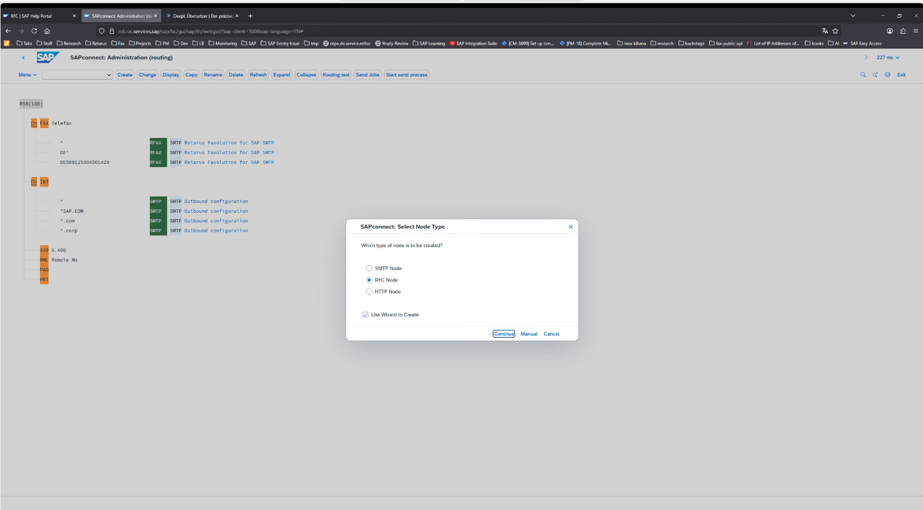
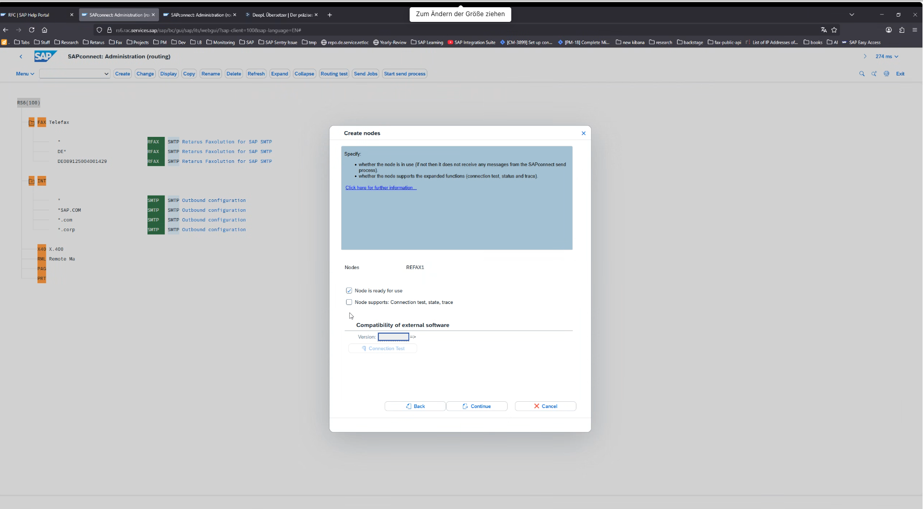
Setting up a SAPconnect node (SCOT)
A SAPconnect node routes outbound fax messages to the RFC destination you created in transaction SM59.
-
Open transaction
SCOTand confirm that SAPconnect is active. -
Use an existing fax communication node, or create a new one.
-
Configure fax output routing to use the RFC destination you created in
SM59. -
Set the fax address type, routing rules, and other settings required by your SAPconnect design.
-
Activate the node, then save the configuration.
If your system uses transaction SCON, review and align the related communication settings there.
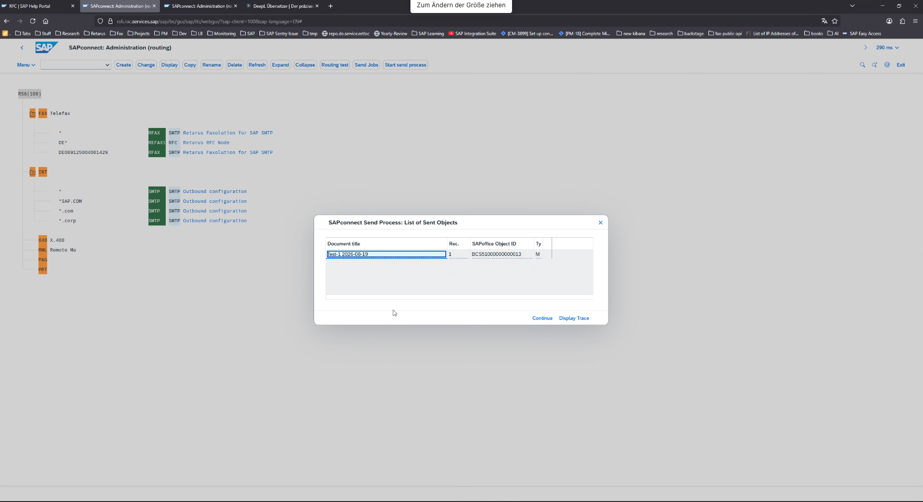
Scheduling the send process
SAP processes and transfers fax requests to the RFC node only while send processing is scheduled and active.
-
Schedule regular processing for outbound send requests.
-
Make monitoring and error logs accessible to your operations team.
-
If required, schedule recurring test jobs for automated validation.
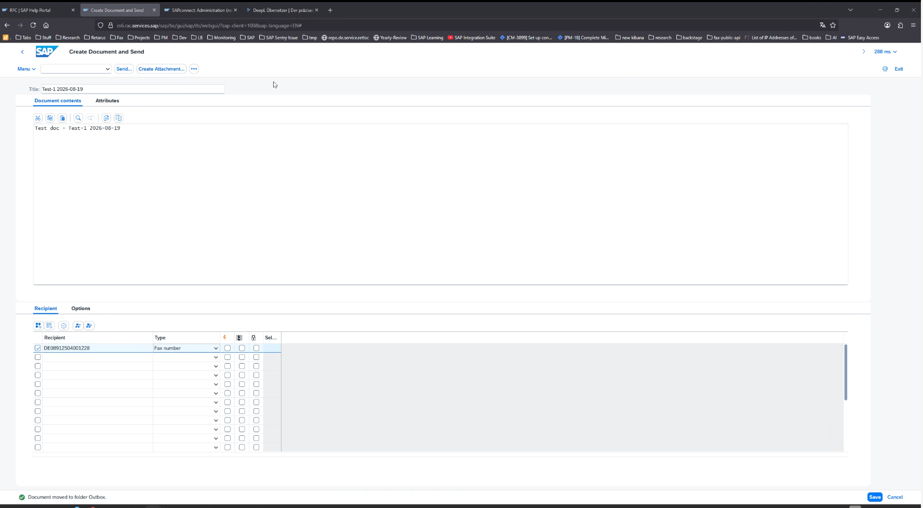
Testing the configuration
|
Test |
Description |
|---|---|
|
Send a plain text fax |
Create a fax request with a subject and a plain text body. Confirm that SAPconnect creates and processes the request. |
|
Send a fax with an attachment |
Create a fax request containing a PDF or TXT attachment. Confirm that SAPconnect creates and processes the request with the attachment. |
|
Verify the recipient number format |
Check that the recipient fax number matches the dialing and address format required by your organization. |
|
Reconcile transmission status |
Review the transmission status in SAP, then reconcile the delivery status against your Retarus service logs. |
|
(Optional) Verify authentication |
Test the available authentication methods to ensure secure transmission. |
|
(Optional) Automate validation |
Configure a recurring validation job for ongoing automated monitoring. |
Troubleshooting
|
Symptom |
What to check |
|---|---|
|
RFC connection cannot be established |
Program ID, Gateway Host, Gateway Service/Server, and registration of the external RFC server |
|
Request remains pending in SAPconnect |
Active send processing, routing in the fax node, and RFC server status |
|
No delivery at Retarus |
Network connectivity, IP allowlisting, and the Retarus service logs |
|
Authorization error |
Authorizations for |
|
The configuration behaves differently after a migration |
Authorization objects, kernel and RFC library versions, and SAPconnect default settings in the target system |
Transporting the configuration to another system
You can transport your RFC destination and SAPconnect settings to target SAP systems using a standard transport request.
After importing the transport request into the target system, verify the following:
-
target-specific gateway data
-
authorizations
-
network allowlisting
-
any differences in kernel version, RFC libraries, or SAPconnect default settings
Related SAP documentation
For more on RFC and your relevant S/4HANA version, see SAP's documentation: