Create, send, and monitor single faxes and fax campaigns using the Retarus Cloud Fax App for Salesforce.
Prerequisites
Before you send faxes in Salesforce, make sure:
-
The Retarus Cloud Fax for Salesforce app is installed and activated.
-
You have permission to use Cloud Fax features.
-
If you send fax campaigns, you also have the required Salesforce permissions for campaign sending.
Sending individual faxes from Salesforce objects
You can send a single fax directly from any standard or custom Salesforce object after your administrator adds the Retarus Cloud Fax Management component to the object's record page.
The single fax feature includes:
-
creating and sending a fax
-
viewing recent fax jobs
-
reviewing fax job details
Create and send a fax
-
Open the Salesforce record where you want to send the fax.
-
In Cloud Fax Management, select Create Fax Job.
.png?cb=9749f89fb6d4a223550b3b5bc5870a0a)
-
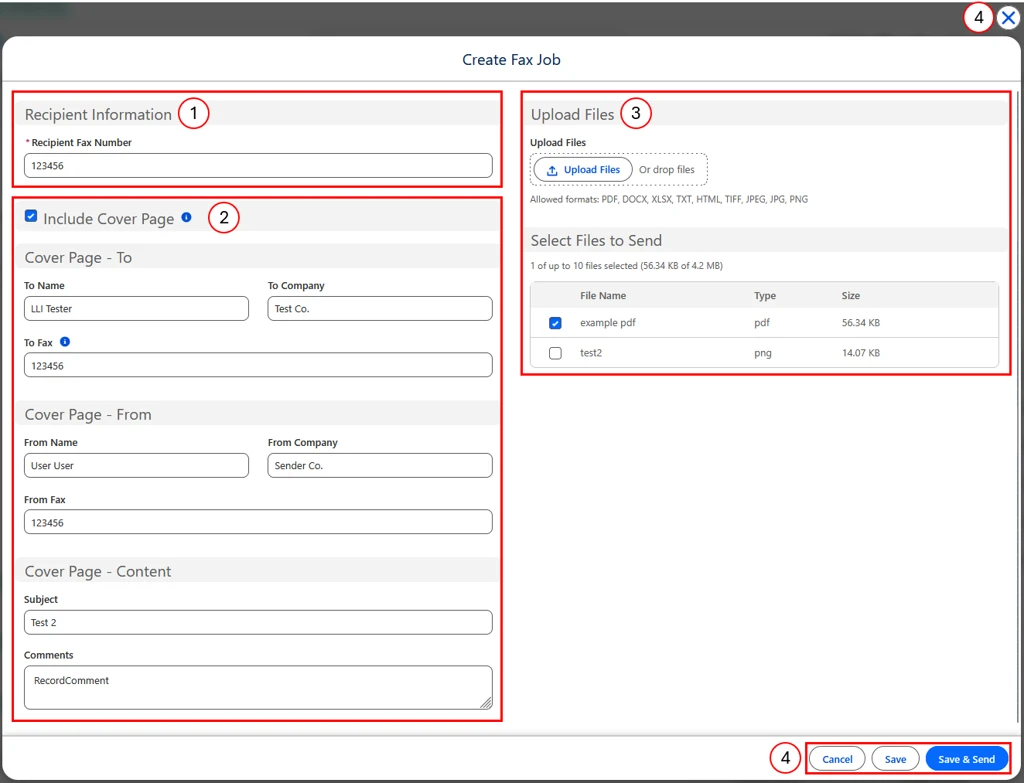
Enter the recipient fax number (
).
-
This field is required.
-
If you change the recipient fax number, Salesforce also updates Cover Page – To Fax automatically.
-
If you change Cover Page – To Fax, Salesforce does not update the recipient fax number automatically.
-
-
If needed, complete the cover page fields (
).
-
If Include Cover Page is not selected, the cover page fields are hidden.
-
No cover page is sent if Include Cover Page is not selected.
-
No cover page is sent if all cover page fields are left empty.
-
📌 Cover page availability
Cover pages are available only for single faxes. If the cover page does not work when sending a single fax, contact your administrator to enable it in EAS.
-
In the document section, select one or more supported files that are already attached to the record (
).
-
Salesforce shows the files attached to the record that use a supported format.
-
You can also upload more files from this screen, as long as they use a format supported by the Retarus API.
-
The modal shows the current document limits. At this time, you can send a maximum of 10 files with a combined size of up to about 4.2 MB.
-
-
Choose one of these actions (
):
-
Cancel or select X to close the view. Salesforce does not save any fax data and does not send a fax. Files you uploaded during the session remain attached to the record.
-
Save to create a new Cloud Fax Job record and a related Cloud Fax Campaign record without sending the fax. The Cloud Fax Job is created with Draft status, so you can still edit it before sending.
-
Save & Send to save the records and immediately send the fax data to the Retarus API. If the transfer succeeds, the Cloud Fax Job status changes to In Progress.
-
If you use Save & Send, note the following:
-
A successful transfer means Salesforce successfully transferred the data to the Retarus Fax API. It does not mean the fax has already been delivered to the recipient.
-
At least one document must be selected before you can send the fax.
-
If an error occurs during transfer, Salesforce shows the error in a pop-up message.
-
If the error is not something you can correct yourself, contact your Salesforce administrator.
-
If sending fails, the records remain saved, the Cloud Fax Job stays in Draft status, and the view stays open in edit mode.
Fax job history
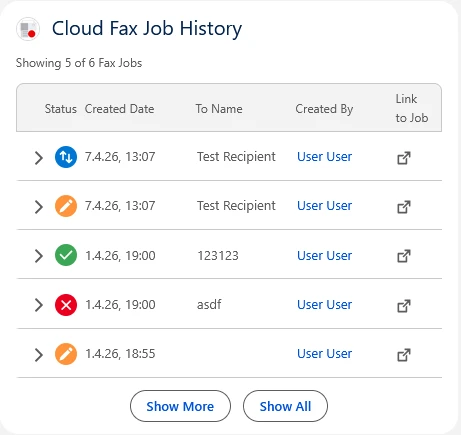
The fax job history shows recent fax jobs for the current record, including:
-
status
-
created date
-
recipient name from the cover page
-
created by
-
a link to the Cloud Fax Job record
|
Status |
Description |
|---|---|
|
Draft |
The fax has not been transferred to Retarus yet and can still be changed using the Edit & Send button. 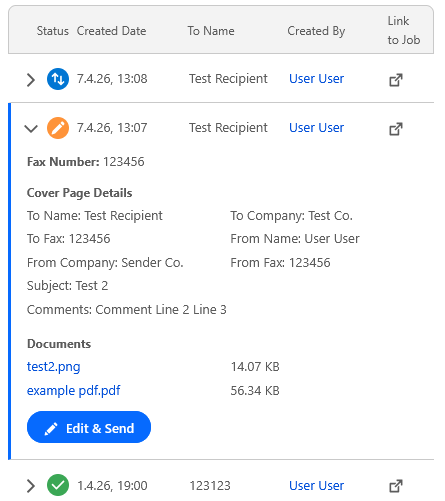
|
|
In Progress |
Salesforce transferred the fax to Retarus, and Retarus is processing delivery. Salesforce updates the status automatically when Retarus reports a new status. |
|
OK/Done |
The fax was sent successfully. |
|
Failure |
The fax was not sent successfully. Open the fax job to review the error message. You can retry sending the fax by clicking the Retry button. When you select Retry:
Use Retry only for temporary transmission errors, for example:
If the error indicates that the fax number is incorrect or invalid, for example, Wrong Number or Invalid Number, do not use Retry. 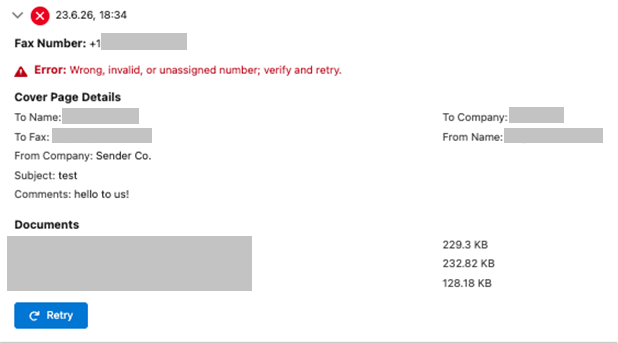
Instead:
|
By default, the overview shows the five most recent fax jobs. If more jobs are available, you can use:
-
Show More to load five more jobs
-
Show All to display all available jobs up to the maximum shown by the component
-
Show Less to return to the default view
For Accounts, Contacts, and Leads, the overview can also include Cloud Fax Jobs created through Cloud Fax Campaign Management. Those jobs appear here only when their status is OK/Done.
Fax job details
When you open a fax job from the history, Salesforce shows more details, including:
-
the recipient fax number
-
cover page information, if available
-
information about the sent documents
If you select a document, Salesforce opens the standard file preview when that file type supports preview.
If the fax job is still in Draft status, Salesforce also shows Edit & Send.
When you select Edit & Send, Salesforce opens the same window used for Create Fax Job, but it updates the existing Cloud Fax Job instead of creating a new one.
Sending faxes to multiple recipients
-
Open the App Launcher in Salesforce.
-
Search for and launch Cloud Fax Campaign Management.
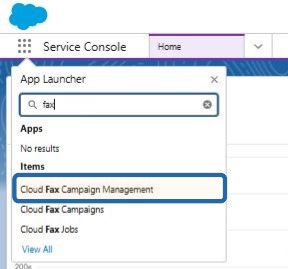
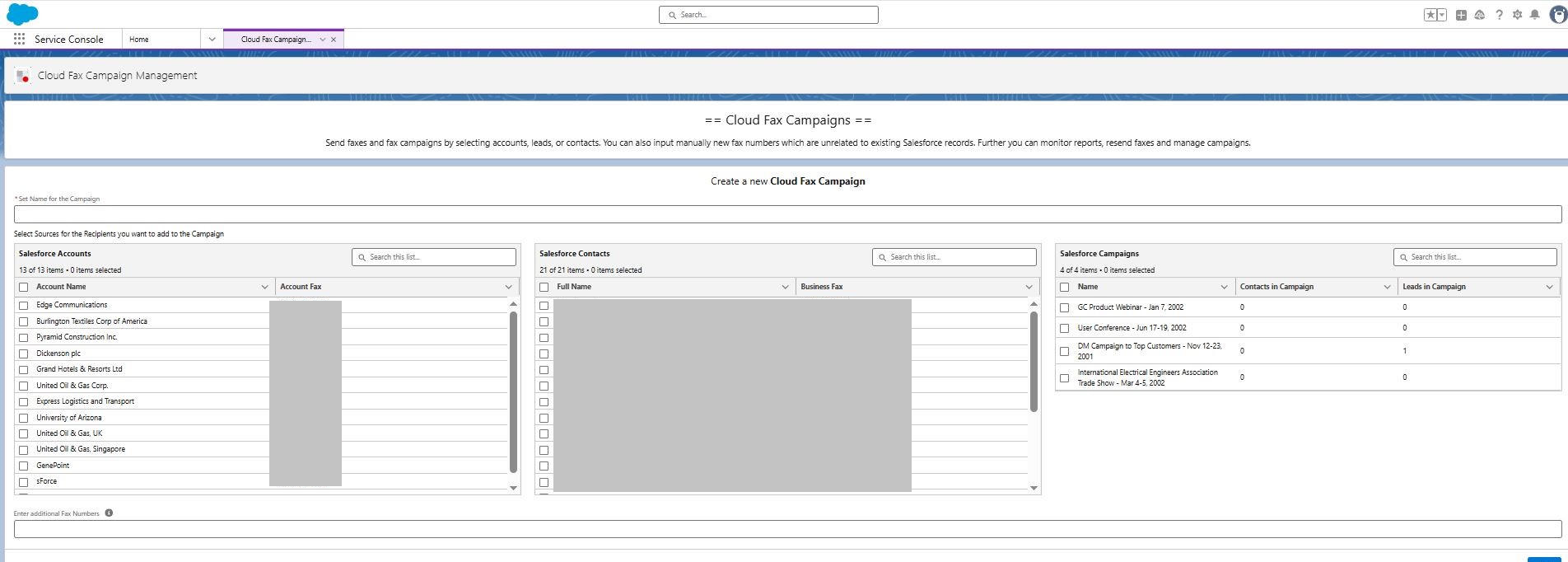
→ The Cloud Fax Campaign Overview page opens, where you can create a new fax campaign.
-
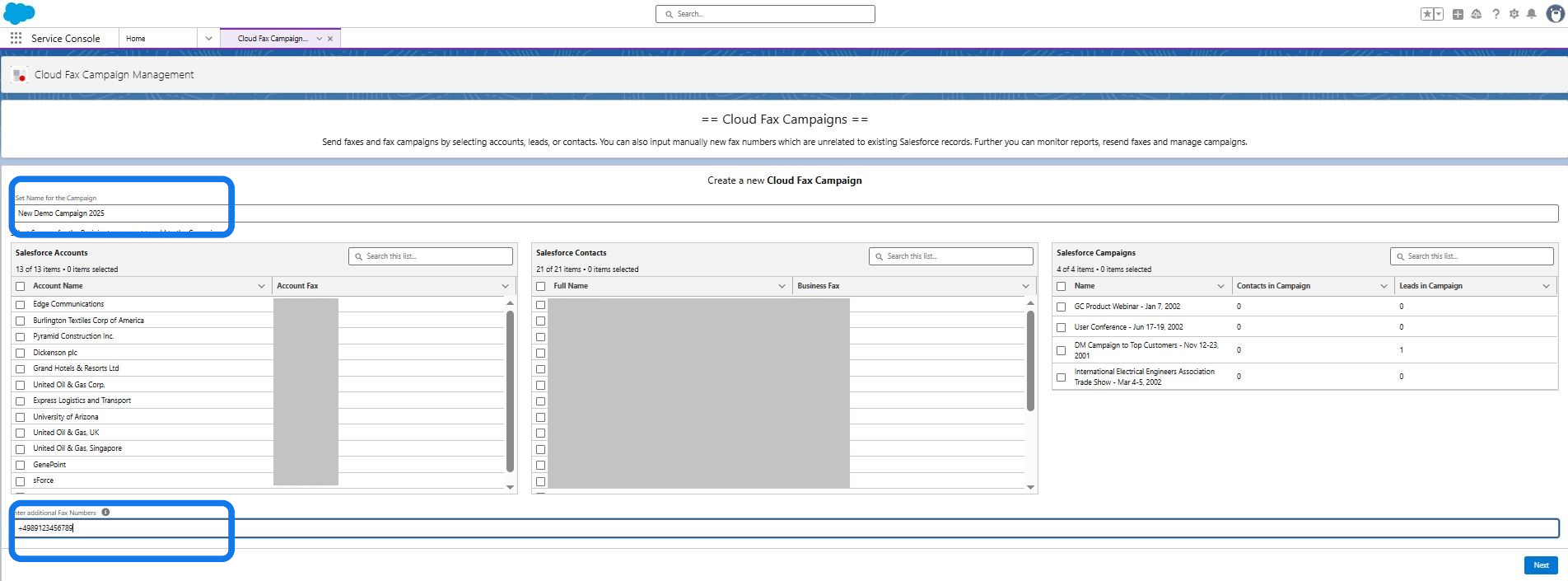
Enter a name for the fax campaign.
-
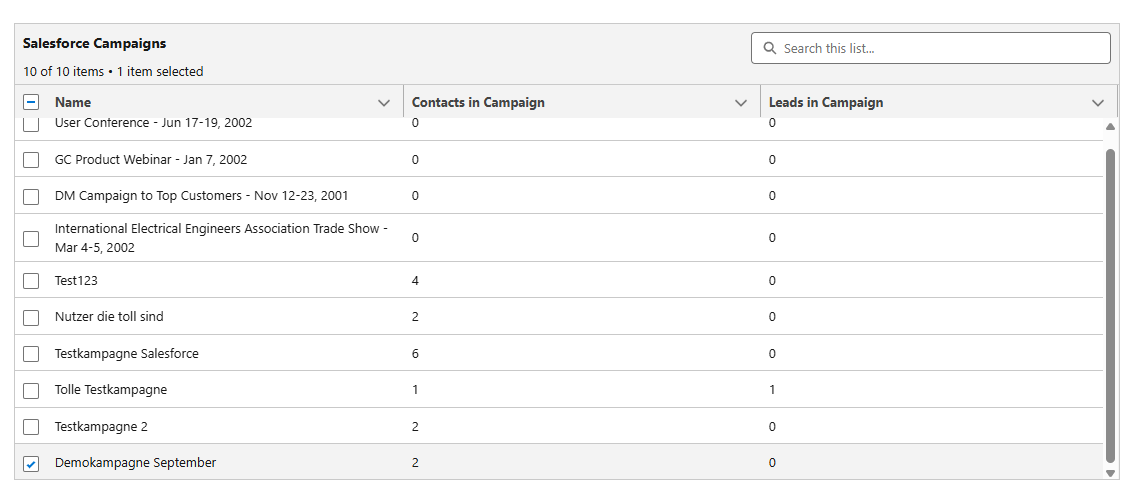
Select recipients:
-
Combine recipients from Accounts, Contacts, and existing Salesforce Campaigns.
-
Enter additional fax numbers in Additional Fax Numbers.
-
Separate multiple numbers with semicolons.
-
-
Select Next.
-
Upload the file you want to fax.
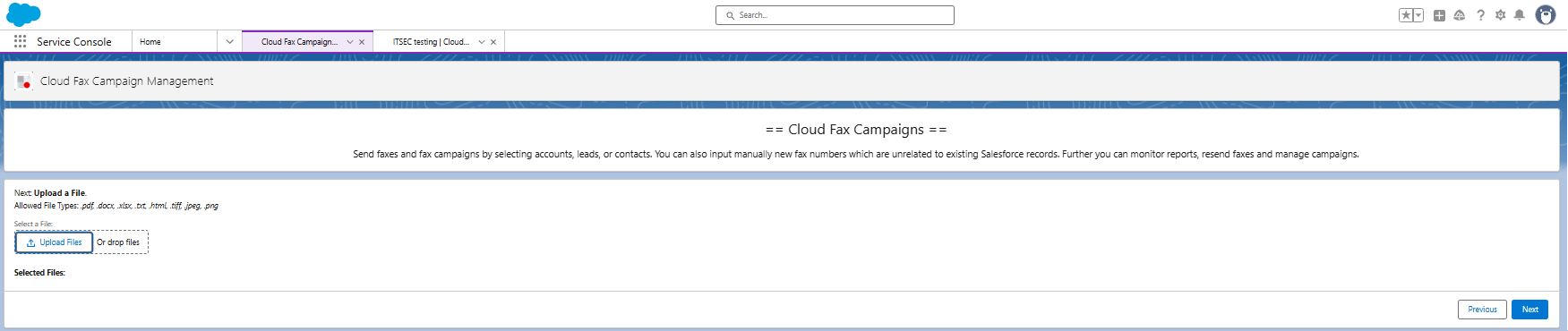
-
Select Next.
-
Review the campaign details on the overview page.
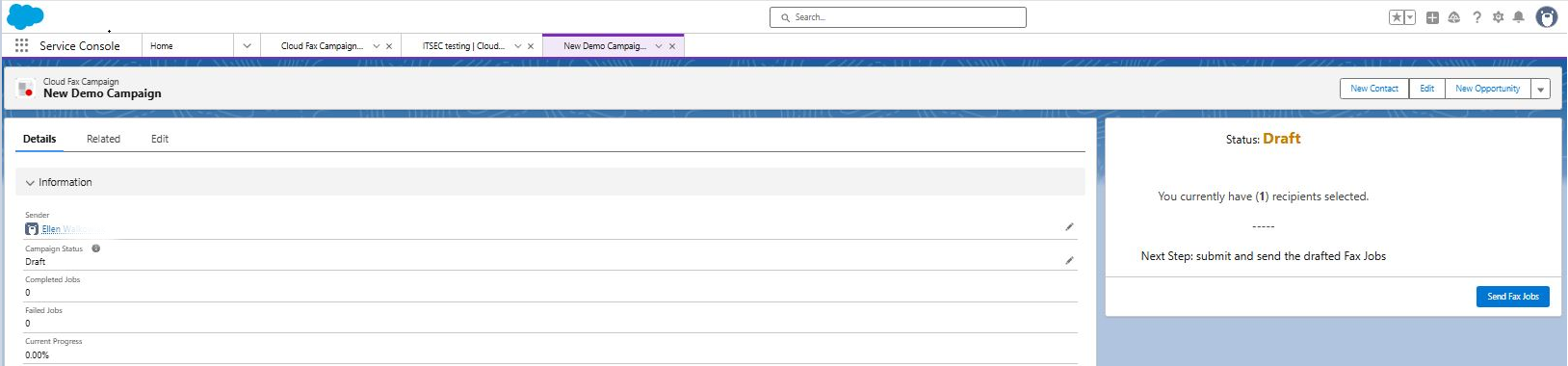
-
Select Send Fax Jobs to send all fax jobs in the campaign.
-
Monitor the progress on the campaign page.
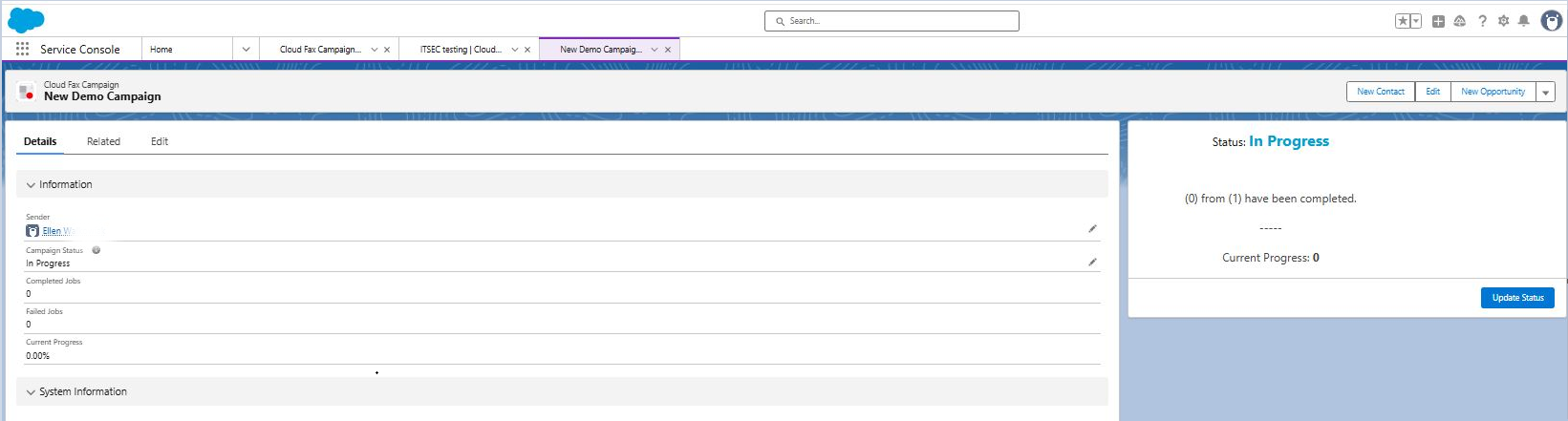
-
After a few minutes, select Update Status to refresh the current status.
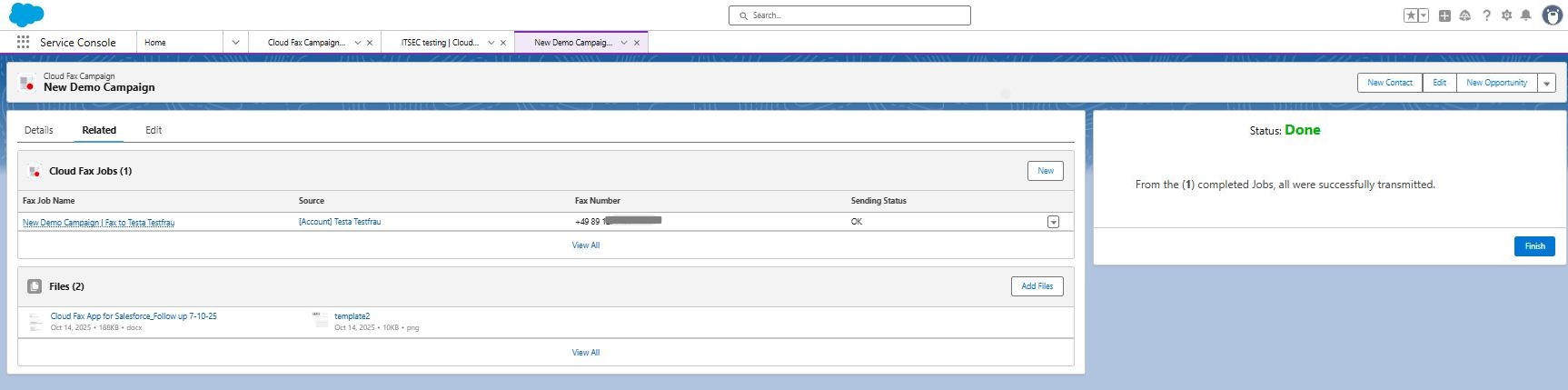
-
To review individual fax jobs, open the Related tab on the campaign record.
Handling failed fax jobs
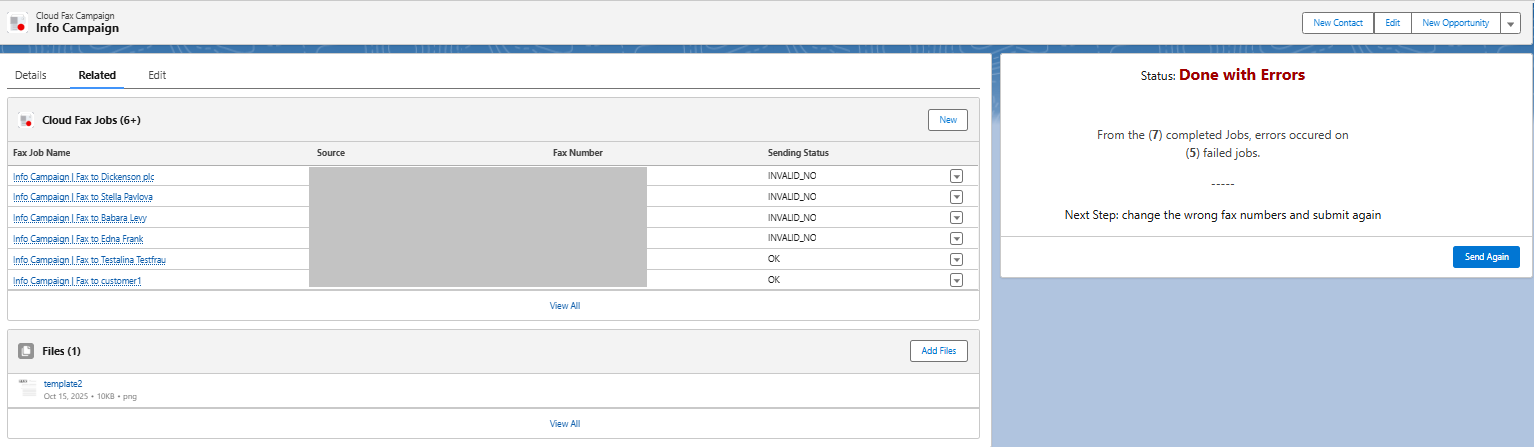
If a fax job fails, review the error and decide whether to retry the job or create a new one.
-
Open the fax campaign.
-
Open the Related tab.
-
Open the failed Cloud Fax Job.
-
Review the error details.
See the Transmission status codes - Outbound Fax for more information. -
If the failure was caused by a temporary issue, select Retry.
When you retry a failed fax job:
-
Salesforce creates a new Cloud Fax Job.
-
The campaign is sent again with the same documents.
-
The new job appears with the In Progress status.
If the failure was caused by invalid recipient data, such as an incorrect fax number, create a new fax job instead of retrying.
Using Salesforce standard campaigns
You can also use Salesforce standard Campaigns together with Cloud Fax campaign sending.
-
Open Campaigns from the App Launcher.

-
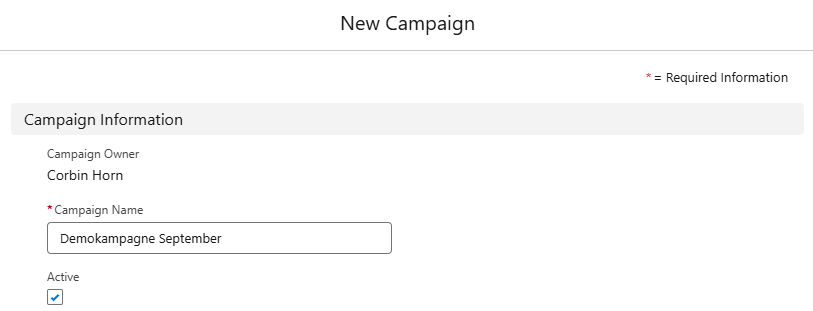
Create a new campaign or open an existing one.
-
Enter a campaign name and set the campaign status to Active.
-
In Campaign Members, add members, such as contacts or leads, that include fax numbers.

Once members with fax numbers are added, the campaign appears in Cloud Fax Campaign Management.