
CxO Fraud Detection
CxO Fraud Detection is part of the Retarus Advanced Threat Protection (ATP) package. It provides multi-layered spoofing protection that identifies inbound messages from fake senders, for example impersonated board members or executives. You have to book and activate the service before it takes effect.
📌 Accurate detection requires valid SPF records for all customer domains, meaning all domains managed by Retarus. For details, see Domain and user management.
Messages classified as fraud are not delivered immediately, but moved to the user quarantine. The recipient is notified by the Email Security Report (digest), where the message is marked as CxO Fraud, and can release it if necessary.
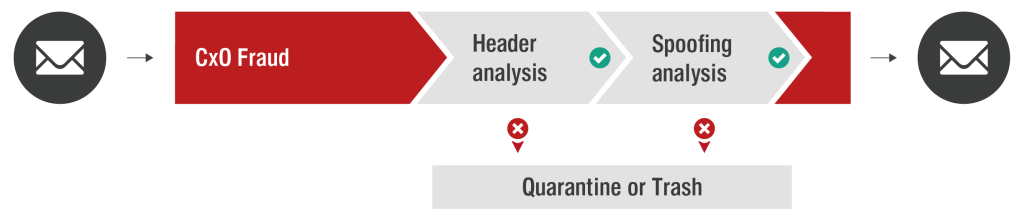
Email Live Search provides a dedicated tracking point for CxO Fraud Detection, including the classification and the specific detection reason.
How CxO Fraud Detection works
CxO Fraud Detection inspects the headers of inbound emails. The message body is not analyzed.
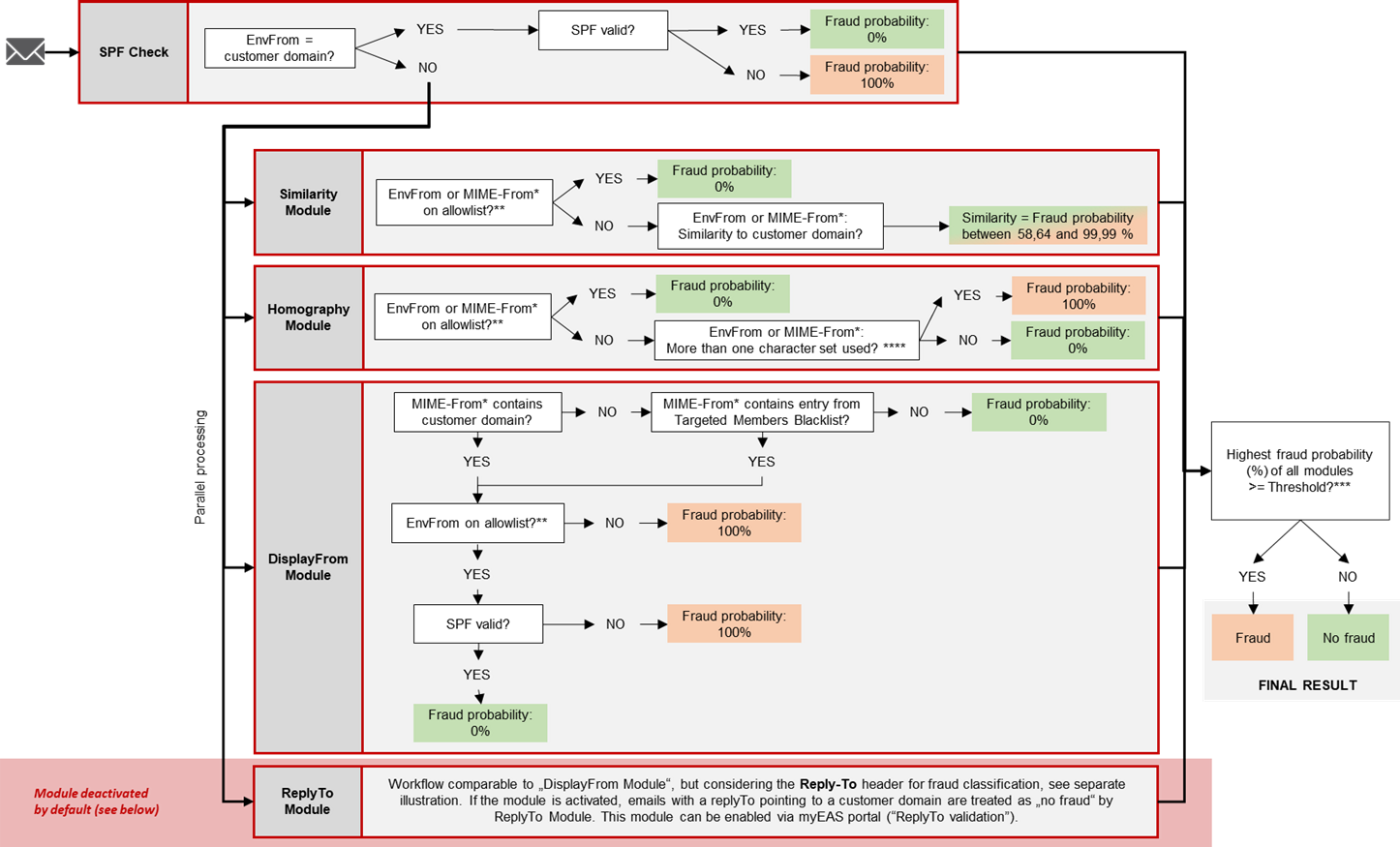
Each sub-module calculates an independent fraud probability. The service compares the highest of these percentages against your configured threshold, which is 80% by default. If the percentage exceeds the threshold, the message is moved to quarantine as possible fraud. Setting the threshold to 100% effectively disables the Similarity module.
The CxO Fraud Detection Allowlist and the Targeted Members Blocklist are taken into account as well.
Different detection sub-modules target different attack vectors:
-
SPF Check
The initial authentication module checks the sender address. If the message originates from an internal customer system, meaning theEnvelope-Fromcontains a customer domain with a valid SPF record, the message is classified as clean and all subsequent modules are skipped. If the SPF check fails, the message is classified as fraud. Messages from external systems continue to the remaining modules in parallel. -
Similarity Module
Detects domain spoofing where an attacker substitutes characters to mimic a customer domain, for example, by replacing a single letter. -
Homography Module
Detects domain spoofing that uses different character sets, for example, Cyrillic letters that visually mimic ASCII characters. -
DisplayFrom Module
Detects attacks where the sender display name mimics a customer domain or the name of a person inside your organization, while the message originates from an external address. This module targets generic phishing attacks that do not expect a direct reply, such as fraudulent bank transfer requests or announcements of a follow-up phone call. -
ReplyTo Module (disabled by default)
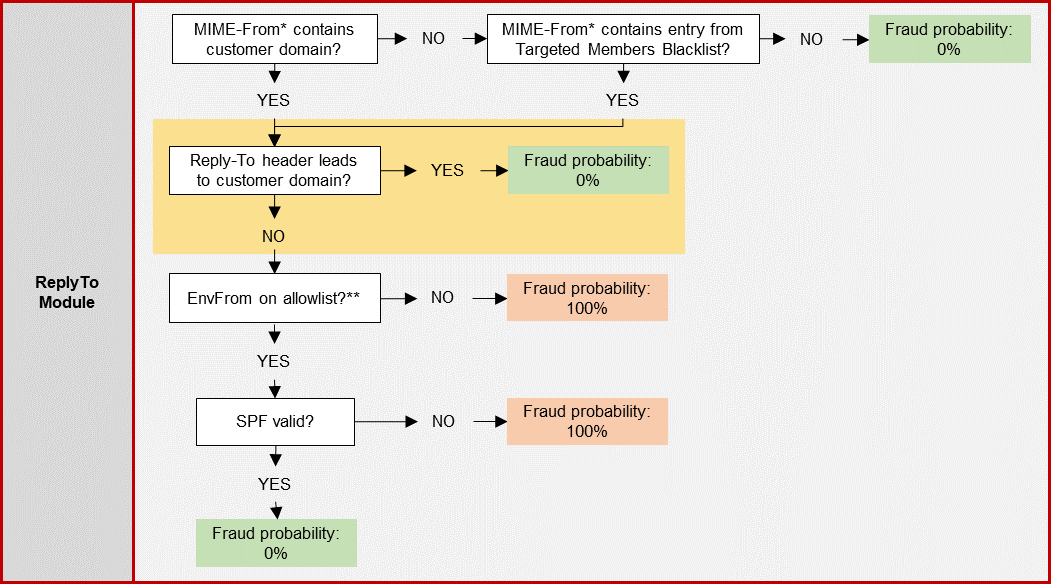
Works like the DisplayFrom Module, but also evaluates theReply-Toheader. This module targets classic CxO fraud, also known as business email compromise (BEC), where an attacker starts a conversation and expects a reply.-
If the
Reply-Toaddress points to an external address, the module flags the message as a fraud attempt. -
If the
Reply-Toaddress points to a valid customer domain, the module classifies the message as legitimate. -
If the
Reply-Toheader is empty, the module also classifies the message as legitimate, because the address from theMIME-Fromis then used for replies by default.
The last case is why the module is disabled by default. An attacker who leaves the
Reply-Toempty and spoofs aMIME-Fromcontaining a customer domain is not detected by this module. To activate it, enable ReplyTo Validation in the myEAS portal. -
The following diagram describes the processing logic in detail.
Legend & implementation details
* MIME-From (header from): friendly name and email address.
** On allowlist: The address or domain is listed either on the CxO Fraud Detection Allowlist or on the AntiSpam Allowlist, depending on which list CxO Fraud Detection is configured to use.
*** Configured threshold: Percentage configured in the myEAS portal, service default 80%. Configurable at customer, domain, and profile level. If the calculated fraud probability is higher than the threshold, the message is regarded as a fraud attempt and sent to quarantine.
Configuration
Path: myEAS - Email Security - Configuration - Service Configuration - [Level] - CxO Fraud Detection
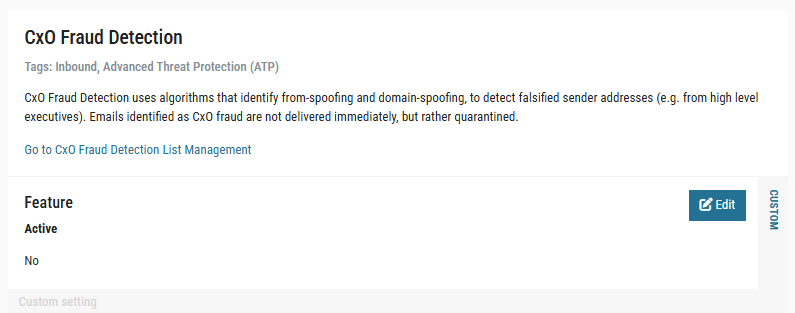
The following settings are available:
-
Feature – Active
Activates or deactivates CxO Fraud Detection. -
Allowlist – Use company-wide AntiSpam Allowlist
Determines whether the company-wide AntiSpam Allowlist is used for CxO Fraud Detection in addition to the dedicated CxO Fraud Detection Allowlist. -
Fraud Probability Tolerance – Threshold
Sets the fraud probability from which messages are classified as fraud. The default value is 80%. Setting it to 100% effectively disables the Similarity module. This setting can be configured at customer, domain, and profile level. -
Setup – Mode
Selects the operating mode:-
Filter: Default mode. Messages exceeding the fraud threshold are quarantined.
-
Warn-only: Classification results are logged in Email Live Search, but no messages are filtered, quarantined, or deleted. Use this mode for initial testing, so you can adjust your settings and SPF records before you switch to Filter mode. We recommend contacting a Retarus consultant to support you during the test.
-
-
ReplyTo Validation – Enabled
Enables the ReplyTo Module, which is disabled by default, so that theReply-Toheader is evaluated during fraud classification. See the module description above.
List management
Manage both lists in the myEAS portal under List Management - CxO Fraud Detection.
Important:
-
If an entry appears on both lists, the CxO Fraud Detection Allowlist always wins over the Targeted Members Blocklist.
-
The SPF check is performed even for allowlisted addresses and domains, so a valid SPF record is mandatory for those as well.
CxO Fraud Detection Allowlist
Path: myEAS - List Management - CxO Fraud Detection - CxO Fraud Detection Allowlist
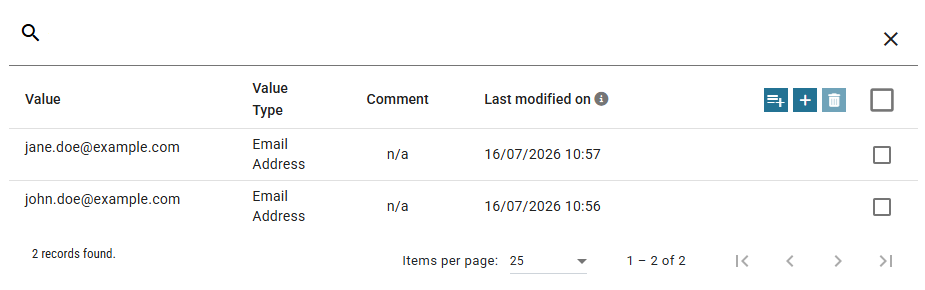
To exempt certain email addresses or domains from CxO Fraud Detection, add them to the dedicated allowlist.
CxO Fraud Detection – Targeted Members Blocklist
Path: myEAS - List Management – CxO Fraud Detection - Targeted Members Blocklist
Some attackers use the name of your CEO or another employee in the MIME-From, for example as the display name, without using a customer domain as the sender address. To let CxO Fraud Detection recognize these messages as a possible fraud or spoofing attempt, add the names of the managers or employees concerned to the Targeted Members Blocklist.
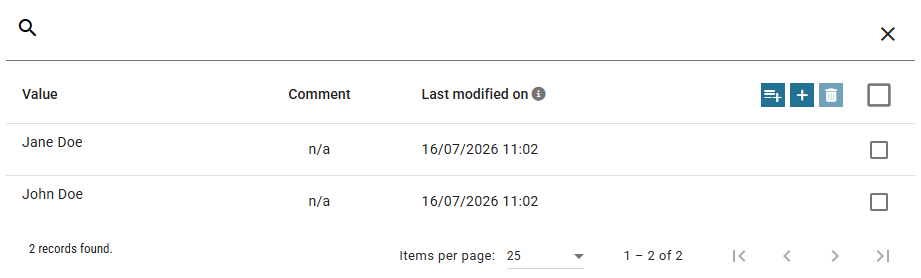
The following rules apply to entries on this list:
-
Entries are case-insensitive.
-
Entries may contain UTF-8 letters only.
-
Umlauts are not interchangeable with the corresponding double vowel. The entry
Eugen Müllertherefore does not match the display nameEugen Mueller. -
An entry may contain a maximum of three parts separated by spaces. A hyphenated name such as
Muster-Manncounts as one part. -
The order of the parts does not matter, but all parts must match. If every part of an entry appears in the
Fromheader, the message is flagged as a targeted member.
Examples of valid entries:
-
Max Georg Müller-Schmidt -
E Mueller: matcheseugen.mueller@gmx.de,Mueller, Eugen,EuGEn MuELler, and alsoandy@mueller.com, because the lettereis already contained inmueller. It does not matchEugen Müller, becauseuediffers fromü.
External Sender Visibility Enhancement (ESVE)
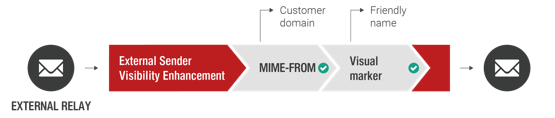
External Sender Visibility Enhancement (ESVE) helps make your users aware of potential spoofing. It adds a symbol, a custom text prefix, or both to the sender field of incoming external emails that carry one of your corporate domains in the MIME-From header. The email is not quarantined, but the recipient can tell that it comes from an external source despite the internal sender address. This feature is disabled by default.

Important
ESVE is a "tag and deliver" mechanism. It does not quarantine or discard emails, and there is no dedicated allowlist. False positives are possible. For example, newsletters sent by external service providers are also tagged if they contain one of your corporate domains in the sender address.
Detection Behavior and Limitations
ESVE uses exact 1:1 pattern matching on the sender domain and does not analyze display names or character substitutions. The following examples compare ESVE behavior with Retarus CxO Fraud Detection.
-
Matching corporate domain
From: "John Smith" <john.smith@customerdomain.com>-
ESVE: Matches the customer domain and adds the configured symbol or text prefix.
-
-
Corporate address nested in display name
From: "John Smith <john.smith@customerdomain.com>" <sender@externaldomain.com>-
ESVE: Does not tag. The evaluation extracts the string between the first
<and the last>, so the extracted string does not matchcustomerdomain.com. Retarus CxO Fraud Detection would normally detect an email in this format as suspicious (possible fraud).
-
-
Domain in display name
From: "John Smith / customerdomain.com" <sender@externaldomain.com>-
ESVE: Does not tag. ESVE does not evaluate the friendly display name in front of the brackets. Retarus CxO Fraud Detection would normally detect an email in this format as suspicious (possible fraud).
-
-
Company or employee name in display name
From: "John Smith / CustomerName" <sender@externaldomain.com>-
ESVE: Does not tag. ESVE does not evaluate the friendly display name and does not look for company, brand, or person names. Retarus CxO Fraud Detection with the Targeted Members Blocklist would normally detect an email in this format as suspicious (possible fraud).
-
-
Lookalike or typosquatted domain
From: "John Smith" <john.smith@cust0mer-domain.ru>-
ESVE: Does not tag. ESVE relies on exact pattern matching and does not detect character substitutions, homoglyphs, or typographical errors. Retarus CxO Fraud Detection would normally detect this, because it uses similarity checks.
-
Configuration
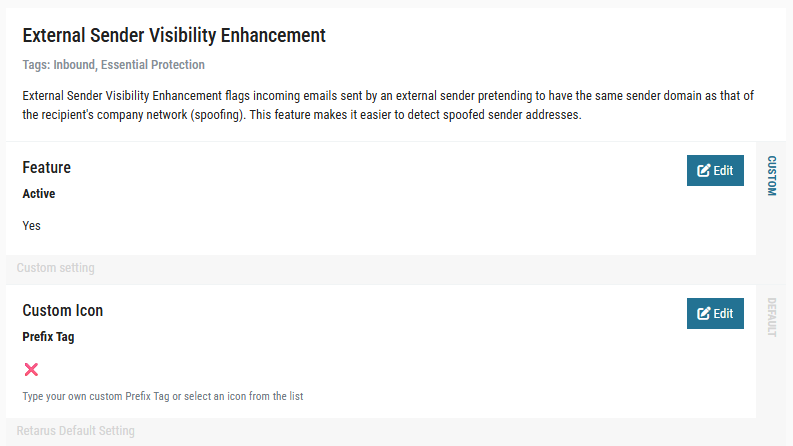
Path: myEAS - Email Security - Configuration - Service Configuration - [Level] - External Sender Visibility Enhancement
Configure the following settings:
-
Status
Enable or disable ESVE. -
Prefix tag
Choose the tag added to external emails that contain one of your domains in theMIME-Fromheader:-
Icon: Select a symbol from the list.
-
Text prefix: Enter a custom prefix of up to 20 alphanumeric characters.
-
Combination: Select an icon and enter a text prefix to use both.
-
Email Authentication (Inbound)
Email authentication mechanisms verify the sender of an email and detect whether it was altered during transport. Retarus supports three standard authentication protocols:
-
SPF (Sender Policy Framework)
-
DKIM (DomainKeys Identified Mail)
-
DMARC (Domain-based Message Authentication, Reporting and Conformance)
Email Live Search provides a dedicated tracking point for Email Authentication, including details on status, alignment, domain and DNS record.
SPF (Sender Policy Framework)
Path: myEAS - Email Security - Configuration - Service Configuration - [Level] - SPF (Sender Policy Framework)
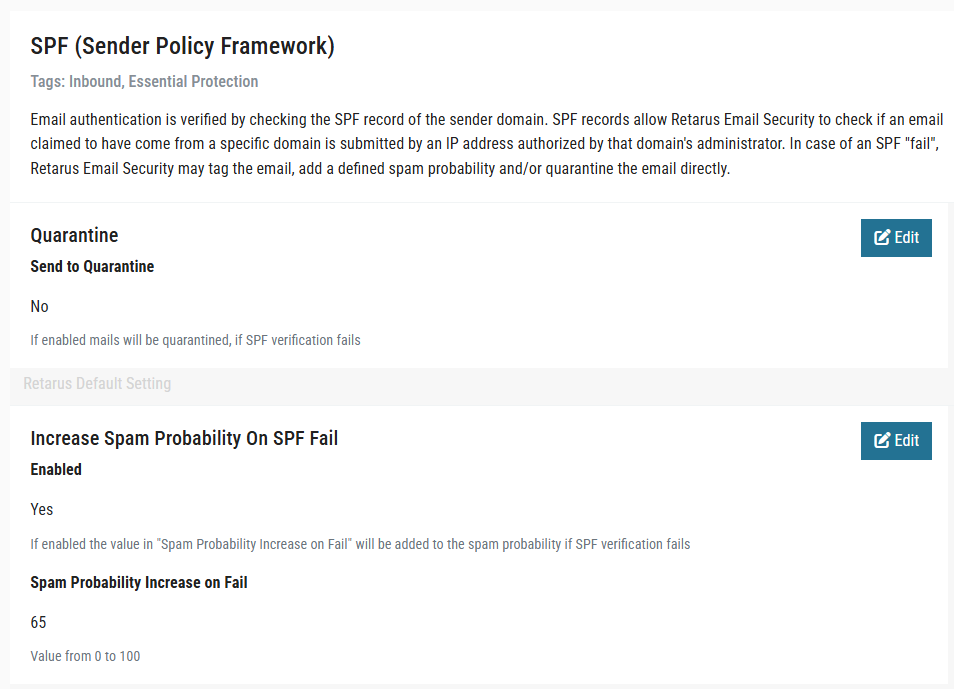
The SPF check evaluates whether the sending mail server is authorized to send emails for the sender domain, according to the domain's published SPF record. As an administrator, you decide how emails are handled based on the result:
-
Increase the spam probability when SPF fails (
SPF = fail), or decrease it when SPF passes (SPF = pass). -
Move the email to quarantine when SPF fails (
SPF = fail). -
Add a prefix to the subject line when SPF fails (
SPF = fail) and deliver the email to the recipient. This option is suitable for user groups such as departments that take orders or provide external support.
📌 SPF
softfailresults are currently not taken into account.
DKIM (DomainKeys Identified Mail)
Path: myEAS - Email Security - Configuration - Service Configuration - [Level] - DKIM (DomainKeys Identified Mail)
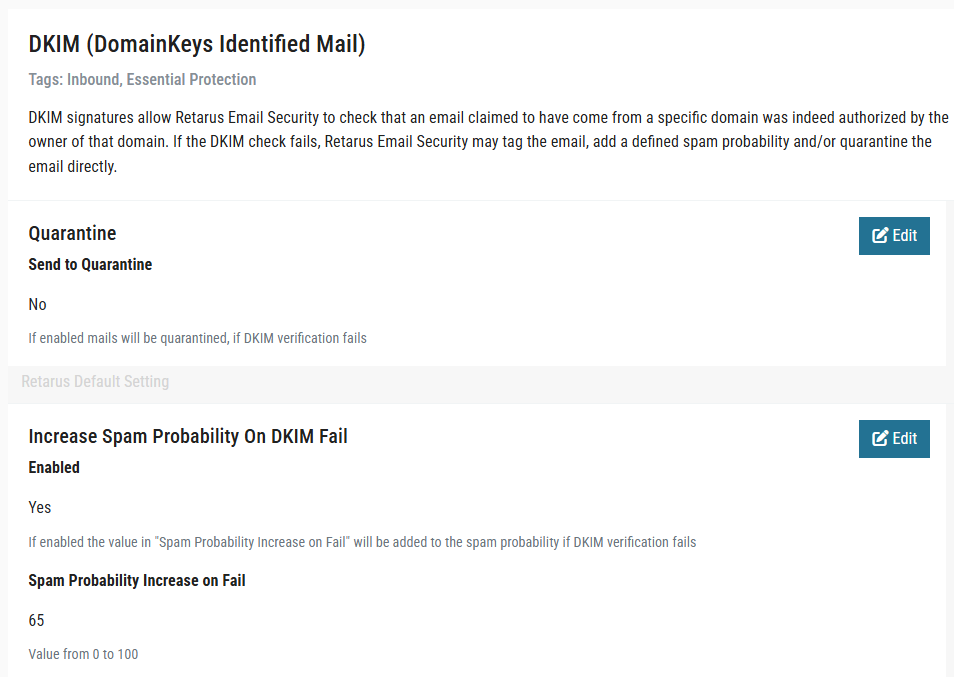
The DKIM check evaluates whether the DKIM signature of an email is valid. A DKIM check can fail for several reasons, for example, an incorrect or altered signature, a phishing email, domain keys that are not properly maintained in a DNS entry, or a misconfiguration on either the sending or the receiving mail server.
When the DKIM check passes, Retarus delivers the email. You can also configure the service to lower the spam probability by a configurable amount.
When the DKIM check fails, you can choose one of the following actions:
-
Increase or decrease the spam probability.
-
Add
[RMX:DKIM]to the subject line and deliver the email. This option is suitable for user groups such as departments with a lot of external communication. -
Move the email to quarantine.
-
Delete the email.
DMARC (Domain-based Message Authentication, Reporting and Conformance)
DMARC is an email authentication protocol that extends the SPF and DKIM mechanisms. For inbound emails, Retarus Email Security can validate existing DMARC DNS records of your communication partners and act upon the policy configured by the domain owner. Depending on the validation result and the policy, the email is processed regularly, quarantined, or rejected. These actions are applied in Filter mode.
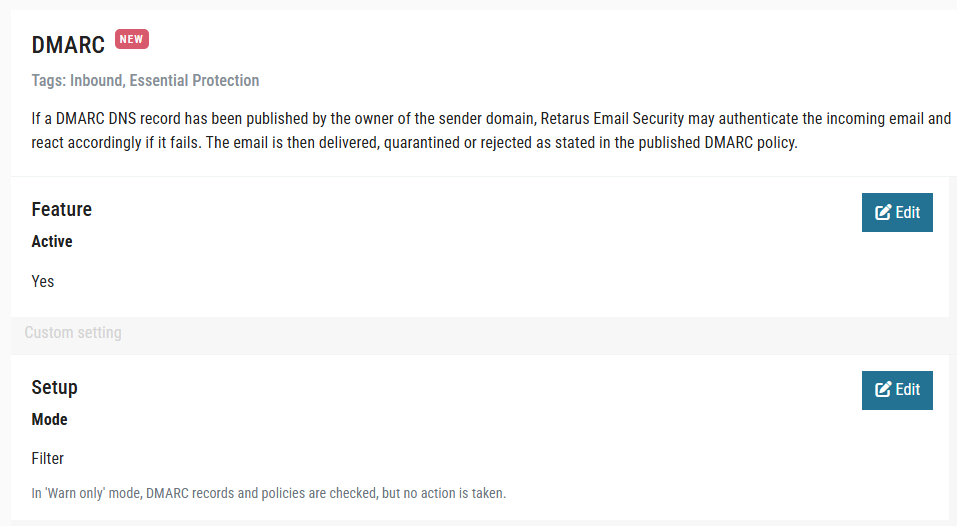
You can configure DMARC settings at the customer level only.
-
Active switches the DMARC check on or off. The Retarus default is Yes.
-
Mode sets what happens when a check fails. Choose Warn only (default) to have DMARC records and policies checked without taking action, or choose Filter to have the email delivered, quarantined, or rejected as stated in the DMARC policy published by the sender's domain.
📌 Before you configure Filter mode, contact your Technical Consultant.
If an email has to be quarantined due to DMARC, but also fulfills other quarantine criteria (e.g., Spam or Phishing), it may be quarantined with another reason, as Retarus uses a fixed order/hierarchy of quarantine reasons.
If the DNS record of the domain owner cannot be accessed due to technical problems, an incoming email will be temporarily rejected. After 72 hours, it will be rejected permanently and a Non-Delivery Report (NDR) will be issued to the sender.
Retarus can only evaluate DMARC for inbound mail that is delivered through Retarus. To make sure all inbound mail for your domains passes through the Retarus filter, you must use the dedicated MX record shown in myEAS under Email Security > Configuration > MX Record. Mail that bypasses this record cannot be checked against DMARC policies.
The DMARC record of your own domains is not used for inbound filtering. Retarus evaluates the DMARC records of the sending domains. However, your own DMARC record tells other mail servers how to handle mail that claims to come from your domain. We recommend publishing a DMARC record for every domain, starting with p=none and a ruaaddress to collect reports.