
Path: myEAS - Email Security - Service Configuration - [Level] - Antispam Management
Configure all settings for Retarus AntiSpam Management and inbound email quarantine here.
Spam email actions
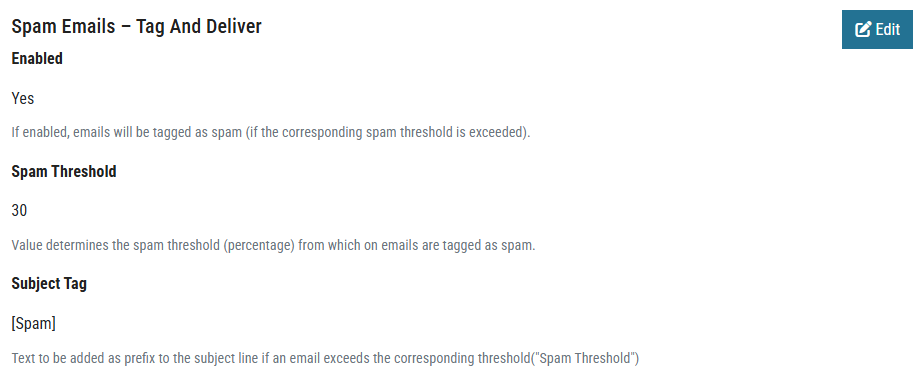
Spam Emails - Tag and Deliver
Adds a prefix to the subject line of messages and delivers them to the recipient as usual. We recommend this option for messages with a low spam probability, such as newsletters. These messages are not necessarily unwanted, but the prefix distinguishes them visually from business-relevant messages. Because the prefix is consistent, recipients can create inbox rules that move tagged messages to a specific folder and keep their inbox organized.
-
Default prefix:
[RMX:###]. The Retarus AntiSpam engine calculates the spam probability, and###is replaced by a corresponding number of#characters. -
Custom prefix: You can define your own prefix using these variables:
-
%%%: Replaced by the calculated spam probability as a percentage. -
###: Replaced by a number of#characters that depends on the calculated spam probability.
-
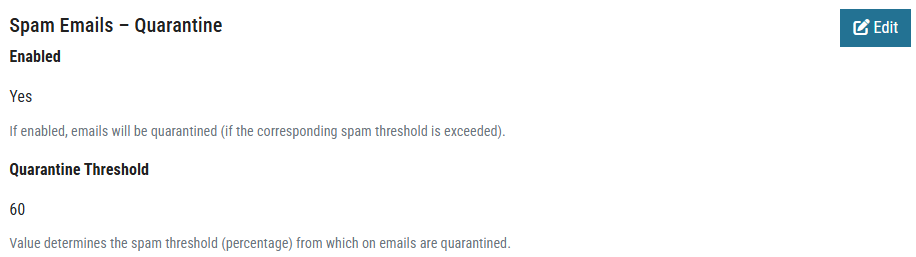
Spam Emails - Quarantine
Quarantines messages when their calculated spam probability exceeds the configured threshold. Quarantined messages are listed in the recipient's periodic Retarus Email Security Report (digest). Contact Retarus to configure the retention period for quarantined emails.
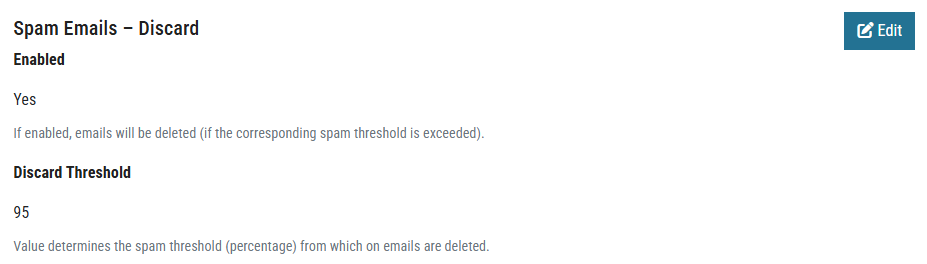
Spam Emails - Discard
Permanently deletes messages that exceed the defined spam threshold. Neither the sender nor the recipient receives a notification, and deleted messages do not appear in the user digest.
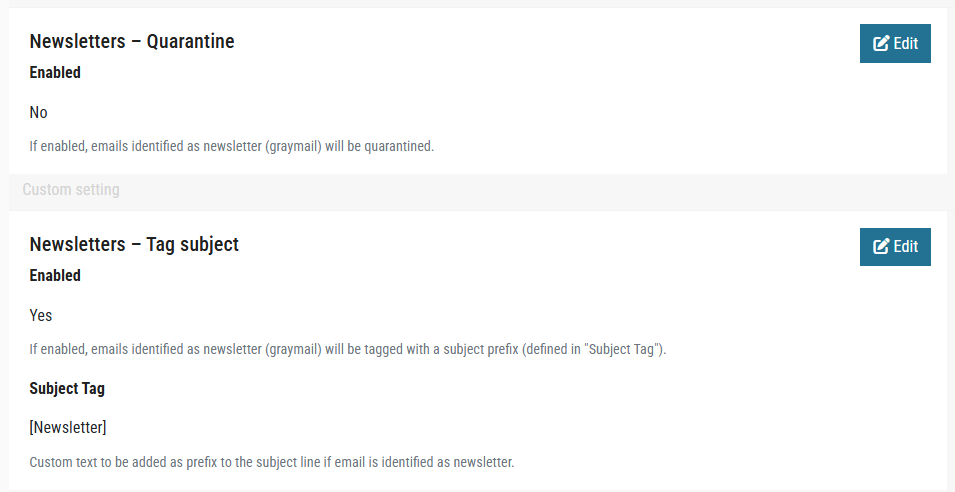
Newsletter handling
Newsletters and other marketing emails are not necessarily spam, but recipients might not want them. The following options apply to messages with the Newsletter classification.
-
Newsletters - Quarantine
Quarantines newsletters. Quarantined newsletters are listed in the user's periodic digest. -
Newsletters - Tag subject
As an alternative to quarantining, tags the subject line of newsletters and delivers them. Recipients can use the tag to sort and filter these messages, for example, with inbox rules, and keep their inbox clean.
Blocklist and Allowlist policies
Configure how Retarus AntiSpam handles emails from senders on company-wide or user-specific blocklists and allowlists.
-
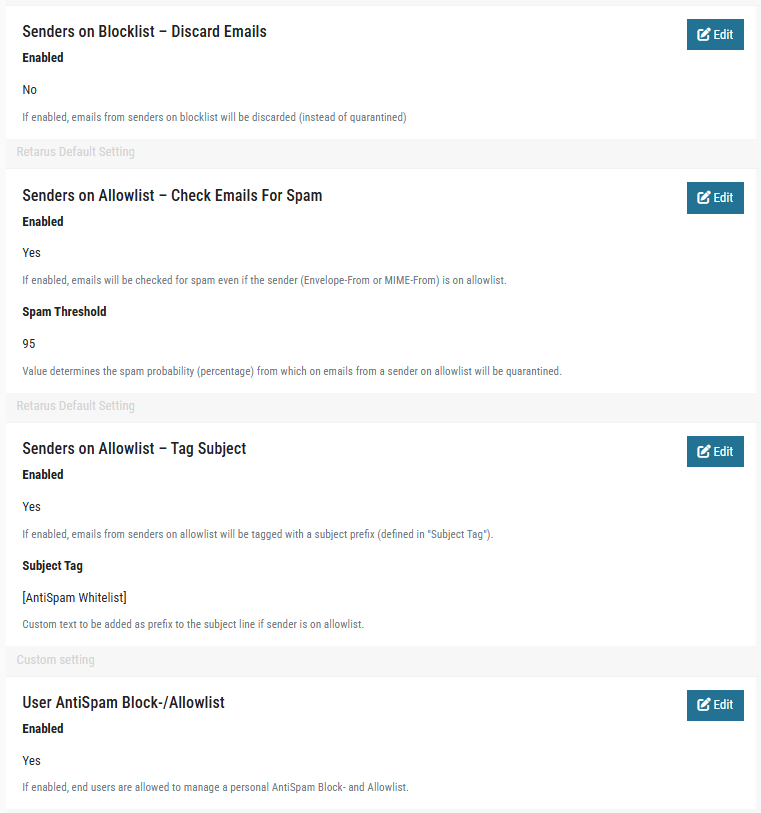
Senders on Blocklist - Discard Emails
Automatically deletes emails from senders on a company-wide or user-specific blocklist. Neither the sender nor the recipient is notified.
This option is only available if a deletion agreement with Retarus is in place. -
Senders on Allowlist - Check Emails for Spam
Checks emails from allowlisted senders for spam. When this option is enabled, you can define the spam probability (percentage) at which these emails are quarantined. When it is disabled, emails from allowlisted senders are not checked for spam at all. We recommend enabling this option to avoid spam from known senders. -
Senders on Allowlist - Tag Subject
Adds a prefix to the subject line of emails from senders on a company-wide or user-specific allowlist to indicate that the sender is trusted.-
Default prefix:
[RMX:AL] -
Custom prefix: You can define your own prefix. The variables
###and%%%are not supported for this setting.
-
-
User AntiSpam Block-/Allowlist
Allows end users to manage their own blocklist and allowlist
Sender address evaluation
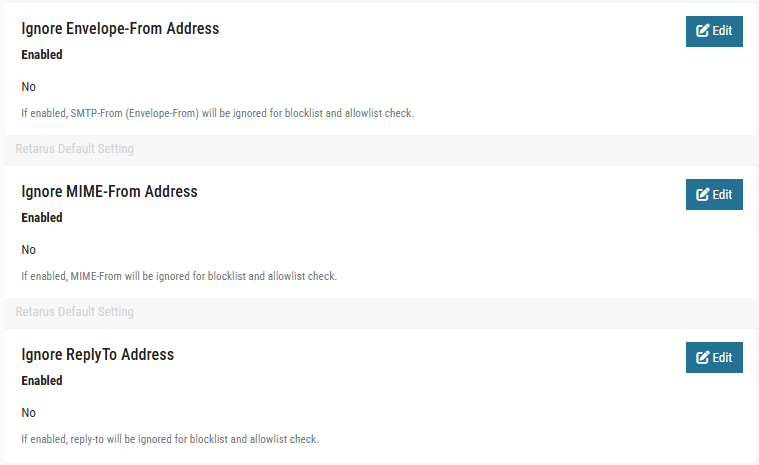
By default, the Retarus AntiSpam engine checks all sender fields of an email against the addresses and domains on the company-wide or user-specific blocklist and allowlist. You can exclude individual sender fields from these checks:
-
Ignore Envelope-From Address
Excludes the SMTP-From (Envelope-From) address from blocklist and allowlist checks. -
Ignore MIME-From Address
Excludes the MIME-From address from blocklist and allowlist checks. -
Ignore ReplyTo Address
Excludes the Reply-To address from blocklist and allowlist checks.
Content filters
Activate Bad Word Filter
Quarantines emails with objectionable content, based on a keyword list maintained by Retarus. Emails quarantined by this filter are not listed in the Email Security Report (digest), and users cannot view them in their personal online quarantine

Quarantine management settings
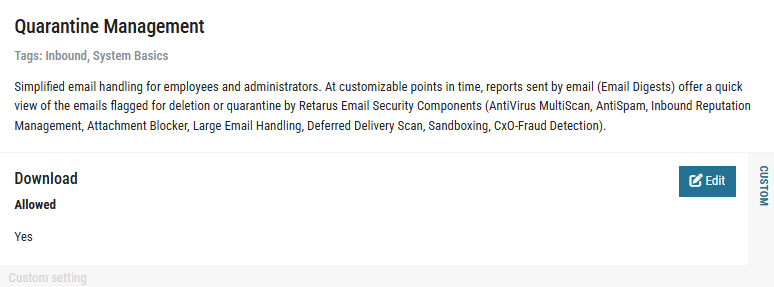
Path: myEAS - Email Security - Configuration - Service Configuration - [Level] - Quarantine Management
Configure whether your users can download emails, including attachments, from their quarantine.
📌 This option is not compatible with Retarus Large Email Handling. When the download option is enabled, recipients cannot download attachments from emails that were quarantined because of large attachments.
AntiSpam Management (Outbound)
Retarus can also check outgoing (outbound) emails for spam. When the feature is enabled, emails that exceed a configurable spam probability are handled with one of the following actions, depending on your configuration. The default threshold is 90%.
-
Reject
The email is rejected. -
Tempfail
The email is temporarily rejected, so the sending server retries delivery. -
Discard silently
The email is deleted without notifying the sender or the recipient.
Quarantining outbound emails is not supported.
You can configure outbound spam settings across all hierarchy levels: customer, domain, profile, and user. To activate outbound AntiSpam detection, contact Retarus Support.
Backscatter Protection
Path: EAS - Administration - Email Services - Service configuration - Domain - Domain Settings
Backscatter occurs when spammers spoof a legitimate email address as the sender for spam campaigns. When receiving email servers reject these messages (for example, if a recipient address does not exist), they send delivery status notifications and non-delivery reports (NDRs) back to the spoofed address instead of the actual sender.
Retarus Backscatter Protection limits these notifications. If a recipient address receives more than one NDR within a defined time period (default: 14 minutes), subsequent NDRs are moved to the user quarantine and classified as NDR Spam.
You can configure backscatter protection settings only at the domain level.
-
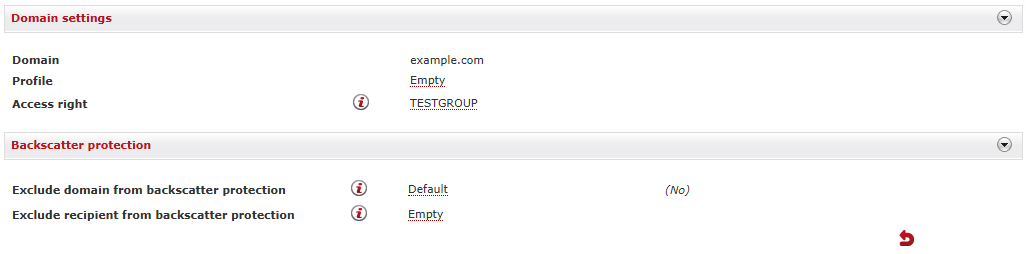
In the Domain list, locate the domain you want to configure and click the settings icon on the right.
-
Set the exclusions you need:
-
To exclude the entire domain from backscatter protection, select Yes. The default setting is No.
-
To exclude individual addresses, enter them in the field next to Exclude recipient from backscatter protection, separated by commas. This is useful for addresses that send newsletters and therefore receive delivery status notifications at short intervals.
-
📌 The addresses you enter must belong to the domain you have opened. Configure backscatter protection for your other domains separately in the Domain menu.