
Attachment Blocker (Inbound)
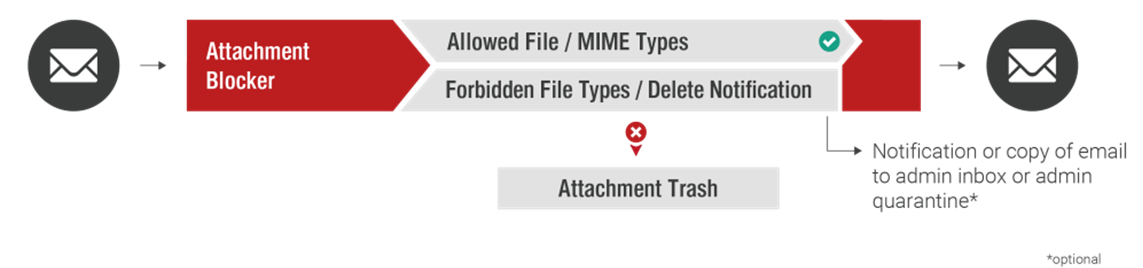
The Attachment Blocker feature allows you to block files attached to inbound emails that you consider untrustworthy, or do not want to allow into the company’s infrastructure (e.g., EXE, SCR, or MP3 files).
A wide range of configuration options are available that allow you to choose the notification type, delivery type, and tag emails.
Configuration
Path: myEAS - Email Security - Configuration - Service Configuration - [Level] - Attachment Blocker – Inbound
The attachment blocker allows you to block certain email attachment file types. Configuration can be done on all levels (customer, domain, profile, or user level).
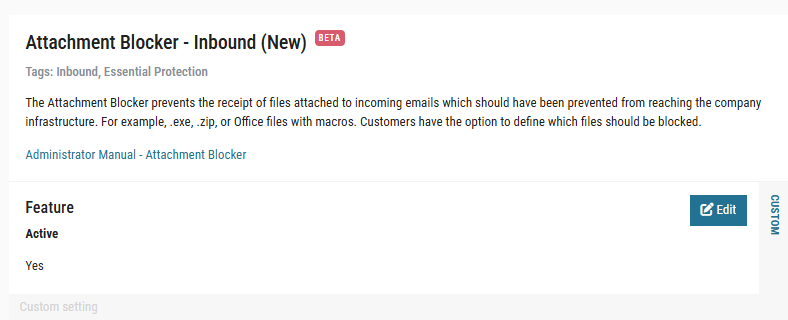
The following settings are available:
-
Feature
Activation or deactivation of the Attachment Blocker (Inbound). -
Filter Mode (incl. Block Lists / Allow Lists)
You may choose between the “Block-List Strategy” and the “Allow-List-Strategy”. “Block-List Strategy” means that all attachments are allowed to be received, except for the file extensions and MIME types on the block lists below. “Allow-List-Strategy” (recommended from security point of view) means that all attachments are blocked by default and exceptions for allowed file extensions and MIME types are defined explicitly using the provided allow list.
Retarus recommendations for file extensions and MIME types to block are included in the dedicated admin documentation “Email Security – Attachment Blocker Extensions” available in the EAS portal. -
Blocking Options
-
Block Password Protected Files
Password-protected files cannot be scanned for malware. If enabled, protected files are blocked in general. -
Block Suspicious Archives
Suspicious archive files are highly compressed or multi-nested container files which may contain malicious content (so-called "zip-bombs"). If enabled, these suspicious archive files are blocked. -
Block Unknown MIME Types
If enabled, any file not matching a known MIME type will be blocked. For a list of known MIME types, please refer to the dedicated Attachment Blocker admin documentation available in the EAS portal ("Email Security – Attachment Blocker Extensions").
-
-
Attachment – Tag Subject
If enabled, a short text will be added as prefix to the email subject when an attachment has been blocked. The prefix tag may be configured. -
Admin Notification
If enabled, a notification email is sent to an administrator whenever an attachment for a user has been blocked. -
Embedded User Notification
If enabled, the recipient will get a notification about blocked attachments as embedded text in the body of the email. The embedded text may be configured by choosing “Customize Notification”. The text may consist of a header line, main text and footer line. The reason for splitting the text into three parts is that the middle part (main text) may contain the placeholder%filename%for the filename and may be displayed multiple times when using the placeholder, one line for every blocked attachment. -
Store Original Email
If enabled, a copy of the original email including all attachments is stored in the administrator’s inbox. If this option is set to “Yes”, the target address of the administrator has to be entered and you may choose between the inbox and the quarantine of the administrator as store location.
Messages may be retrieved from the online quarantine exactly the same way that messages exceeding the file size limit or suspected of containing spam are released. -
Send To User Quarantine
As an alternative or on top of the setting above, the original mail (including all attachments) may be stored in the recipient’s own user quarantine. This might be useful if you’d like to avoid that a central administrator or service center has to check and release emails with blocked attachments for the users, but on the other hand, you’d like to have a small security barrier, because users have to actively release an email from their quarantine if they know the sender.
Messages may be retrieved from the online quarantine exactly the same way that messages exceeding the file size limit or suspected of containing spam are released.
Deferred Delivery Scan
Deferred Delivery Scan (DDS) is part of the Retarus Advanced Threat Protection (ATP) package. It must be booked and activated to take effect.
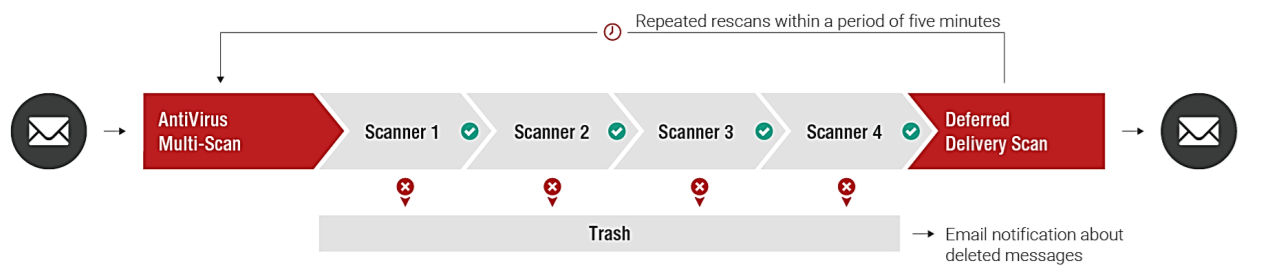
DDS is an additional layer of protection against malicious attachments in emails. The service requests the retarus AntiVirus MultiScan (4-fold) again and performs several re-scan operations within a maximum of 5 minutes. Signatures of new malware that were not available at the time of the first scan can already be available at the time of the next scan. On the other hand, enabling DDS leads to delays for all emails with attachments that are checked by this service.
If a virus is detected, Retarus discards the affected files and informs the addressees via an Email Security Report (digest). Infected emails are listed, but it’s not possible to release them. If no virus is found within 5 minutes of re-scanning, the email is delivered to the addressee’s inbox.
The Email Live Search portal provides a separate tracking point for Deferred Delivery Scan as well as additional information on specific emails.
DDS scans the following attachment types:
-
Microsoft Office documents
*.doc, *.dot, *.wbk, *.docx, *.docm, *.dotx, *.dotm, *.docb, *.xls, *.xlt, *.xlm, *.xlsx, *.xlsm, *.xltx, *.xltm, *.xlsb, *.xla, *.xlam, *.xll, *.xlw, *.ppt, *.pot, *.pps, *.pptx, *.pptm, *.potx, *.potm, *.ppam, *.ppsx, *.ppsm, *.sldx, *.sldm, *.accdb, *.accde, *.accdt, *.accdr -
PDF files
*.pdf -
Executables
*.action, *.apk, *.app, *.bat, *.bin, *.cmd, *.com, *.command, *.cpl, *.csh, *.exe, *.gadget, *.inf1, *.ins, *.inx, *.ipa, *.isu, *.job. *.js, *.jse, *.ksh, *.lnk, *.msc, *.msi, *.msp, *.mst, *.osx, *.out, *.paf, *.pif, *.prg, *.ps1, *.reg, *.rgs, *.run, *.scr, *.sct, *.shb, *.shs, *.u3p, *.vb, *.vbe, *.vbs, *.vbscript, *.workflow, *.ws, *.wsf, *.wsh
Configuration
myEAS - Email Security - Configuration - Service Configuration - [Level] - Deferred Delivery Scan
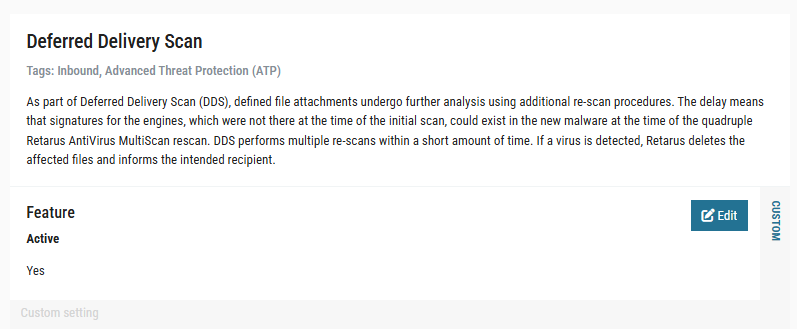
This feature is available on customer, domain, profile or user level, and is disabled by default. In the settings dialogue, you may activate/deactivate it.
Sandboxing
Sandboxing is part of the Retarus Advanced Threat Protection (ATP) package. It must be booked and activated to take effect.
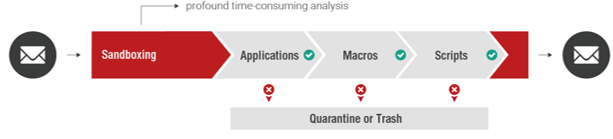
Sandboxing involves static as well as in-depth analysis of specific file attachments. Attachments that could potentially contain malicious routines (such as files and active elements) are executed in a virtual machine and checked for unusual behavior.
Sandboxing applies to the following attachment types:
"*.7z", "*.a", "*.ace", "*.alz", "*.ar", "*.arj", "*.ax", "*.bat", "*.bon", "*.br", "*.btm", "*.bzip2", "*.cab", "*.chm", "*.cjs", "*.cmd", "*.cpio", "*.cpl", "*.dat", "*.dll", "*.doc", "*.docm", "*.docx", "*.dotm", "*.dotx", "*.drv", "*.efi", "*.eml", "*.exe", "*.gz", "*.gzip", "*.hta", "*.htm", "*.html", "*.jar", "*.js ", "*.lha", "*.lhz", "*.lib", "*.lrz", "*.lz", "*.lzma", "*.lzo", "*.mjs ", "*.msi", "*.ocx", "*.pdf", "*.pif", "*.pot", "*.potm", "*.potx", "*.ppam", "*.pps", "*.ppsm", "*.ppsx", "*.ppt", "*.pptm", "*.pptx", "*.ps1", "*.rar", "*.rtf", "*.rz", "*.scr", "*.sldm", "*.sldx", "*.sys", "*.tar", "*.tnef", "*.vbs", "*.wbk", "*.wim", "*.wsf", "*.xht", "*.xhtml", "*.xla", "*.xlam", "*.xlm", "*.xls", "*.xlsb", "*.xlsm", "*.xlsx", "*.xlt", "*.xltm", "*.xltx", "*.xlw", "*.xz", "*.z", "*.zip", "*.zoo", "*.zst"
If Sandboxing does not identify the attachment as malicious within 13 minutes, the email is delivered to the recipient (time-out period). This maximum delay is only applicable in very rare cases; in most cases, Sandboxing only causes a short delay as the static analysis often delivers a result already. Even in combination with Deferred Delivery Scan (DDS), the validation of messages doesn’t take more than 13 minutes in total (absolute maximum, most of the emails are analyzed for seconds only).
The Email Live Search portal provides a separate tracking point for Sandboxing as well as additional information on specific emails.
Configuration
Path: myEAS - Email Security - Configuration - Service Configuration - [Level] - Sandboxing
This feature is available on customer, domain, profile or user level, and is disabled by default.
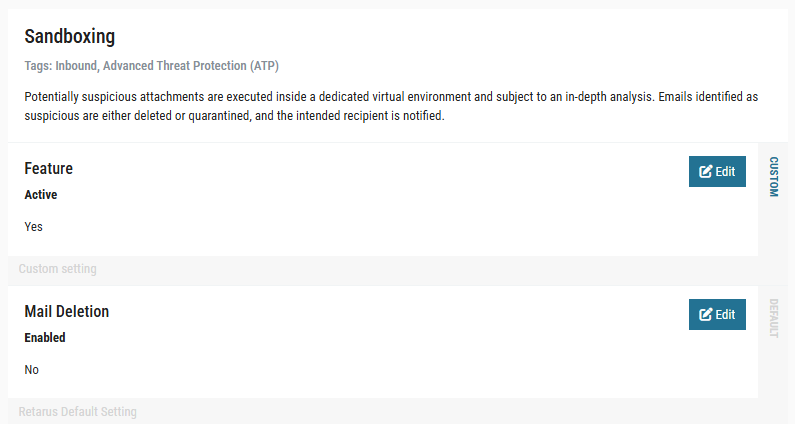
In the settings dialogue, you may activate/deactivate Sandboxing and (if activated) choose under “Mail Deletion” if suspicious emails shall be deleted (“Yes”) or if they shall be quarantined (“No”). The default setting is “No”, so emails are normally moved to the recipient’s User Quarantine. The addressee is notified by the Email Security Report (digest) and finds the email marked with “Sandboxing” as a quarantine reason. He may then decide whether to release the email from quarantine or not.
Alternatively, you can choose to delete infected emails directly. Also in this case, Retarus informs the addressees of discarded emails via the Email Security Report (digest); infected emails are listed under the “Virus” digest category. In contrast to the first option, discarded emails may not be retrieved any more.
Patient Zero Detection
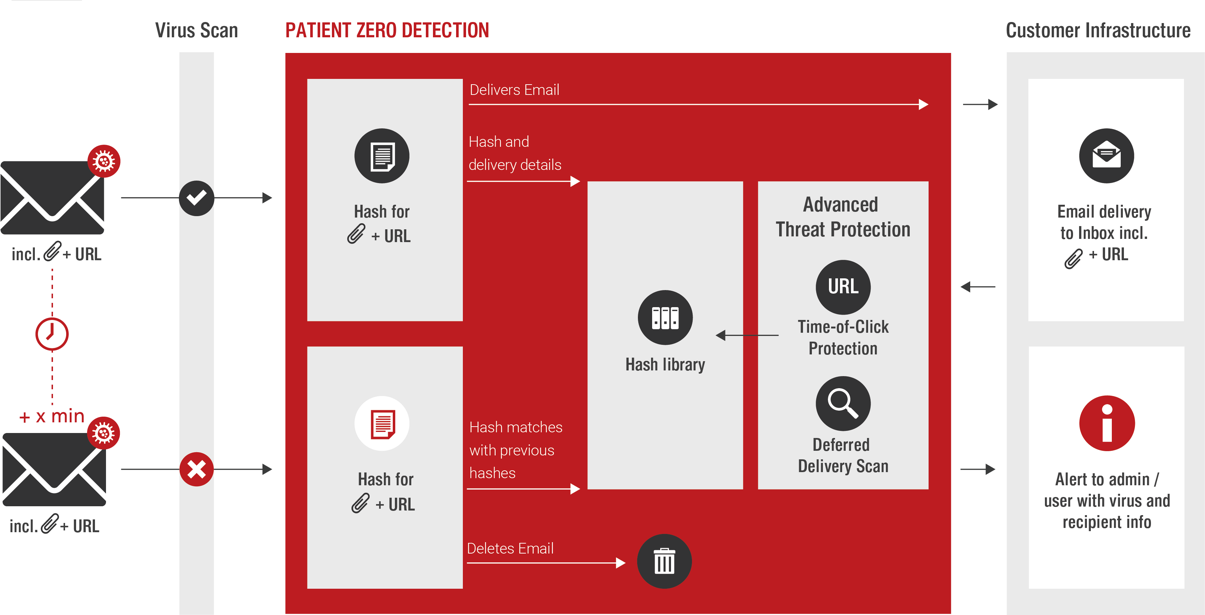
In general, Retarus Email Security is extremely reliable at filtering out infected emails. However, no filter can offer 100% protection. Until now, administrators and recipients of previously unknown viruses have not been informed of the potential threat in their inboxes. This prevents administrators from being able to introduce measures to successfully safeguard their systems against these hidden dangers. Retarus closes this security hole with Patient Zero Detection. With this extension of Retarus’ Email Security Services, such “Patient Zeros” can be identified and dealt with at an early stage. This puts CSOs and administrators in the position to take measures to efficiently counteract threats.
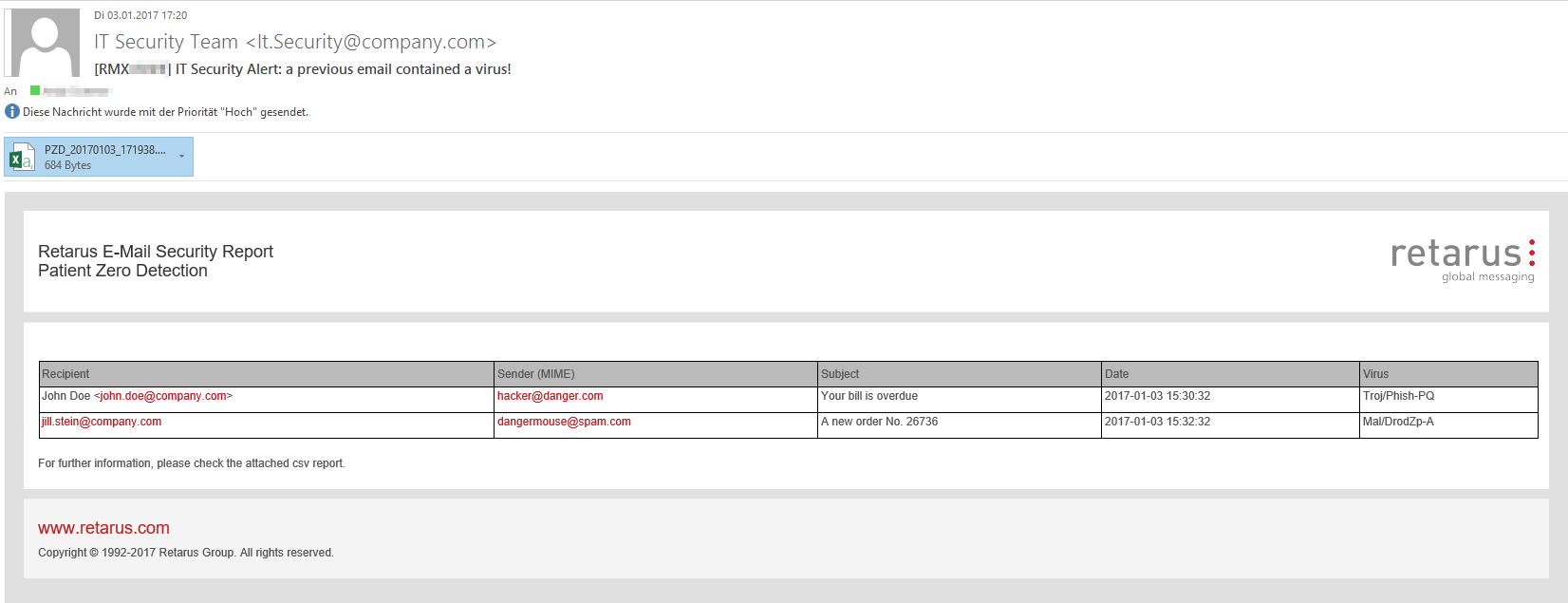
Patient Zero Detection creates and logs hash values (unique digital fingerprints) of each incoming attachment and stores this information with some message details about the recipient, sender etc. in a library. If Retarus detects a virus affecting one of these attachments, IT administrators, and (optionally) recipients are notified immediately or at an interval of your choosing.
Configuration
Path: myEAS - Email Security - Configuration - Service Configuration - [Level] - Patient Zero Detection
Available settings:
-
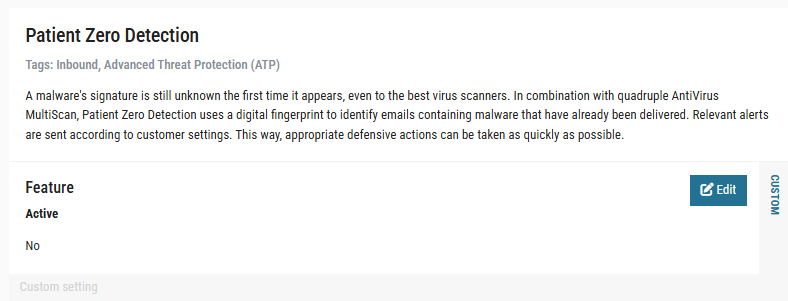
Feature – Active
Activation or deactivation of the Patient Zero Detection. -
Admin Notification
-
Admin Notification
Activate/Deactivate admin notifications. -
Custom Notification
If enabled, you may customize the admin notification. -
Interval
Here, you can configure the time intervals for administrator notification. An alert will then be sent after it is discovered that emails containing malware have previously been delivered to recipients. If you choose immediate notification, you will receive one alert per hash value. Starting at the five-minute interval, the notifications will be aggregated in a digest. Regardless of the interval, all administrator notifications contain a CSV file that contains additional information such as the hash value of the file, file name, file size, Message ID, etc. -
Recipient Address
Email address of the administrator mailbox. We strongly recommend that you enter a central mailbox which is checked regularly, e.g.,admin@yourcompany.com. -
Sender Address
Define an email address of your company as sender. -
Sender Name
Option of specifying the name displayed to the notification recipients. -
Subject
Option of specifying the email subject of the notifications. -
Urgent
If enabled, notifications are flagged as "high priority/urgent" in the recipient’s mail client.
-
-
User Notification
-
User Notification
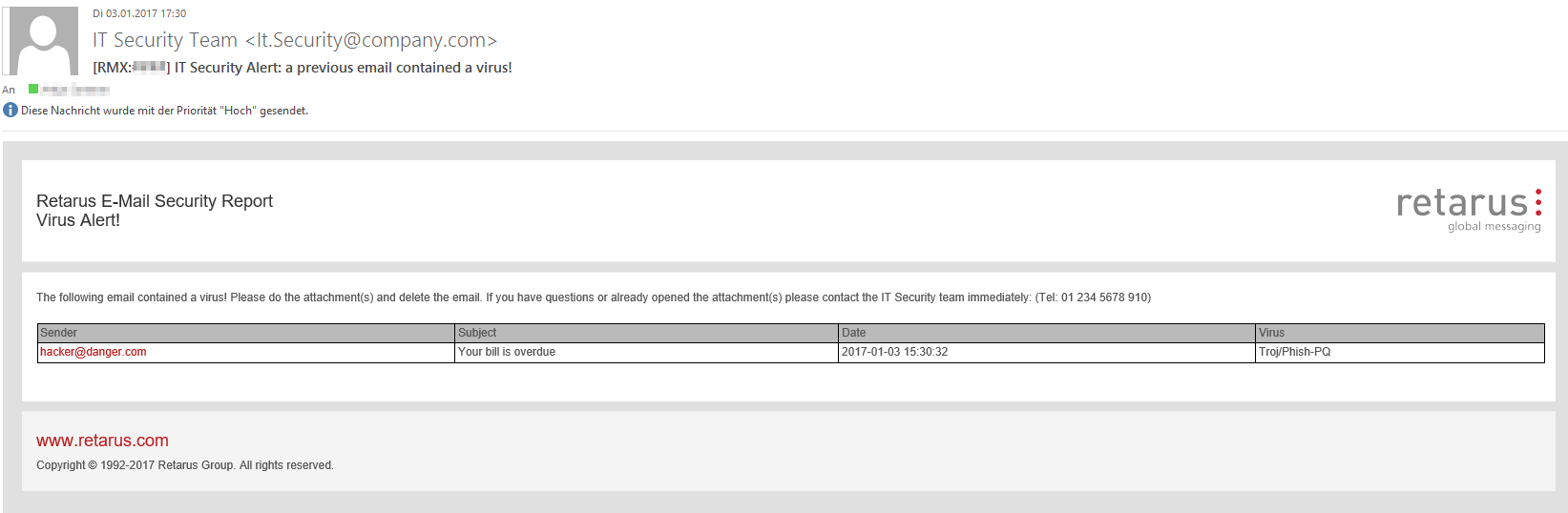
Activate/Deactivate user notifications. User notifications will always be sent immediately and do not contain a CSV file. -
Custom Notification
If enabled, you may customize the user notification. This allows you to add additional information such as telephone numbers and email addresses or links to internal IT security guidelines. -
Sender Address
Define an email address of your company as sender to generate greater trust in the notification email. -
Sender Name
Option of specifying the name displayed to the notification recipients. -
Subject
Option of specifying the email subject of the notifications. -
Urgent
If enabled, notifications are flagged as "high priority/urgent" in the recipient’s mail client.
-
An example of an admin notification is displayed below:
Configuration of Patient Zero Detection at profile level
The configuration of the Patient Zero Detection (hereafter "PZD") settings at the profile level is affected by the inheritance of settings at the corporate level (see Section 2 for details). Although data for PZD analysis is collected by Customer Number rather than at the profile level, there are still numerous reasons why your organization may want to configure PZD at the profile level (if you choose, it’s possible to have only profile settings). Here are some possible scenarios:
-
Testing PZD for a group of test users before activating it for the whole company.
-
Administrator notifications for security purposes at the corporate level, with special user notifications configured at the profile level.
-
A separate profile for each subsidiary in a different country, where the language and/or contact person may vary.
-
Separate profiles for separate IT security teams in different countries.
-
Separate profiles for different departments, because not all user groups need to receive PZD notification.
Patient Zero Detection (PZD) Real-Time Response
In order to process the Patient Zero Detection (PZD) events and move or delete emails automatically (rule-based) from the users’ Exchange inboxes, you may use the PZD Real-Time Response. This application (consisting of a Windows service and an administration interface) is installed locally on your Exchange server, processes Retarus PZD SIEM events and reacts accordingly by moving or deleting the malicious emails in the users’ mailboxes.
A detailed documentation of the PZD Real-Time Response can be found in the EAS portal under Support - Documentation. The PZD Real-Time Response is an optional stand-alone application and has to be ordered separately. For more information, please contact your Retarus sales representative.