
You can export UDR reports as Excel or CSV files directly from myEAS. Reports can be used for further analysis, record-keeping, or archiving.
File format limits
-
Excel: up to 250,000 records
-
CSV: up to 500,000 records
If you try to download a report that exceeds these limits, you see an error message indicating that the maximum number of records has been exceeded.
Exporting a report
-
Open the UDR Reporting screen (TRANSACTIONAL EMAIL – Usage Report).
-
Apply any filters, date range, sorting, or column selections you want to include in the export.

-
Click DOWNLOAD REPORT.
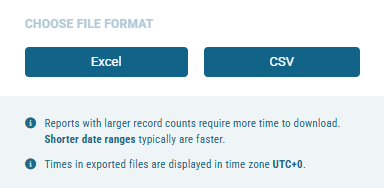
→ The file format dialog opens.
-
Select Excel or CSV.
→ A message confirms that the file is being prepared. The export runs in the background.
→ When the file is ready, a notification appears in the top navigation bar, in the Notifications area.
How exports work
When you download a UDR report, the file may not exactly match what you see on screen in myEAS. The exported file includes:
-
All visible columns from your current view
-
All records within the selected date and time range
-
Data sorted by Creation Time in ascending order
The exported file does not include:
-
Any applied filters
-
Any applied sorting
Viewing export notifications

-
Click the Notifications icon (bell) in the top navigation bar.
→ The Notifications sidebar opens, defaulting to the My own tab.
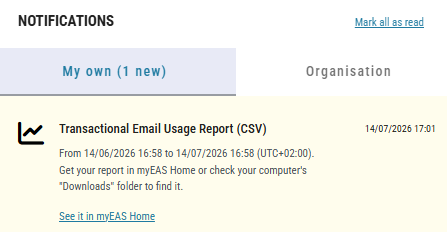
Each notification includes:
-
Title
Transactional Email (Excel or CSV) + creation timestamp -
Timestamp
From <timestamp> to <timestamp> -
Description
Instructions for downloading your generated report
Unread notifications are highlighted. Click Mark all as read to clear them. Notifications expire after 3 days, while exported report files remain available for 5 days.
To open the file directly from a notification, click See it in myEAS Home.
Viewing exported reports
You can view and manage your recent exports from the myEAS Home page, in the Reporting: My recently generated reports section.
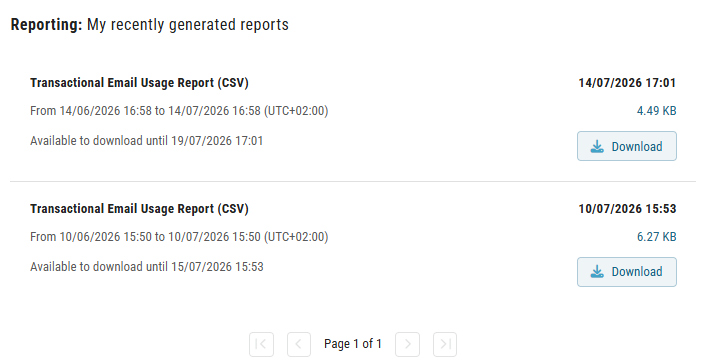
See Recently generated reports for details.