
IDHUB is the central authentication system for EAS and myEAS. Whenever you access one of these portals, the login process is handled by IDHUB.
-
Go to https://myeas.retarus.com to access myEAS/EAS.
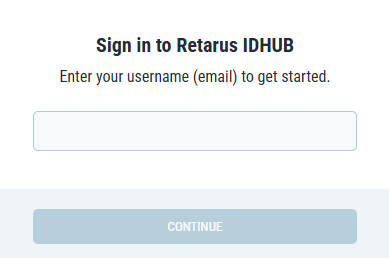
-
After you enter your email address, IDHUB identifies your organization’s authentication method and guides you to the correct login flow.
-
If your organization uses SSO, you are redirected to your identity provider.
-
Otherwise, you continue with standard authentication as described below.
-
First login (2FA setup required)
When you log in for the first time:
-
Enter your email address, then click Continue.
-
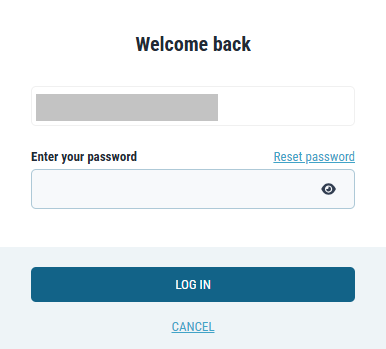
Enter your password (your username is pre-filled and locked), then click Log in.
→ The Set up Authenticator Application dialog is displayed. -
Make sure you have already installed an authenticator on your device:
-
Mobile: Google Authenticator, Microsoft Authenticator, or FreeOTP
-
Browser: Authenticator Extension (see IDHUB Frequently Asked Questions for installation instructions)
-
-
Follow the on-screen instructions:
-
Mobile app: Scan the QR code using your authenticator app.
-
Browser extension: Use the extension's Scan QR Code feature to capture the QR code from the screen.
-
If scanning is not possible, select Unable to Scan? to configure manually.
-
-
Enter the one-time code generated by your authenticator to verify the setup.
-
Optional: Assign a name to your device.
→ Once 2FA is successfully configured, you are redirected to the myEAS homepage.
The 2FA setup is required only once, unless you are asked to reconfigure it for security reasons.
Subsequent logins
After 2FA has been set up:
-
Enter your email address, then click Continue.
-
Enter your password (your username is pre-filled and locked), then click Log in.
-
Complete the security check (2FA) by entering the one-time code generated by your authenticator.
-
After successful verification, you are redirected to the myEAS homepage.
See Managing login information for details on accessing your IDHUB account settings.
Logging out
Since authentication is centralized, logging out from IDHUB automatically logs you out of all active EAS and myEAS sessions. This ensures that your account remains secure across all Retarus portals.