Skip table of contents

IDHUB Frequently Asked Questions

I don't know my 2FA code and cannot access it in my Authenticator app/browser. What can I do know?

ANSWER

For security reasons, please contact your administrator, who is authorized to raise tickets with Retarus. Retarus Support will then enable a new 2FA setup for your next login attempt.

During your next login, you can choose to:

  • Install Authenticator in your Chrome, Edge or Firefox browser so your browser replaces the need for a mobile device.

  • Set up 2FA on two different devices for backup (including another mobile).

To add a second device, go to Account & Security in the IDHUB area, accessible from the myEAS top navigation profile dropdown menu.

image-20250910-191840.png

I need to reset my password. What are the rules for creating secure passwords at IDHUB?

ANSWER
The new IDHUB (Retarus IAM – Identity and Access Management solution) enforces a unique set of password policies. These policies are based on recognized standards, including PCI DSS 4.x and NIST SP 800, and also include protections against brute-force attacks.

See here IDHUB Password Policies

How do I set up two-factor authentication?

ANSWER
When you select Set Up Authenticator Application, follow these three steps:

  1. Choose your authenticator app.

    • Install a mobile authenticator such as Google Authenticator, Microsoft Authenticator, or FreeOTP.

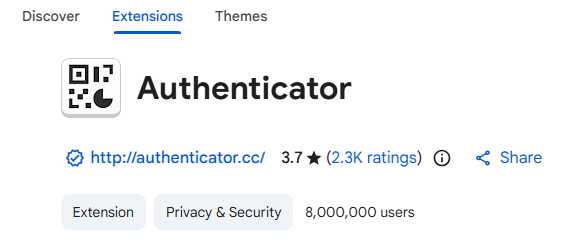
    • Alternatively you can install an third-party Authenticator extension or add-on from Chrome, Edge or Firefox stores (example: Authenticator:2FA https://authenticator.cc/ )

  2. Connect your account.

    • Open your authenticator app and scan the QR code displayed on your screen.

    • If you can’t scan, select Unable to Scan? and use the provided key to connect the app manually.

  3. Verify your setup.

    • Enter the one-time code from your authenticator into the IDHUB page.

    • (Optional) Assign a name to your device so it appears clearly in your IDHUB settings for easier management.

👉 You can register more than one authenticator if you want extra backup.

image-20241209-162927.png

📌 Can’t scan the barcode?

If you can’t scan the barcode, select the Unable to Scan? link. This option gives you the key and setup details you need to configure the authenticator manually without the QR code.

After you set up Two-Factor Authentication, you must use your authenticator app every time you log in to myEAS:

  1. Sign in with your username/email and password.

  2. Open your authenticator app and get the one-time code (a new code appears every 30 seconds).

  3. Enter the code on the Security check (2FA) screen to complete your login.

image-20241209-164144.png
How do I set up an Authenticator in my web browser?

ANSWER
You can set up an Authenticator in your desktop Chrome, Edge or Firefox browser so you don’t need a mobile device.
Please follow these steps (example using Google chrome and the Authenticator: 2FA - https://authenticator.cc/ )

  1. Install the Authenticator extension.

    • Open your browser’s extensions/add-ons store and search for Authenticator:2FA.

    • Click Add to Chrome.

    • Confirm by selecting Add Extension.

  2. Pin the extension.

    • Open your browser toolbar and find the Authenticator extension (it may be hidden in the extensions menu).

    • Click the pin icon to keep it visible for easy access.

  3. Connect the extension to IDHUB.

    • Log in to IDHUB and select Two-Factor Authentication using an Authenticator App.

    • When the QR code appears, click your Authenticator extension and select Scan QR Code.

    • Use your mouse to scan the QR code on the IDHUB screen.

  4. Verify your setup.

    • After scanning, the extension will generate one-time codes.

    • Use these codes each time you log in to complete the Security Check (2FA).

📌 You can only register one authenticator at a time. Setting up the browser extension will remove access from a mobile app if you already have it installed.

Why am I being asked to set up again an Authenticator to get a new 2FA credential?

ANSWER
From time to time due to security reasons and policies, you migth be asked to set up a new two-factor authentication (2FA). Don’t forget we can setup more than one Authenticator so you don’t depend only on a mobile decide to “carry” your 2FA One-time code. For more instructions see other FAQs.

I lost my mobile phone or don’t have access to it, and I only have 2FA configured there. How can I log in to EAS/myEAS?

ANSWER
For security reasons, please contact your administrator, who is authorized to raise tickets with Retarus. Retarus Support will then enable a new 2FA setup for your next login attempt.

During your next login, you can choose to:

  • Install Authenticator in your Chrome, Edge or Firefox browser so your browser replaces the need for a mobile device.

  • Set up 2FA on two different devices for backup (including another mobile).

To add a second device, go to Account & Security in the IDHUB area, accessible from the myEAS top navigation profile dropdown menu.

image-20250910-191840.png
What are the major changes from the previous login experience?

ANSWER

When you access https://eas.retarus.com, you will now log in via IDHUB.

  1. New login system:

    • IDHUB provides a modern login experience while remaining compatible with your current credentials (email and password).

  2. Password management:

    • You can no longer change or reset your password directly in EAS.
      IDHUB provides a dedicated password management function.

    • IDHUB enforces a new set of password policies that all users must follow.
      See the IDHUB Password Policies section for details.

JavaScript errors detected

Please note, these errors can depend on your browser setup.

If this problem persists, please contact our support.