
Two-factor authentication (2FA) adds an additional layer of security to your IDHUB account. After setup, access to EAS and myEAS requires both your password and a one-time code generated by an authenticator.
Supported authenticators
IDHUB supports the following authenticator types.
Mobile authenticator apps
-
Google Authenticator
-
Microsoft Authenticator
-
FreeOTP
These apps are installed on a mobile device and generate one-time codes locally.
Browser-based authenticator extensions
Browser-based authenticators generate one-time codes directly inside your web browser and do not require a mobile device.
Supported browsers:
-
Chrome
-
Edge
-
Firefox
Example: Authenticator Extension
For official Authenticator Extension Quickstart documentation, see https://authenticator.cc/docs/en/quickstart.
How to set up two-factor authentication
📌 First login
If this is your first login to IDHUB, the 2FA setup screen will appear automatically after you enter your credentials. See Accessing myEAS and EAS via IDHUB - First login for details. The instructions below are for setting up 2FA when you're already logged in or adding a second authenticator.
-
Decide on what authenticator to use:
-
a mobile authenticator app, or
-
a browser-based authenticator extension
-
-
Install the authenticator of your choice.
-
In myEAS, open the user menu (top-right) and select Account security to launch the IDHUB console.
-
Go to Account security - Signing in.
-
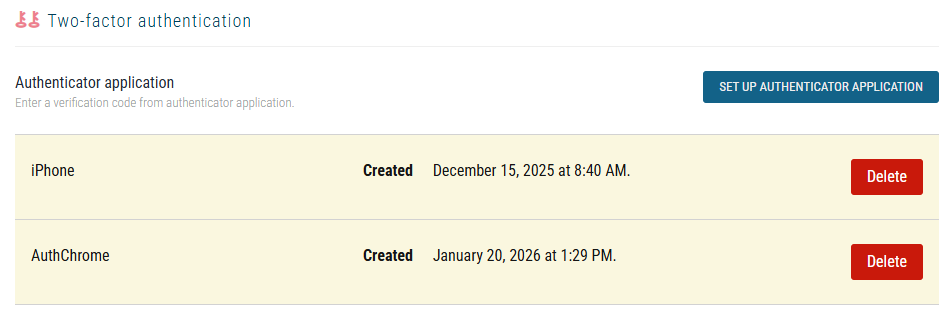
Select Set Up Authenticator Application.
-
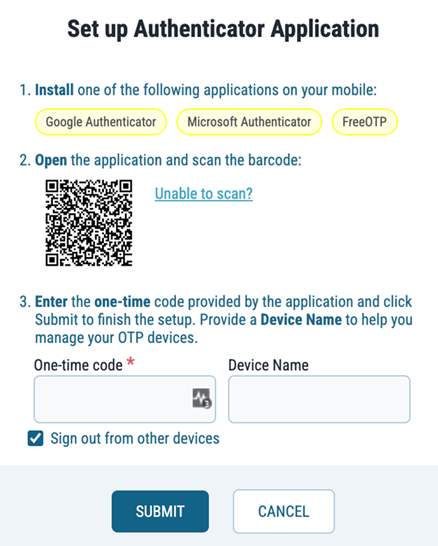
When the Set up Authenticator Application dialog is displayed:
-
Mobile app: Scan the QR code using your authenticator app.
-
Browser extension: Use the extension’s Scan QR Code feature to capture the QR code from the screen.
-
-
If scanning is not possible, select Unable to Scan? and configure the authenticator manually using the provided key.
-
Verify your setup by entering the one-time code generated by your authenticator.
-
Optional: Assign a name to the device so it appears clearly in your IDHUB settings.
📌 Setting up a second authenticator (recommended)
Configuring at least two authenticators (for example, a mobile device and a browser-based authenticator) helps prevent account lockouts if one device becomes unavailable.
See also How do I set up a second (backup) authenticator? in IDHUB Frequently Asked Questions.
Using 2FA during login
After 2FA is configured:
-
Enter your email address, then click Continue.
-
Enter your password (your username is pre-filled and locked), then click Log in.
-
Open your authenticator app or browser extension.
-
Enter the displayed one-time code on the Security check (2FA) screen, and click Sign in.
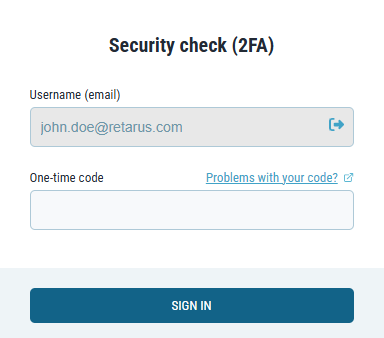
After successful verification, you are redirected to myEAS.