
IDHUB provides a personal user console where you can manage your account security settings, such as your password and two-factor authentication.
You can access the IDHUB user console directly from myEAS from the user profile menu.
-
Click your user profile in the top-right corner of myEAS.
-
Select one of the following options:
-
Personal info to view and update your personal information.
-
Account security to manage your password, two-factor authentication, and other security settings.
-
The IDHUB user console opens in a new browser tab or window.
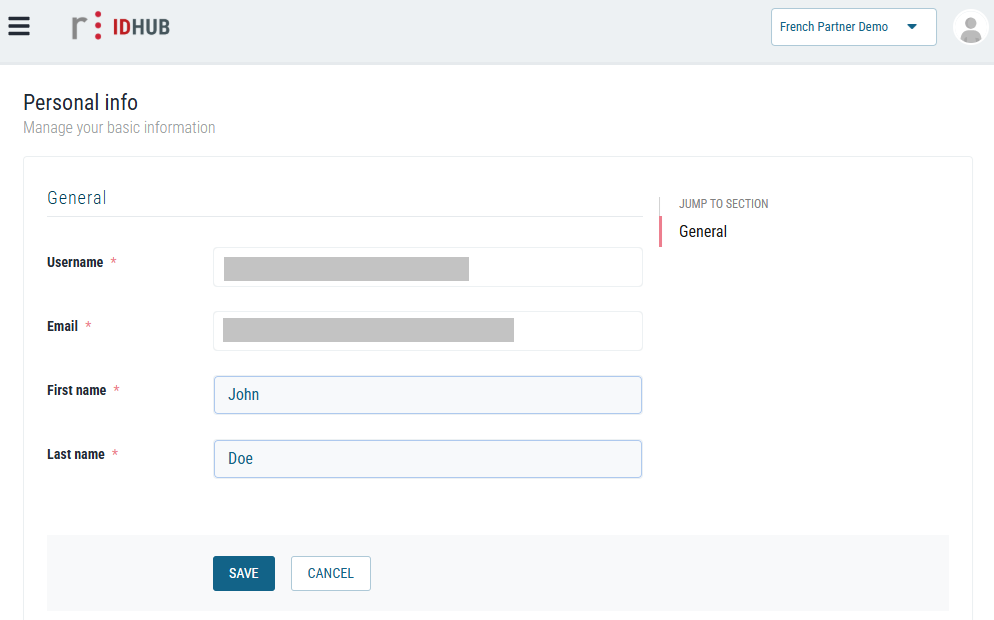
Managing personal information in IDHUB
The IDHUB user console allows you to view and update limited personal information associated with your account.
In the Personal info section, you can edit your first and last names. These fields can be updated at any time and are used within IDHUB for identification purposes.
-
Go to Personal info in the IDHUB user console.
-
Enter your updated information in the fields provided:
-
First name
-
Last name
-
-
Click Save to apply your changes.
📌 Changes made to personal information in IDHUB are not synchronized with the EAS user settings.
Managing passwords in IDHUB
IDHUB centrally manages passwords for EAS and myEAS and enforces strict security requirements to protect user accounts.
📌 Passwords can no longer be changed or reset directly in EAS. All password-related actions are handled in IDHUB.
How to change your password
-
Go to Account security - Signing in in the IDHUB user console.
-
In the Password section, locate your password entry.
-
Click Update.
-
In the password change window:
-
Enter your new password
-
Confirm your new password
-
-
Click Submit.
Your password must meet all policy requirements listed in IDHUB Password Policies.
Password expiration
Passwords expire after 90 days. You will be prompted to change your password when it expires.
Account lockout and login issues
Repeated failed login attempts may trigger a temporary account lock for security reasons. This protection helps prevent brute-force attacks.
If you experience an account lockout or repeated login issues, contact your administrator or the Retarus Support Team for assistance.