
📌 Terminology update
Retarus is replacing the terms “blacklist” and “whitelist” with “blocklist” and “allowlist” to avoid potentially offensive language. We are updating these terms across all systems and documentation. During this transition period, you may still encounter the previous terminology in some areas.
Anti-Spam Detection lets you control how the system handles messages from specific senders, recipient addresses, domains, or IP addresses by managing two lists:
-
Allowlist
Always allows matching messages to bypass spam filtering. -
Blocklist
Quarantines or blocks matching messages, depending on your configuration.
Use Anti-Spam Detection when you want to explicitly trust or block email traffic, regardless of the original spam verdict.
You can configure Anti-Spam Detection lists at the company, profile, and user levels.
Where to find Anti-Spam Detection
You can access Anti-Spam Detection from both myEAS and EAS.
-
myEAS
Email Security - List Management - Anti-Spam Detection -
EAS
Administration - Email Services - Anti-Spam Allow-/Blocklist
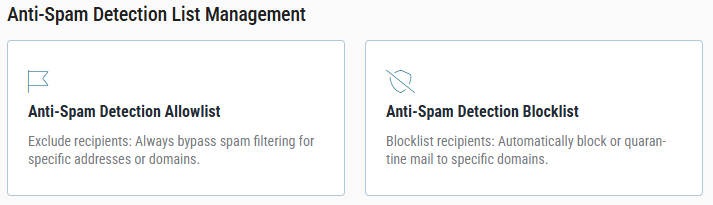
In both cases, the Anti-Spam Detection List Management view opens where you can choose which list to manage: Allowlist or Blocklist.
Required permissions
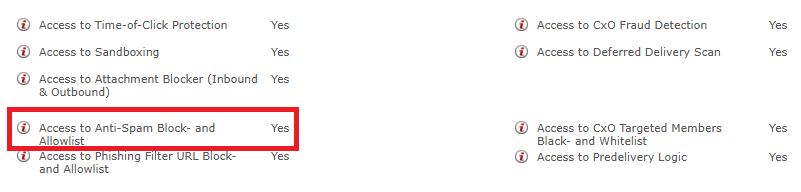
To access and manage Anti-Spam Detection, you must have the following permissions:es
-
Access to Anti-Spam Block- and Allowlist
Administrator accounts receive both permissions automatically. For staff users, you must explicitly enable these permissions:
-
Go to EAS - User - Email.
-
Set the setting to Yes.
-
Save your changes.
Supported entry types by level
|
Level |
Email address |
Domain |
IPv4 address |
|---|---|---|---|
|
Company |
yes |
yes |
yes |
|
Profile |
yes |
yes |
yes |
|
User |
yes |
yes |
yes |
Anti-Spam Blocklist
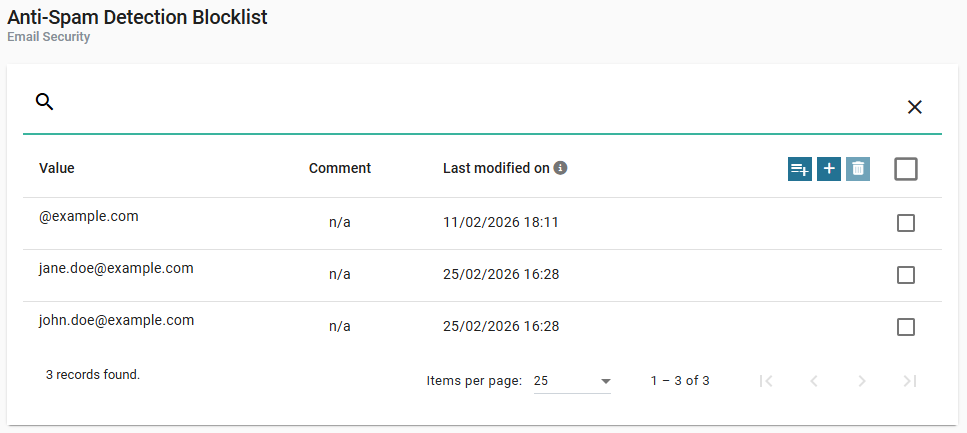
Use the Blocklist to automatically reject messages from specific senders. When you add a sender to the Blocklist, the system rejects messages from that sender. You can block:
-
Individual email addresses
-
Entire domains
-
IPv4 addresses
Anti-Spam Allowlist
Use the Allowlist to trust specific senders. When you add a sender to the Allowlist:
-
The system accepts the message.
-
The system skips spam checks.
-
The system still scans the message for malware using Retarus AntiVirus.
You can allow:
-
Individual email addresses
-
Entire domains
-
IPv4 addresses
Managing entries
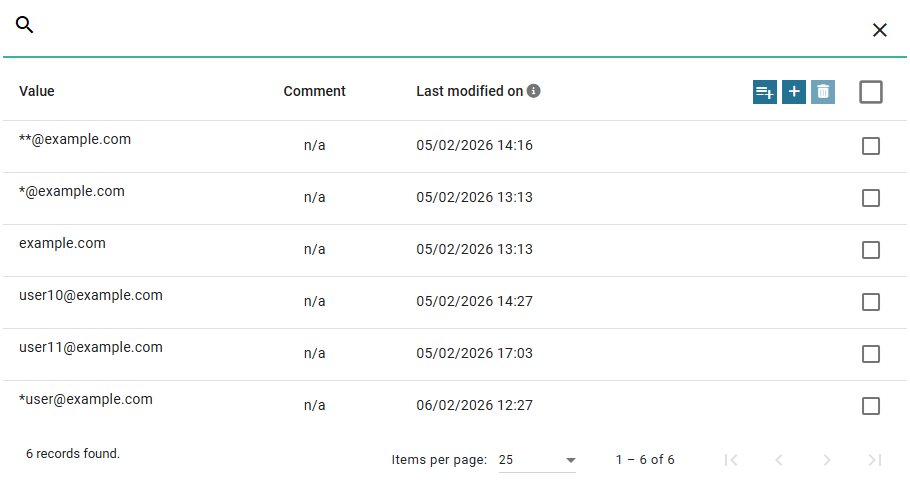
The Blocklist and Allowlist use the same interface and workflow. The list contains the following fields and options:
|
Field/option |
Description |
|---|---|
|
Search field |
Filter entries by value. |
|
Comment |
Optional description. |
|
Last modified on |
Date and time of the last update. |
|
Checkboxes |
Select entries for deletion. |
|
Action icons |
|
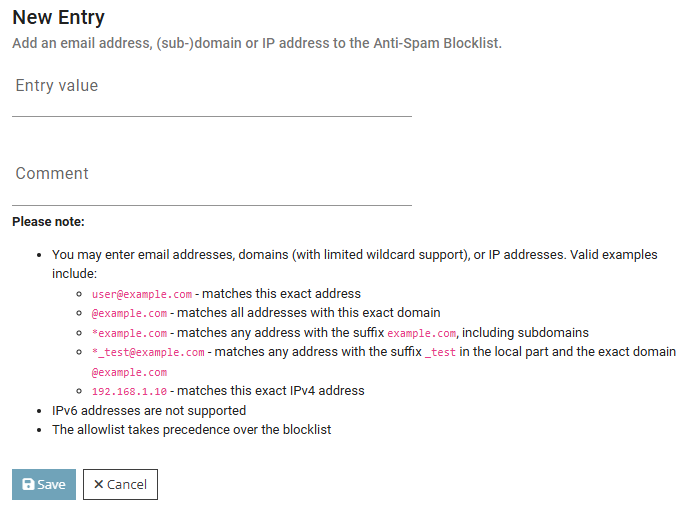
Add a single entry
-
Click

→ The Create Entry page opens.
-
Enter the value.
-
Optional: Enter a comment.
-
Save your changes.
Add multiple entries
Adding multiple entries involves three steps.
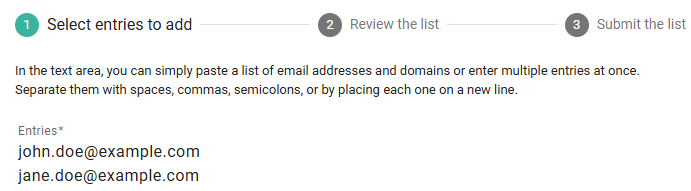
Step 1: enter entries
-
Click

-
Enter your values in the text area.
-
You can paste a list of email addresses or domains.
-
Separate entries with spaces, commas, semicolons, or line breaks.
-
-
Click Next.
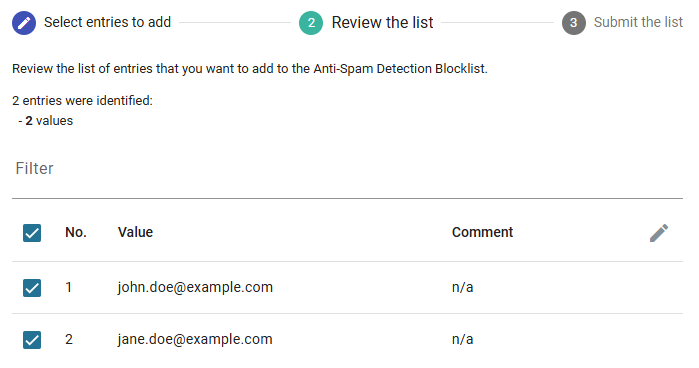
Step 2: review the list
-
Review the detected entries.
-
Optional: Click the pencil icon to edit a value or add a comment.
-
Click Next.
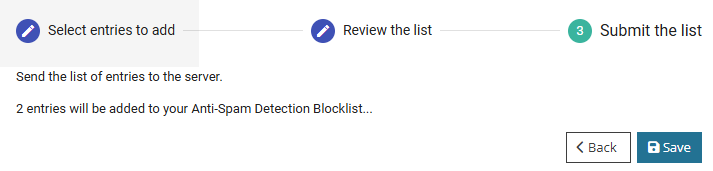
Step 3: save the list
-
Review the summary.
-
Click Save to save the entries.
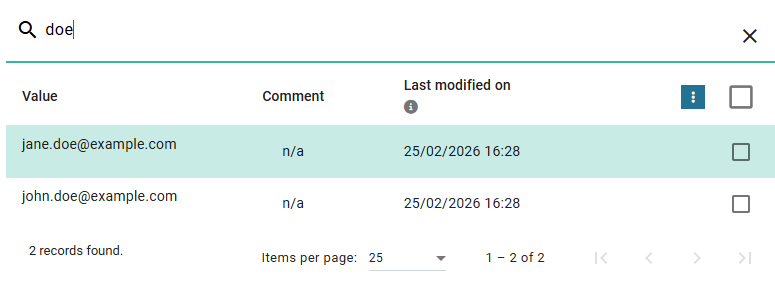
Filter entries
-
Enter a value in the search field.
→ The list updates automatically.
Delete entries
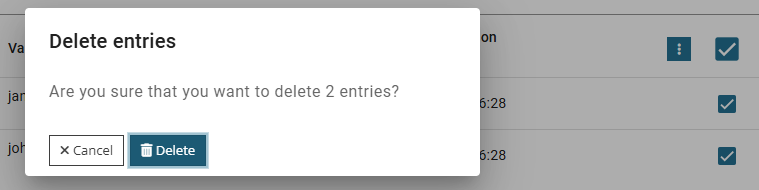
-
Select one or more entries using the checkboxes.
-
Click

-
Confirm the deletion.
Matching rules & wildcards
The matching rules and wildcard behavior apply to both the Blocklist and the Allowlist. The system evaluates entries using the same logic, regardless of which list you use. The only difference is how the system handles the result:
-
If a match occurs on the Blocklist, the system rejects the message.
-
If a match occurs on the Allowlist, the system accepts the message and skips spam checks.
These rules apply to company-level and profile-level lists unless stated otherwise.
|
If you enter |
System interprets it as |
Example matched |
Notes |
|---|---|---|---|
|
|
Matches only this address |
|
Matches only this address |
|
|
Exact domain match |
|
Does not match subdomains |
|
|
Suffix match |
|
May also match |
|
|
Wildcard in local part + exact domain |
|
Wildcard applies only to the local part |
|
|
Subdomain match |
|
Does not match |
|
|
Exact IPv4 match |
|
IPv6 is not supported. |
📌 Use wildcards carefully. A suffix match (for example,
*example.com) may also match similarly named domains.
Scope and limitations
-
IPv6 addresses are not supported.
-
The Allowlist takes precedence over the Blocklist. If the same sender appears on both lists, the system allows the message.
-
Domain matching behavior applies to company-level and profile-level lists.
-
You can use the same email and domain formats for CxO Fraud Detection if it is configured to use the global Anti-Spam Allowlist.
-
IPv4 addresses are not supported for CxO Fraud Detection.