
Tenant Admins can download a CSV file containing all current users in the tenant. Each export runs in the background and is available for download once complete.
Exporting users
-
On the main Enterprise Fax Portal page, click Settings.
→ The Users page opens. -
Click the dropdown arrow next to Create User, then select Prepare Export.
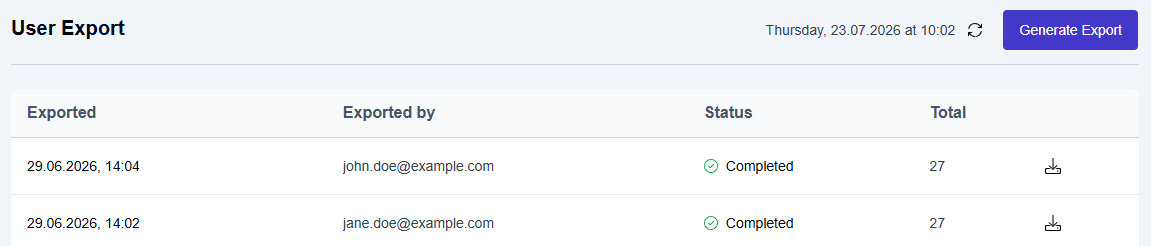
→ A background export job starts. The User Export screen opens, and a new entry appears in the export table when the export is complete.
-
When the export status shows Completed, click the download icon in that row to download the file.
📌 To trigger an additional export while already on the User Export screen, click the Generate Export button.
Viewing and downloading past exports
-
On the main Enterprise Fax Portal page, click Settings.
→ The Users page opens. -
Click the dropdown arrow next to Create User, then select Export History.
-> The User Export screen opens. The export table lists past exports, showing the export date and time, who triggered it, status, and the total number of users exported.
To download a completed export, click the download icon in that row.