
Sometimes you may need to delete a user or group. As a Tenant admin, you can delete users and groups from the Users and Groups screens in User Management.
📌 Permanent deletion
Deleted users and groups are permanently removed and cannot be retrieved.
Deleting a user
You can delete a user directly from the Users list or from the User details screen.
From the “Users” list
-
Click the Settings icon on the main Enterprise Fax Portal page.
→ The Users screen is displayed.
-
Locate the user you want to delete.
-
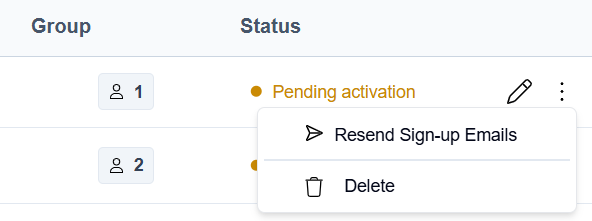
Click the More actions icon ( ⋮ ) at the end of the user’s row.
-
Select Delete.
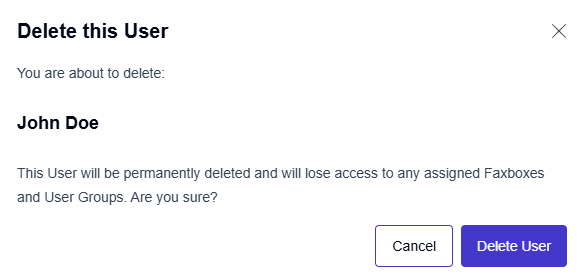
→ The Delete this user dialog opens with a warning that the user will be permanently deleted and will lose access to all assigned faxboxes and user groups. -
Click Delete User to confirm.
→ The user is permanently deleted, and you are returned to the Users page.
From the “User details” screen
-
Click the Settings icon on the main Enterprise Fax Portal page.
→ The Users screen is displayed. -
Click the pencil icon (

→ The User details screen opens. -
Scroll down to the Delete this User section.

-
Click Delete.
→ The Delete this user confirmation dialog opens with a warning that the user will be permanently deleted and will lose access to all assigned faxboxes and user groups.
-
Click Delete User to confirm the deletion.
→ The user is permanently deleted and loses access to all assigned faxboxes and user groups.
Ownership protection
If the user is the only owner of a group or faxbox, deletion is blocked. The Cannot Delete User dialog appears and lists the affected resources.
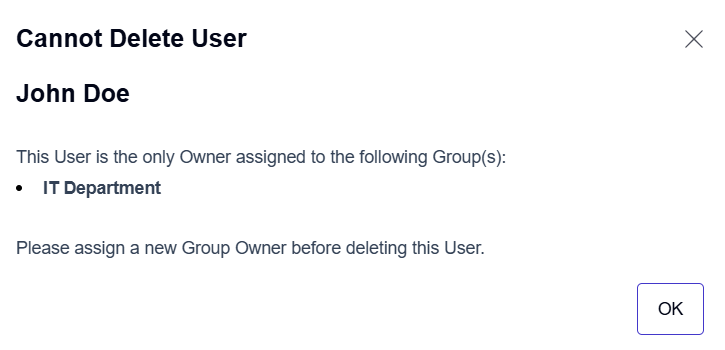
To proceed:
-
Click OK.
-
Assign a new owner to each listed group or faxbox.
-
Try to delete the user again.
Deleting a group
You can delete a group directly from the Groups list or from the Group details screen.
From the “Group” list
-
Click the Settings icon on the main Enterprise Fax Portal page.
→ The Users screen is displayed. -
In the left sidebar, click Groups.
→ The Groups page opens. -
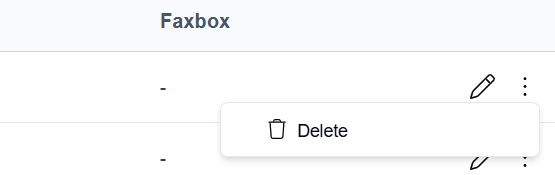
Click the More actions icon ( ⋮ ) at the end of the group’s row.
-
Select Delete.
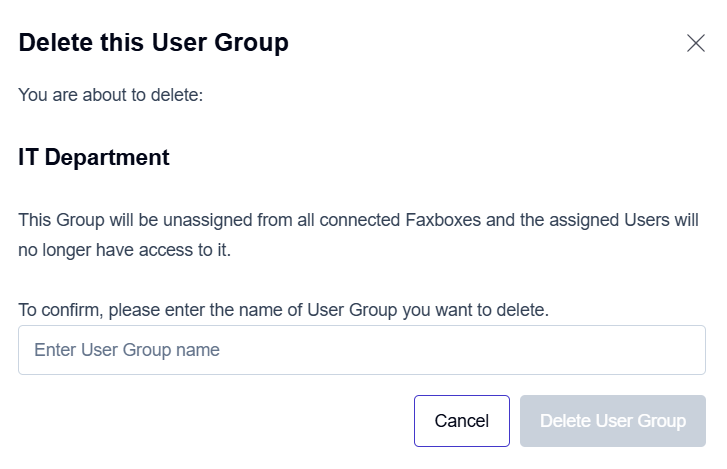
→ The Delete this User Group dialog opens.
-
Type the name of the group in the confirmation field and click Delete User Group.
→ The group is permanently deleted, and you are returned to the Groups page.
→ It is unassigned from all connected faxboxes, and its members will no longer have access through this group.
From the “Group details” screen
-
Click the Settings icon on the main Enterprise Fax Portal page.
→ The Users screen is displayed. -
In the left sidebar, click Groups.
-
Click the pencil icon (
→ The Group details screen opens. -
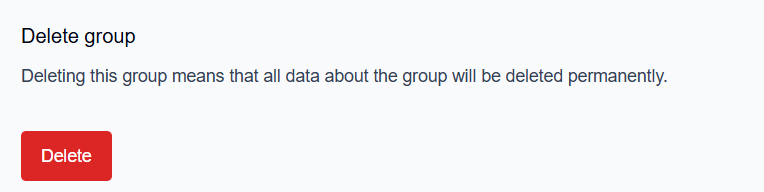
Scroll down to the Delete group section.
-
Click Delete.
→ The Delete this User Group confirmation dialog opens.
-
Type the exact name of the group in the confirmation field and click Delete User Group.
→ The group is permanently deleted, and you are returned to the Groups page.
→ It is unassigned from all connected faxboxes, and its members will no longer have access through this group.
All group owners receive an email notification when a group is deleted. The notification includes the group name, who deleted it, and a timestamp. You can turn off these notifications in the My Profile section. For details, see Email notifications.