
When you create a cover page template, you define the template name, description, availability settings, and upload a Microsoft Word document (.docx) file that contains your template design with dynamic variables. The available configuration options depend on your user role.
You can create templates in two ways:
-
Go to Settings - Cover page templates and click Create cover page in the top-right corner.
Alternative: Open the Cover pages section when creating or editing a faxbox and click the Create cover page link.
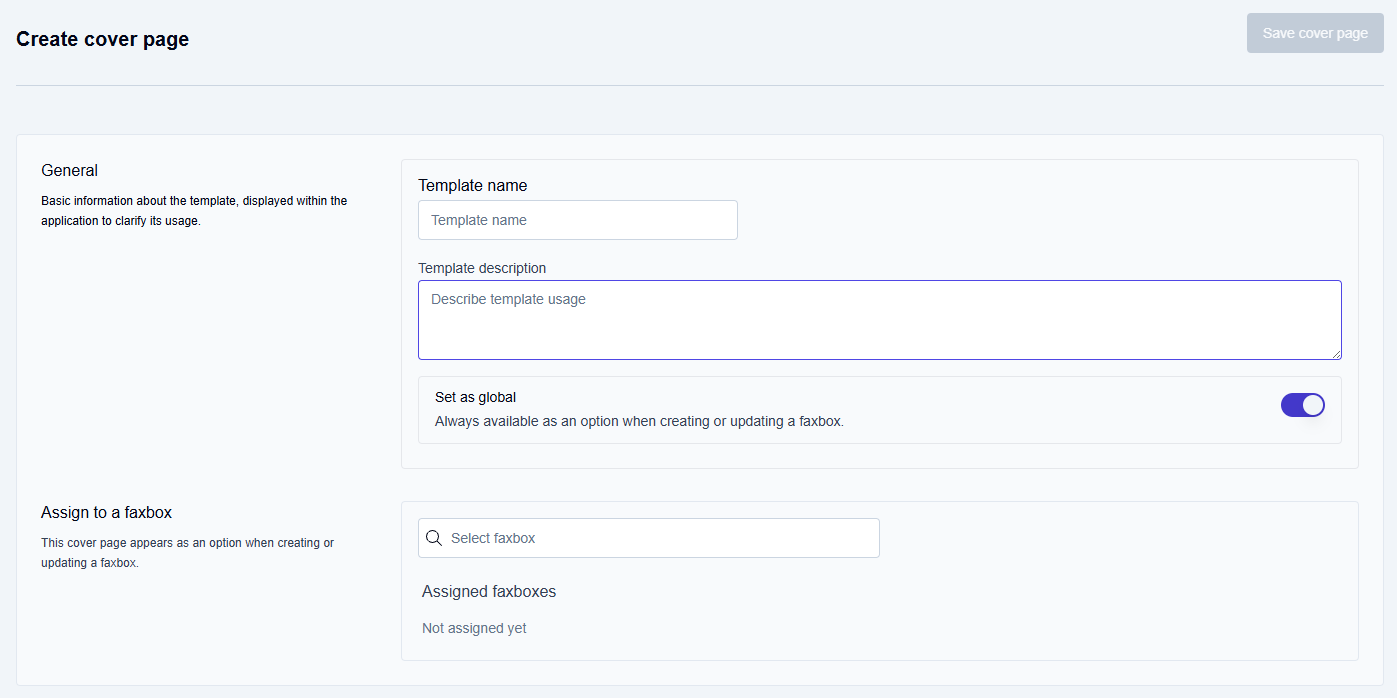
→ The Create cover page window opens.
-
In the General section, enter the template information:
-
Template name: Specify a descriptive name for the cover page template (e.g.,
"Cover page for Customer XXX"). -
Template description: Enter a detailed description of when and how this template should be used (e.g.,
"Use this cover page whenever sending faxes to Customer XXX."). -
Configure template availability. The options you see depend on your role:
-
Tenant administrators see a Set as global switch, which is enabled by default. Leave it on to make the template available to all faxboxes in the tenant. Turn it off to create a faxbox-specific template.
-
Faxbox owners do not see the Set as global switch. All templates they create are faxbox-specific by default.
-
-
In the Assign to a faxbox section, specify the faxboxes where you want to use the template. See Assigning templates to faxboxes for more information.

-
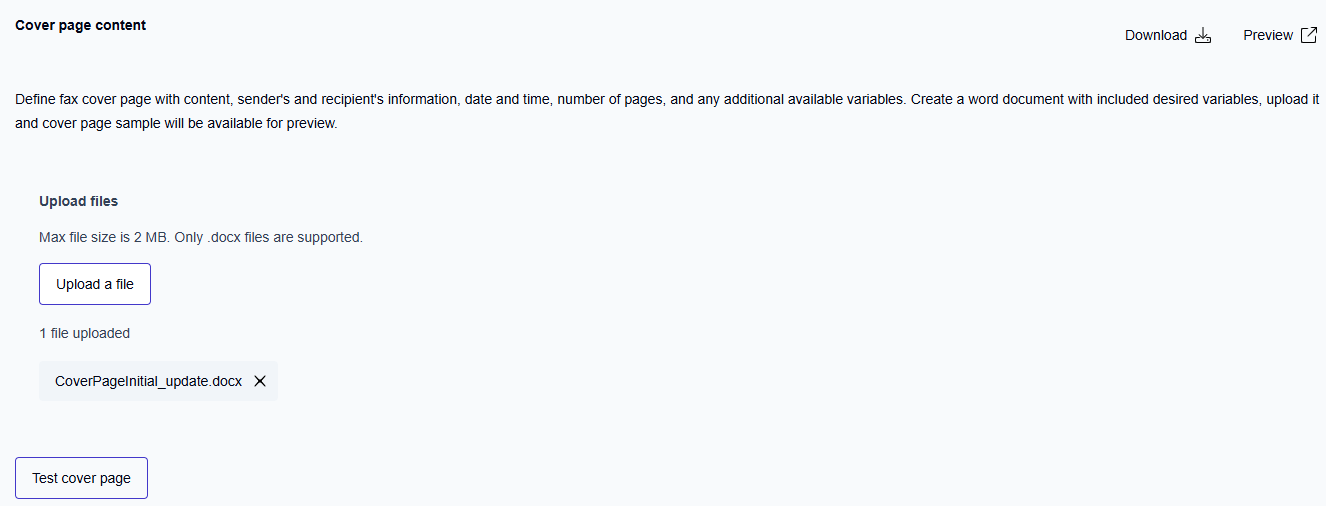
In the Cover page content section, upload your template file:
-
Click the Upload a file button.
-
Navigate to your .docx template file (maximum file size is 2 MB).
-
Select the file and click Open.
→ The uploaded file appears in the Cover page content section.
→ The Test cover page button becomes available.
-
-
Click the Test cover page button to preview how the template looks with sample data. This lets you verify formatting and variable placement before saving.
-
Click the Save cover page button to create the template.
→ The template is saved.
Assigning templates to faxboxes
How a template is made available depends on whether Set as global is enabled and whether you assign faxboxes to the template.
Set as global enabled (tenant administrators only)
-
You can assign the template to multiple faxboxes.
-
If you add faxboxes in the assignment field, users can see and use the template when they send or forward faxes from those faxboxes.
-
If you leave the assignment field empty, users do not see the template by default. To make it available, enable the template in the settings of each relevant faxbox. This can be done by:
-
an administrator (for all faxboxes), or
-
a faxbox owner (for their own faxboxes).
-
Set as global disabled
-
You must assign the template to a faxbox. The assignment field is required.
-
You can assign the template to one faxbox only.
-
The template becomes available to users of the selected faxbox.