
Access cover page templates
-
Click the Settings icon on the main Enterprise Fax Portal page.
-
Click the Cover page templates tab in the left navigation menu.
→ The Cover page templates screen opens and displays all available templates.
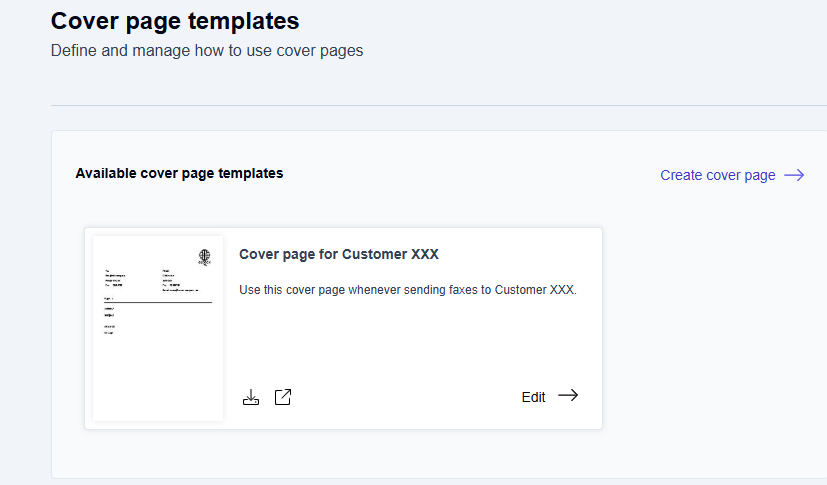
For each template, you see two icons:
-
Download icon

Click to download the cover page template to your local computer. -
Preview icon

Click to open a full preview of the cover page template in a new browser tab.
Edit a template
-
On the Cover page templates screen, locate the template you want to modify.
-
Click the Edit button next to the template.
→ The template editing window opens with all current settings displayed. -
Update the template name, description, availability, uploaded file, or faxbox assignments as needed.
-
Click Update cover page to save your changes.
Delete a template
-
On the Cover page templates screen, locate the template you want to delete.
-
Click the Edit button next to the template.
→ The template editing window opens. -
Click the Delete cover page button in the top-right corner.
→ The template is removed from the Fax Portal.
Automatic deletion of faxbox-specific cover pages
When you delete a faxbox, the system automatically removes all faxbox-specific cover pages assigned to it. Global cover pages are not affected and remain available for other faxboxes.
To keep a faxbox-specific cover page, set it as global or assign it to a different faxbox before you delete the original faxbox.
Configure cover page template availability for users
You can configure which cover page templates your users see. You do this through the faxbox settings when you create a new faxbox or edit an existing one.
Accessing faxbox cover page settings
-
Go to Settings - Faxboxes.
-
Click the Edit button next to the faxbox you want to configure.
-
Scroll to the Cover pages section.
Setting template visibility and defaults
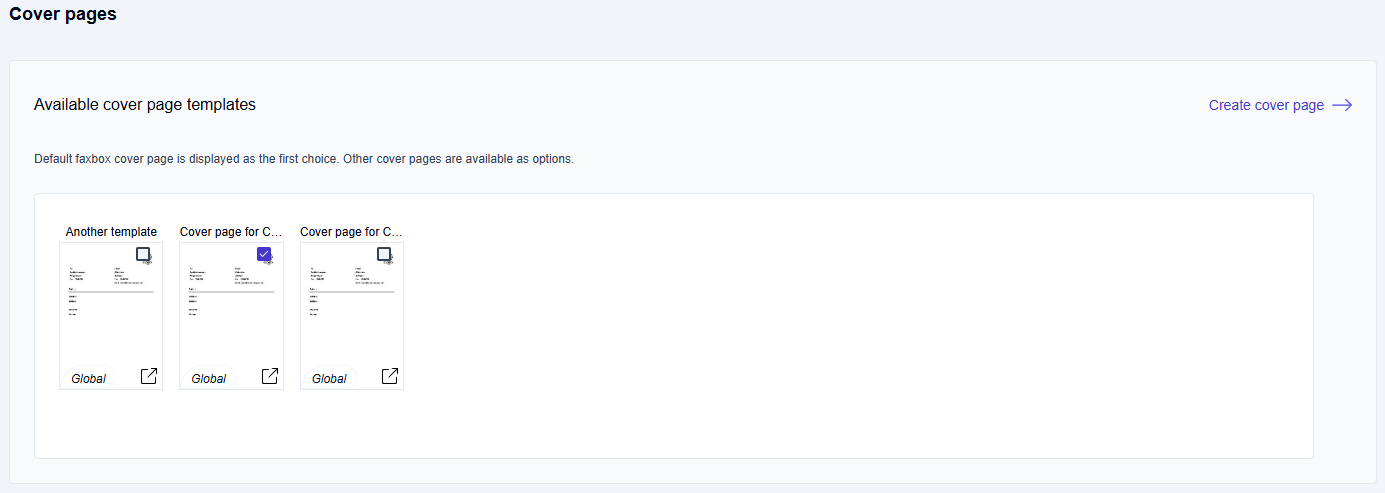
In the Available cover page templates section, you have the following options:
Template visibility
-
Select a template’s checkbox to make it visible to users when they send or forward faxes.
-
Deselect the checkbox to hide the template from users.
Default template
-
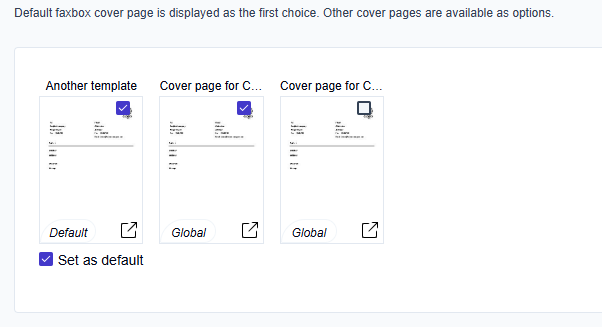
Select the Set as default checkbox beneath a template to make it the default for this faxbox. You can set only one default per faxbox.
-
The default template appears as the first option and is preselected when users send or forward a fax.
-
You can only set the default template in the faxbox configuration (when creating or editing a faxbox), not when creating a cover page.
Template scope indicators
Templates display their status with one of the following indicators:
-
Default
The template is set as the default for this faxbox. -
Global
The template is available globally. -
[No indicator]
The template is faxbox-specific.
Using cover page templates
After you create and configure cover page templates, all users who share a faxbox see the same assigned cover pages as thumbnails when sending or forwarding faxes. If multiple templates are available, users can use the default template or select a different one. Users cannot create or manage cover page templates.