
The Export function lets you download fax files directly to your local computer. You can export a single fax or multiple faxes (up to 10) at the same time. When exporting multiple faxes, you can either download them as separate PDF files or merge them into one PDF.
If the Document Editing feature is enabled, additional options are available for inbound faxes:
-
When exporting a single fax, you can open it in the editor and make changes before exporting. This is available for both inbound and outbound faxes.
-
When exporting multiple inbound faxes, you can merge the selected faxes into a single PDF file. This option is available for inbound faxes only.
Accessing the export function
You can access the Export function in three ways:
-
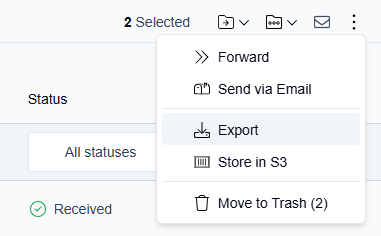
From the folder view (for single or multiple faxes)
Select one or more faxes (up to 10) using the checkboxes, then click the More actions icon (
-
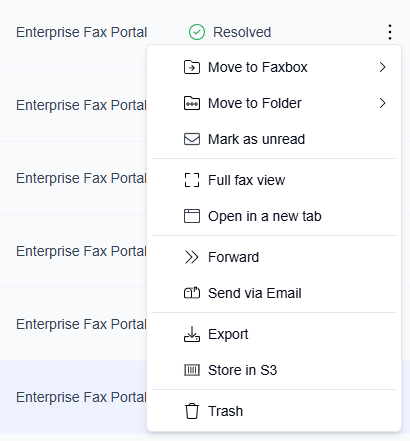
While hovering over a fax
Hover over a fax, click the More actions icon (
-
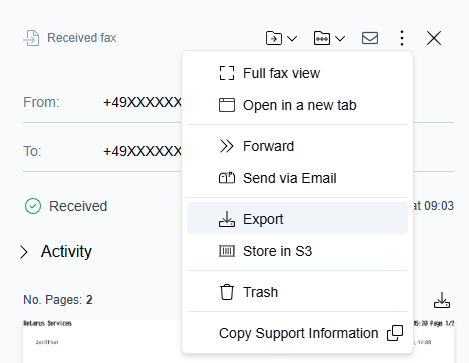
From the preview pane
Open a fax in the preview pane, click the More actions icon (
Export a single fax
When you export a single fax, the file downloads immediately to your default download location.
-
Select the fax using one of the access methods described above.
-
Click Export.
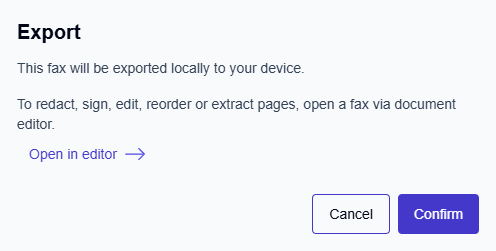
→ The Export dialog opens.
-
(Optional if the Document Editing feature is enabled.) Click the Open in editor link to edit the fax before exporting.
→ Make your changes in the PDF Editor.
→ Click Finish to return to the Export dialog. -
Click Confirm.
→ The fax downloads to your computer.
Export multiple faxes
When you export multiple faxes (2-10), you can choose how the files are exported.
-
In the folder view, select two or more faxes (up to 10) using the checkboxes.
-
Click the More actions icon (
→ The Export dialog opens.
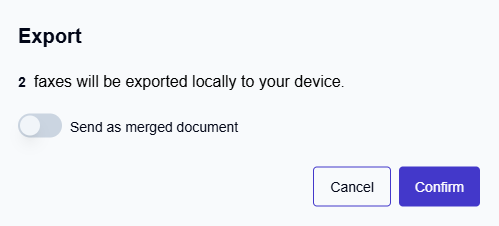
Download as individual PDF files
Use this option to keep each fax as a separate file.
-
Make sure the Send as merged document option is turned off.
-
Click Confirm.
→ The system downloads a ZIP file that contains each fax as a separate PDF.
Merge faxes into a single PDF
📌 The Document Editing feature is required. Only inbound faxes are supported.
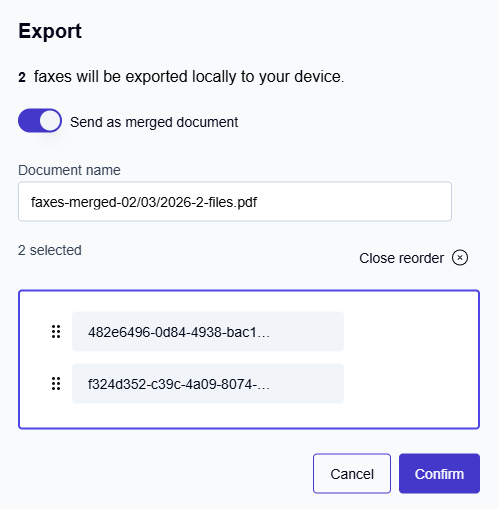
Use this option to combine all selected faxes into one PDF file.
-
Turn on the Send as merged document option.
-
Change the default file name.
-
Click Reorder to change the order of faxes in the merged document.
-
Drag the handle icon (≡) to reorder the faxes.
-
Click Close reorder when finished.
-
-
Click Confirm.
-> The merged PDF file downloads to your computer.