
Use Microsoft Entra ID (formerly Azure Active Directory) to enable Single Sign-On (SSO) for myEAS/EAS with the SAML (Security Assertion Markup Language) protocol. With this setup, your users sign in through Microsoft Entra ID and get secure, seamless access to myEAS/EAS without separate credentials.
This configuration establishes trust between Microsoft Entra ID (Identity Provider) and Retarus (Service Provider).
Prerequisites
-
You have administrator access to the Microsoft Entra admin center.
-
Each user’s email address attribute is available in your directory. SSO uses the
mailattribute to authenticate users.
Configuring SAML SSO
Creating a new enterprise application
-
Sign in to the Azure portal and go to Entra ID - Enterprise applications - All applications.
-
Select New application.
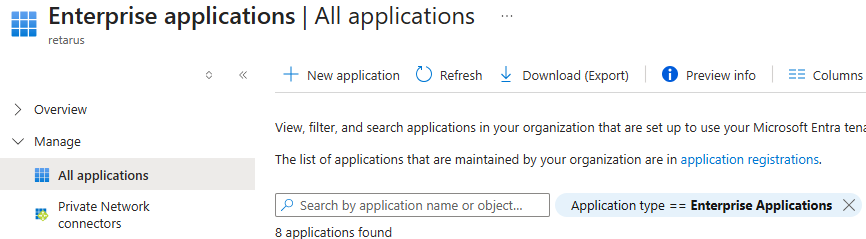
→ The Browse Microsoft Entra App Gallery page opens.
-
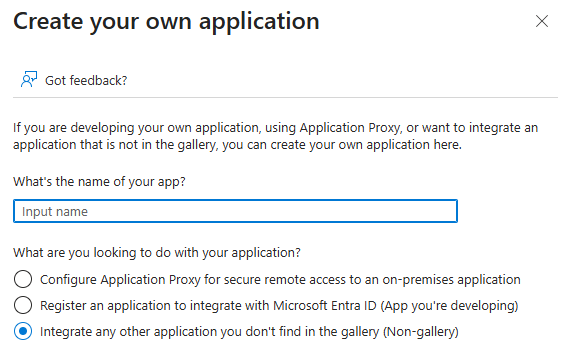
Click Create your own application.
→ The Create your own application panel opens.
-
Enter a name for the application (for example, myEAS SSO) and activate the Integrate any other application you don’t find in the gallery (Non-gallery) option.
-
Click Create.
Assigning users and groups
-
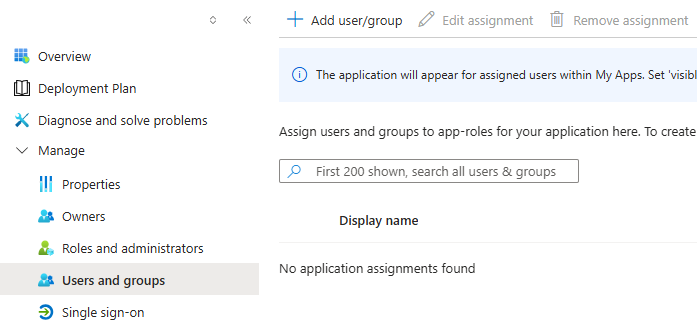
From the left app menu, select Users and groups.
-
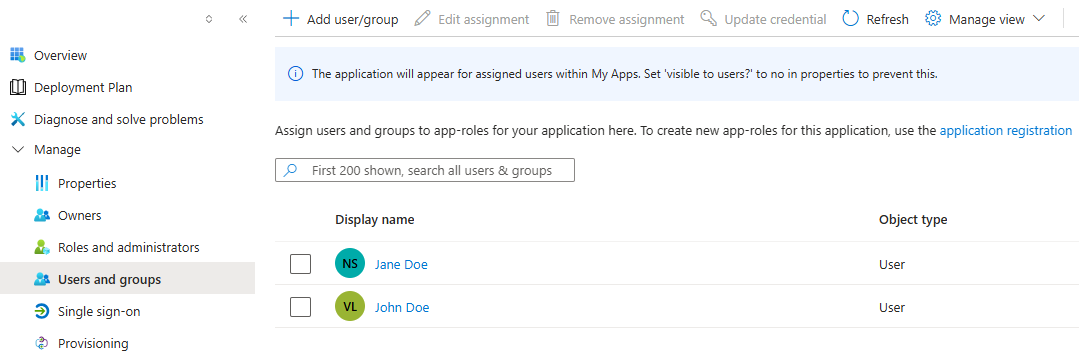
Click Add user/group and define the users or groups who should have access to EAS/myEAS.
Configuring SAML-based SSO
-
From the left app menu, select Single sign-on and choose SAML.
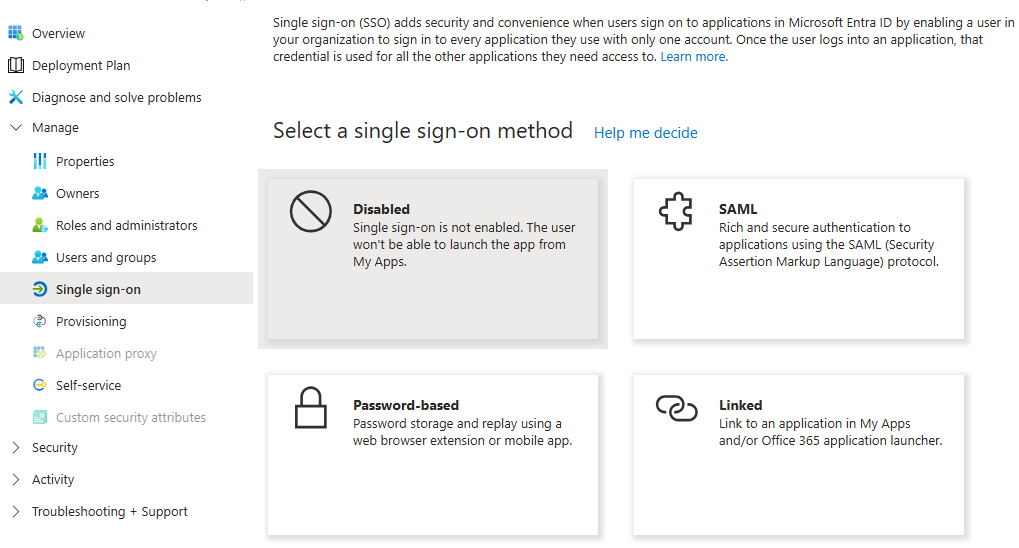
→ The SSO configuration page opens.
-
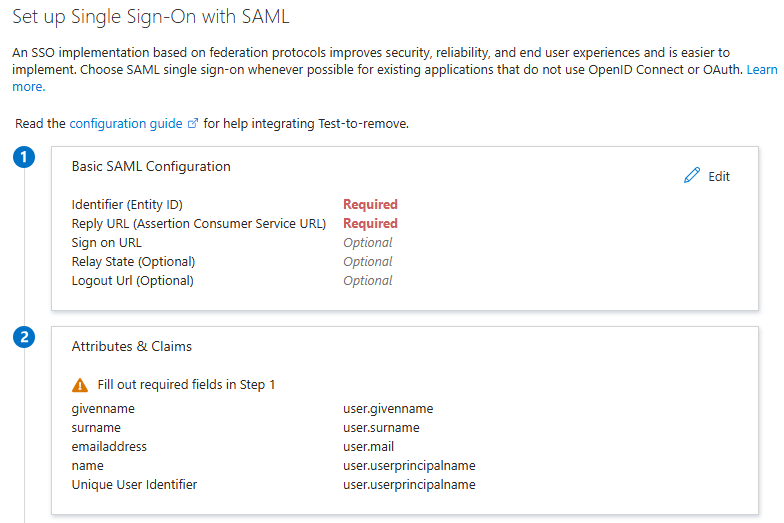
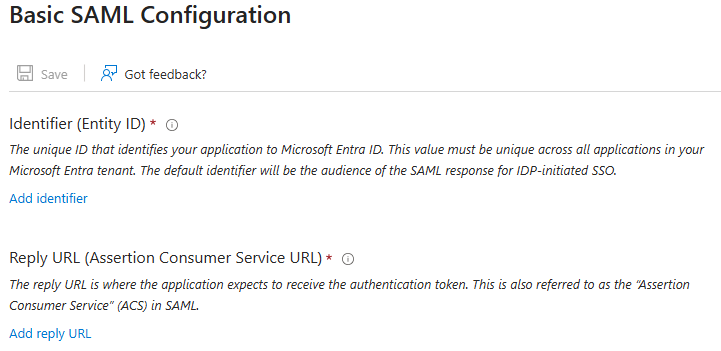
In the Basic SAML Configuration section, click Edit and fill in the following fields:
|
Setting |
Value |
|---|---|
|
Identifier (Entity ID) |
|
|
Reply URL (Assertion Consumer Service URL) |
|
-
Save the configuration.
Configuring user attributes and claims
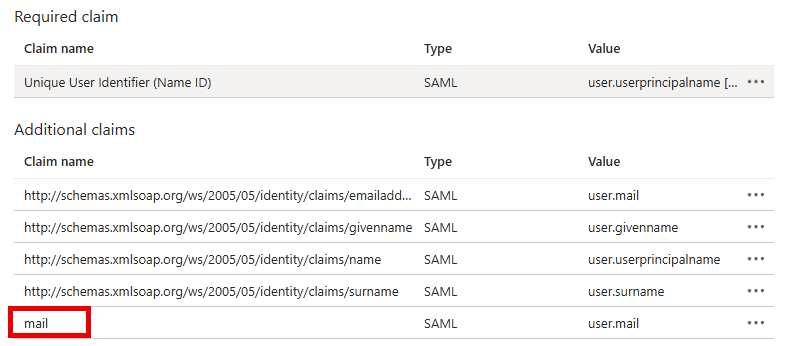
Retarus requires that Microsoft Entra ID sends the user’s email address in a SAML attribute named mail. This attribute is used to identify and authenticate users.
-
In the Attributes & Claims section, click Edit.
-
Locate the default email claim with the following name:
http://schemas.xmlsoap.org/ws/2005/05/identity/claims/emailaddress -
Rename this claim to
mail.This ensures that the user’s email address is correctly transmitted to Retarus during authentication.
-
Save the changes.
Providing SAML certificate metadata to Retarus
-
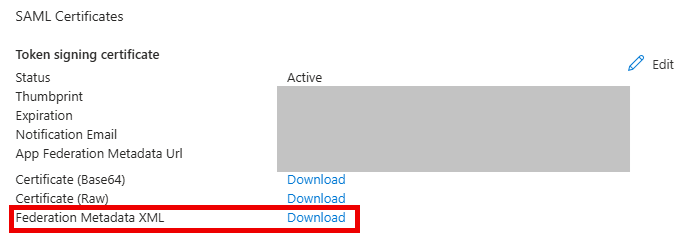
In the SAML Certificates section, locate and download the Federation Metadata XML file.
-
Send the file to your Retarus Implementation Engineer to complete the SSO integration.
Retarus Service Provider metadata
For advanced or custom SAML integrations, Retarus provides official Service Provider (SP) metadata describing its SAML configuration.
You can download it here: https://am.retarus.com/openam/saml2/jsp/exportmetadata.jsp?entityid=https://am.retarus.com.