
Add instructions and visual markers, such as “Sign here” or “Check this number”, directly to a document. Annotations become part of the edited document and remain visible in all final outputs.
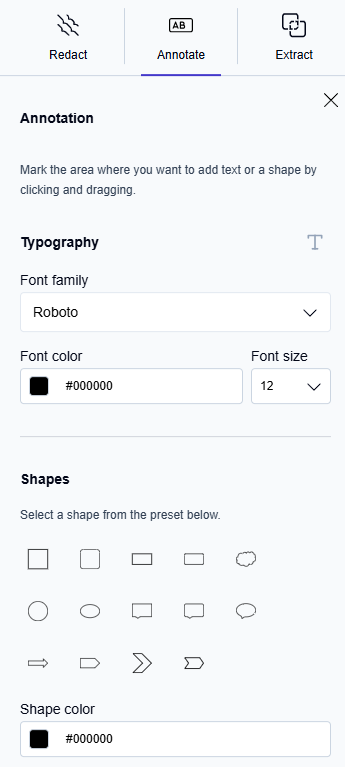
Annotation types
You can add two types of annotation elements:
-
Text boxes
Free text you can type, format, and position anywhere on the page. -
Shapes
Visual markers such as arrows, chevrons, and similar elements that you can place, resize, rotate, reposition, and recolor.
You can add unlimited annotations to a document. All annotation elements remain editable and removable until you save.
Add a text box
-
Open the Annotate menu in the toolbar.
-
Click T.
-
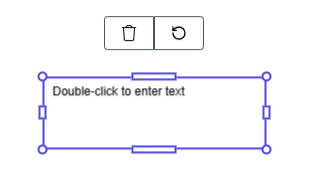
Drag on the page to draw the text box.
→ The text box appears. -
Double‑click the text box to enter edit mode.
-
Type your text.
-
Optional: Format the text as needed:
-
Choose a font family and font size from the dropdown menus.
-
Choose a text color with the color picker.
-
Formatting changes are applied immediately.
Adjust a text box
-
Drag the text box to reposition it.
-
Drag its handles to resize it.
-
Use the rotation handle to rotate the text box in 90-degree increments.
-
To remove a text box, select it, then press Delete or click the delete icon.
Add a shape
-
Open the Annotate menu in the toolbar.
-
Select a shape, such as an arrow or chevron.
-
Drag on the page to draw the shape.
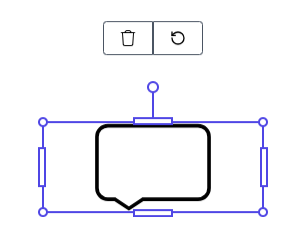
→ The shape appears immediately and is ready for adjustment.
Adjust a shape
-
Drag the shape to reposition it.
-
Use the handles to resize it.
-
Rotate the shape by dragging the rotation handle.
-
Change the shape color with the color picker.
-
To remove a text box, select it, then press Delete or click the delete icon.
Place text inside a shape
You can combine text and visual markers by placing a text box inside a shape.
-
Place the shape first.
-
Add the text box on top of it.
If you place a shape over an existing text box, the shape covers the text box, and the text is no longer editable.
Edit text inside a shape
-
Click the text box to select it.
-
Double‑click to enter edit mode.
-
Make your changes.
Save annotations
-
Click Save.
→ A confirmation dialog appears. -
Click Save changes.