
Use Merge Documents to combine multiple received faxes into a single PDF. Depending on the action you choose, you can email the merged document, store it in S3, or export it to your local computer.
Merge and send via email
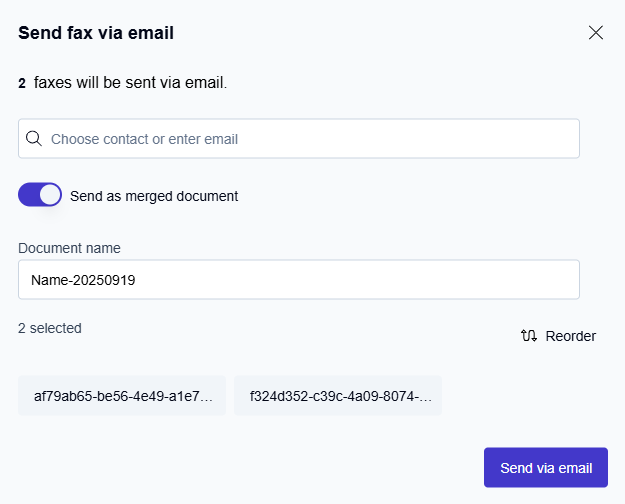
Combine multiple faxes into one PDF and send it as an email attachment.
-
In your inbox, select two or more received faxes.
-
Choose Send via Email.
-
In the action form, activate the Send as merged document option.
-
Optional: Reorder the faxes before merging.
-
Enter a filename for the merged document. The default format is
Name–Timestamp. -
Complete the details and send the email.
→ The system sends the merged document as a single attachment. It does not store the merged document in the Outbound folder.
Merge and store in S3
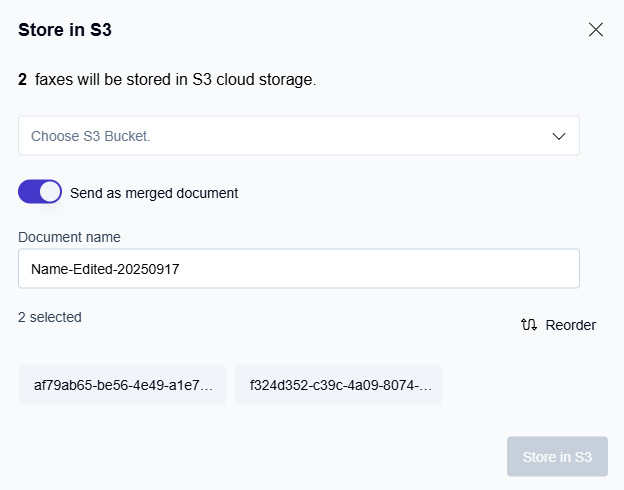
Combine multiple faxes into one PDF and store it in your Amazon S3 bucket.
-
In your inbox, select two or more received faxes.
-
Choose Store in S3.
-
In the action form, activate the Send as merged document option.
-
Enter a filename for the merged document. The default format is
Name–Timestamp. -
Optional: Reorder the faxes before merging.
-
Complete the S3 storage details and click Store in S3.
→ The system stores the merged document in S3. The portal keeps the original faxes.
Merge and export to a local computer
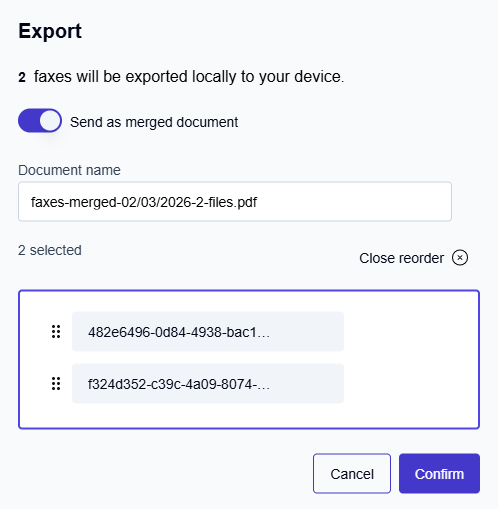
Combine multiple faxes into one PDF and download it to your local computer.
-
In your inbox, select two or more received faxes.
-
Click Export.
-
In the Export dialog, activate the Send as merged document option.
-
Optional: Change the default filename.
-
Optional: Click Reorder to change the fax order before merging.
-
Drag the handle icon (≡) to reorder the faxes.
-
Click Close reorder when you finish.
-
-
Click Confirm.
→ The system downloads the merged document to your local computer. The portal keeps the original faxes.