
Extract, rotate, delete, or rearrange pages to create a clean, correctly ordered version of your fax.
Extract specific pages
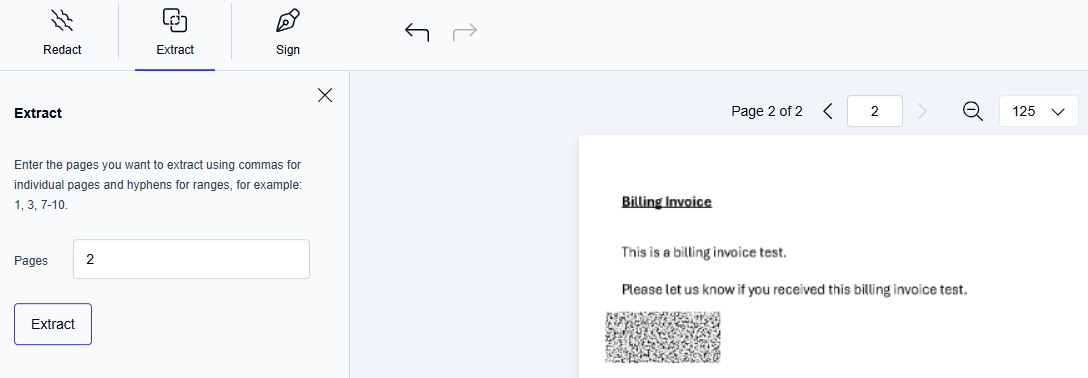
Create a new document that includes only the pages you need. After you extract pages, the edited document keeps only the pages you selected.
-
Click Extract in the toolbar.
→ The Extract pane opens on the left side of the editor. -
Choose the pages to extract:
-
as a range, such as 2–5, or
-
as individual pages, such as 1, 3, 7
-
-
Click Extract to create a new document containing only the selected pages.
-
Continue editing as needed.
Rotate pages
Rotate pages to correct orientation issues.
Rotate an individual page
-
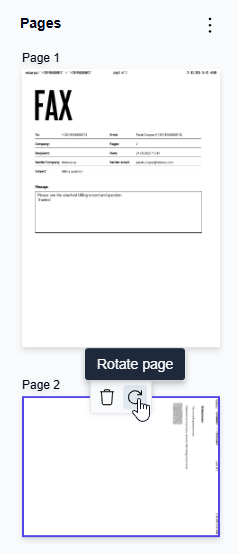
Select the page you want to rotate.
-
Click the Rotate icon.
-
Each click rotates the selected page by 90 degrees.
-
The rotation moves through 90, 180, 270, and back to 0 degrees.
-
-
Continue editing as needed.
Rotate all pages
-
Navigate to the thumbnail view.
-
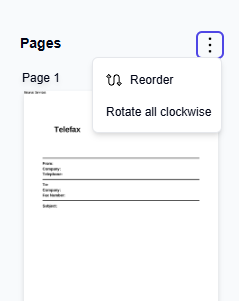
Click the three‑dot (…) menu.
-
Select Rotate clockwise to rotate all pages by 90 degrees.
Remove unwanted pages
Delete pages you don’t need in the final document.
-
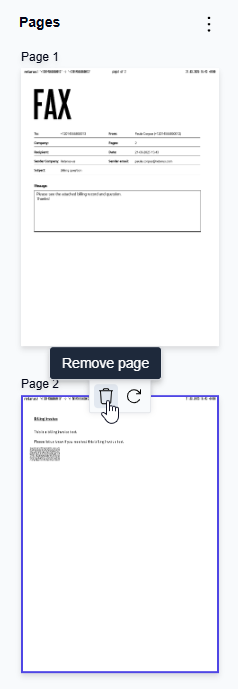
In the thumbnail view, select the page you want to remove.
-
Click Remove Pages in the toolbar.
→ The selected page is deleted from the document. -
Continue editing as needed.
Reorder pages
Change the page sequence to improve readability.
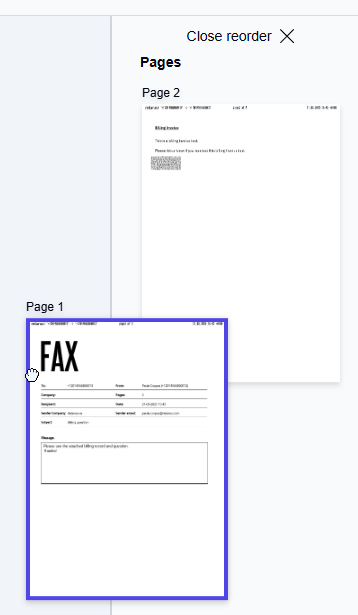
-
In the thumbnail view, click the three‑dot (…) menu and select Reorder.
→ Reorder mode opens. -
Drag and drop pages into the order you want.
-
Click Close reorder in the thumbnail view to exit reorder mode.
Save the document structure
-
Click Save.
→ A confirmation dialog appears. -
Click Save changes.