
Use the PDF Editor to upload and place signatures on any page of a fax. You can add, move, resize, or remove signatures at any time before you save.
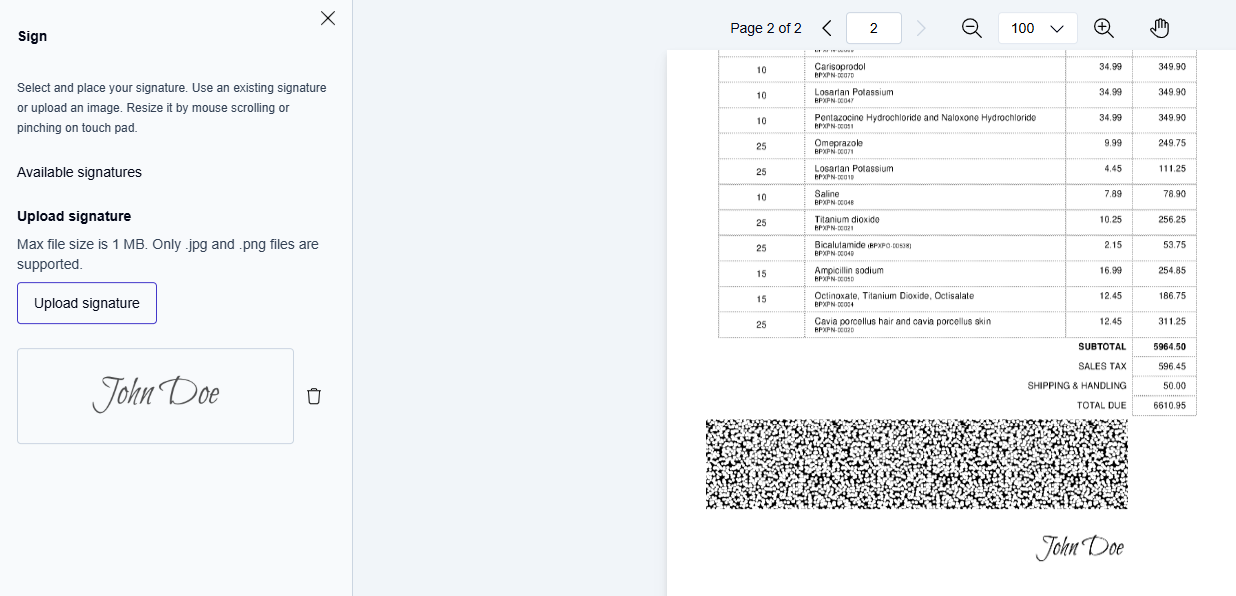
Supported signature files
-
File formats: JPG or PNG
-
Maximum file size: 1 MB per file
You can upload multiple signature files and reuse them across pages.
Add a signature
-
Click Sign in the toolbar.
→ The Sign pane opens on the left side of the PDF Editor. -
Upload your signature file.
-
In the left pane, select the signature you want to use.
-
Move your cursor to the location where you want to place the signature, then click the page.
After you place a signature, placement mode turns off automatically. To add another signature, select it again in the left pane.
Adjust a signature
Before you save, you can modify any placed signature.
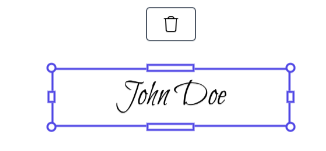
-
Reposition
Drag the signature to a new location. -
Resize
Drag a resize handle to make the signature larger or smaller. -
Remove
Select the signature, then press Delete or click the delete icon.
Click outside the signature to deselect it.
Add signatures to multiple pages
You can place the same signature on multiple pages. You can also upload and use different signatures in the same document. Each signature remains independently editable until you save.
Save signatures
When all signatures are in the correct position:
-
Click Save.
→ A confirmation dialog appears. -
Click Save changes.