
Redaction permanently hides sensitive information in a fax. Use redaction to prevent confidential data from appearing in the final document.
How redaction works
-
Redacted areas are permanently covered using the selected redaction style.
-
Redactions permanently hide the selected content in the edited document.
-
The original fax remains unchanged in the Fax Portal unless you store the fax in S3.
Redaction styles
You can choose how redacted areas appear in the document.
-
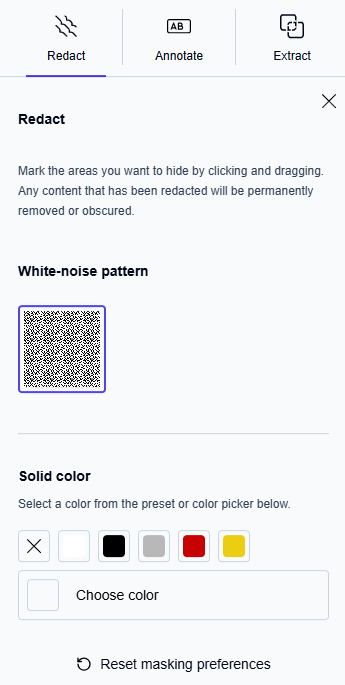
White‑noise pattern (default)
A randomized white‑noise overlay. This style is applied automatically the first time you use the tool. -
Solid color
Choose from preset colors. Click Choose color to select a custom color.
The PDF Editor remembers your selected redaction style for your next session.
Add a redaction
-
Click Redact in the toolbar.
→ The Redact pane opens on the left side of the PDF Editor. -
Select a redaction style.
-
Draw a box over the area you want to hide.
→ The area is immediately covered using the selected style. -
Repeat these steps for additional areas as needed.
Adjust redactions
Before you save, you can modify or remove any redaction.
Move or resize a redaction
-
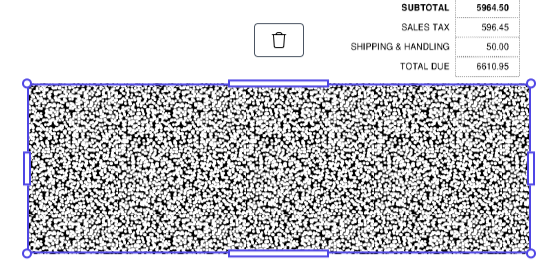
Click a redaction box to select it.
-
Drag the box to reposition it on the page.
-
Drag a resize handle to adjust its size.
Delete a redaction
-
Select the redaction box.
-
Press Delete or click the delete icon above the selected box.
Reset masking preferences
You can remove all current masking and redaction settings.
-
Click Reset masking preferences in the Redact pane.
-
To confirm, click Confirm reset.
This action permanently removes all redactions and masking settings and cannot be undone.
Save redactions
-
When all redactions are complete, click Save.
→ A confirmation dialog appears. -
Click Save changes.