
The PDF Editor supports several fax actions, allowing you to edit a fax before forwarding, emailing, exporting, or saving it in S3. These options are available for both received and sent faxes.
Forward and edit
Forward an edited fax to another fax number.
-
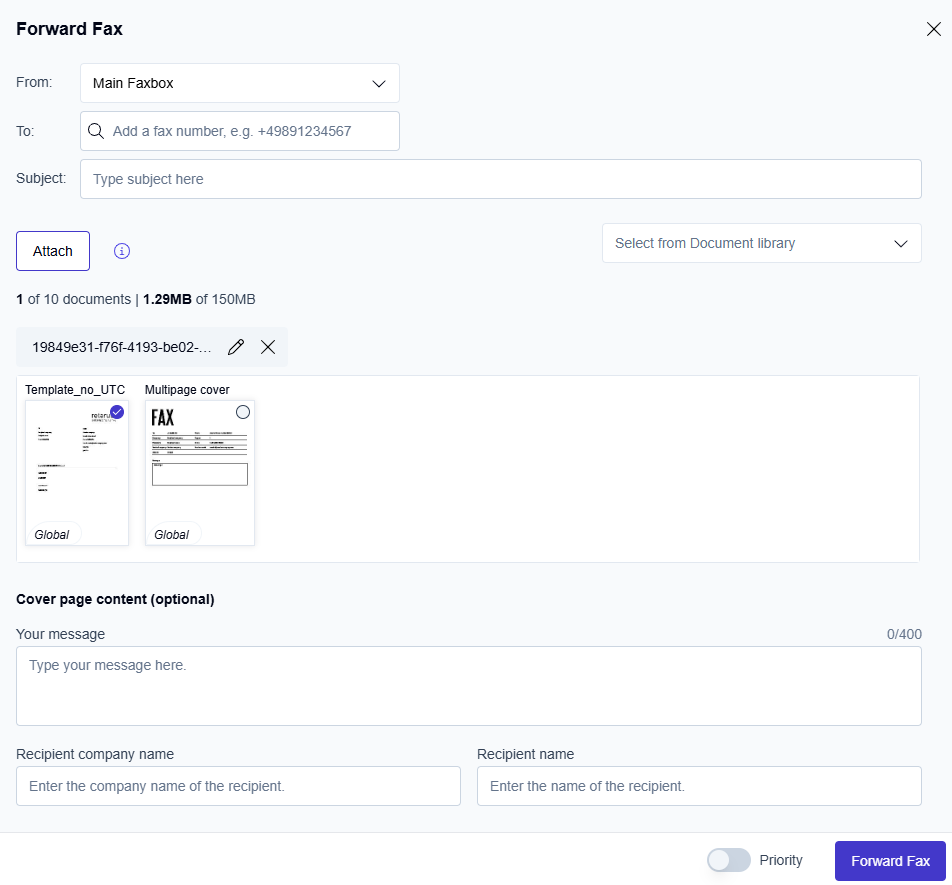
Open a received or sent fax and select Forward.
-
Click the pen icon

📌 For sent faxes, the pen icon appears next to each attachment individually (up to 10 attachments). You can edit each one separately.
-
Make your changes in the PDF Editor.
-
Click Save, then click Save changes.
-
Complete the forwarding details.
-
Send the fax.
→ The system forwards the edited fax and displays it in your Outbound folder for tracking. The activity log entry is added to both the original fax and the forwarded fax.
For more information, see Forward a fax.
Send via email and edit
Email an edited fax as an attachment.
-
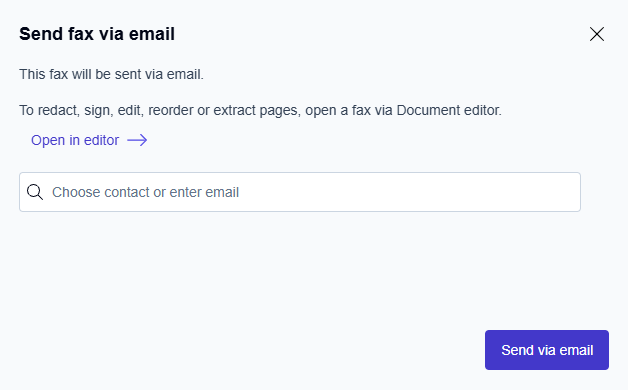
Open a received or sent fax and select Send via Email.
-
Click the Open in editor link.
-
Make your changes in the PDF Editor.
-
Click Save, then click Save changes.
-
Complete the email details.
-
Send the email.
→ The system emails the edited fax, but does not store it in the Outbound folder.
For more information, see Send a fax via email.
Export and edit
Download an edited fax to your local computer.
-
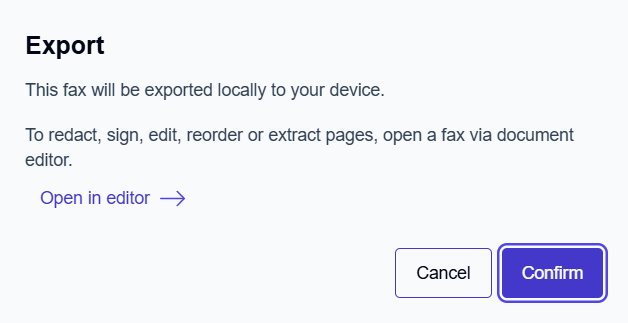
Open a received or sent fax and select Export.
-
Click the Open in editor link.
-
Make your changes in the PDF Editor.
-
Click Save, then click Save changes.
-
Click Confirm.
→ The system downloads the edited fax to your local computer.
For more information, see Export faxes to a local computer.
Store in S3 and edit
Save an edited fax in Amazon S3.
📌 If you are storing in S3 a sent fax and it has multiple attachments, they are merged into a single document before editing begins.
-
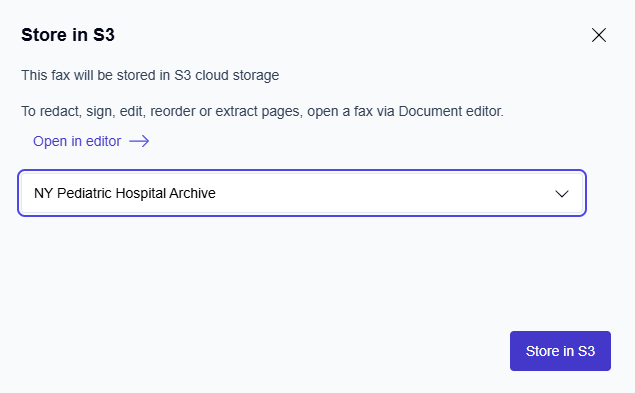
Open a received or sent fax and select Store in S3.
-
Click the Open in editor link.
-
Make your changes in the PDF Editor.
-
Click Save, then click Save changes.
-
Complete the S3 storage details
-
Store the document.
The system stores the edited fax in S3.
-
For received faxes, the portal does not retain the fax after storage.
-
For sent faxes, the original fax remains in the portal. Only the edited version is stored in S3.
For more information, see Store faxes in S3.